

Hierdie artikel handel oor hoe om toegang tot taakbestuurder vir Mac te kry. all information about task manager available that you want to know.
Sometimes Applications crashed unexpectedly and your computer may be hanged. your pc process goes slow. a file can be lost with these unknown errors. TaskManager is a useful application to monitor device processes and shut down quickly all misbehaving processes and tools. task manager for Mac and task manager for windows are both available.
Windows users are using task managers regularly to stop applications immediately. when you are migrating from windows to mac, most of the shortcut keys don’t work on Mac operating systems. you feel like a newbie with a new platform and features.
In windows to bring up Task Manager, Just Press Ctrl+Skof+Delete popup will be on the screen within a second. Maar Mac-gebruikers kan nie hierdie opdrag uitvoer nie. Taakbestuurder vir Mac is ook beskikbaar, maar dit het 'n ander naam. dit verskaf rekenaarwerkverrigting en lopende sagtewarebesonderhede. dit bied ook 'n beëindigingsopsie om enige proses binne 'n sekonde te stop.
Mac het Taakbestuurder met 'n ander naam 'Aktiwiteitsmonitor'. dit maak oop vanaf met verskillende metodes. Aktiwiteitsmonitor soortgelyk aan Windows-taakbestuurder. dit is nie ingewikkeld om dit te gebruik nie.
Hierdie artikel handel oor Taakbestuurder vir Mac, wat dit kan doen, hoe om toegang tot taakbestuurder in Mac te verkry.
Metode oor Open Taakbestuurder vir Mac
Keuse 1:
- maak Finder oop
- Gaan na Utilities onder Application Tab
- Klik op Aktiwiteitsmonitors.
Keuse 2:
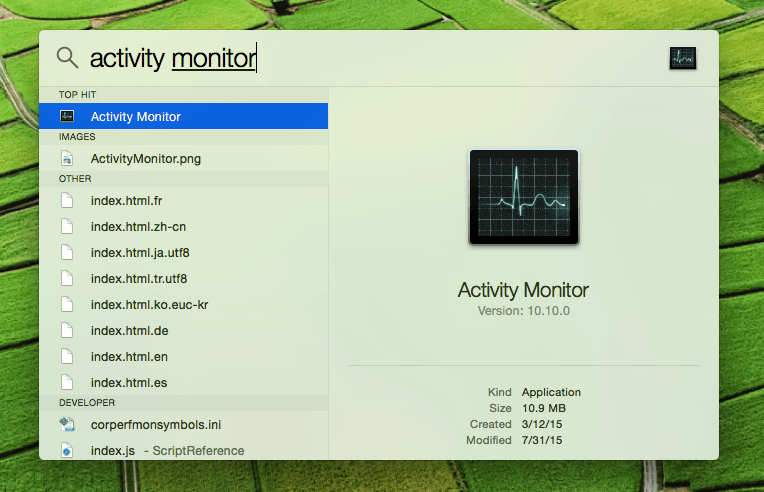
- Druk die Kommandeer + Ruimte sleutel om te begin Kollig. dit kan ook vanaf die spyskaartbalk bo regs beskikbaar wees.
- Tik ‘Aktiwiteitsmonitor‘ in die soekveld.
- druk Enter
Daar is verskillende oortjies beskikbaar op Taakbestuurder Windows: SVE, geheue, energie, skyf, netwerk, en kas. elkeen wys verskillende inligting vir die uitvoer van sagteware en proses.
Klik eenvoudig op die toepassing/proses wat jy wil verlaat en klik dan op die groot Sluit-knoppie op die Aktiwiteitsmonitor-venster. dit wys Quit Windows op die skerm. as 'n toepassing nie reageer nie, klik eenvoudig op die “Dwing om op te hou” knoppie om die toepassing onmiddellik af te skakel.
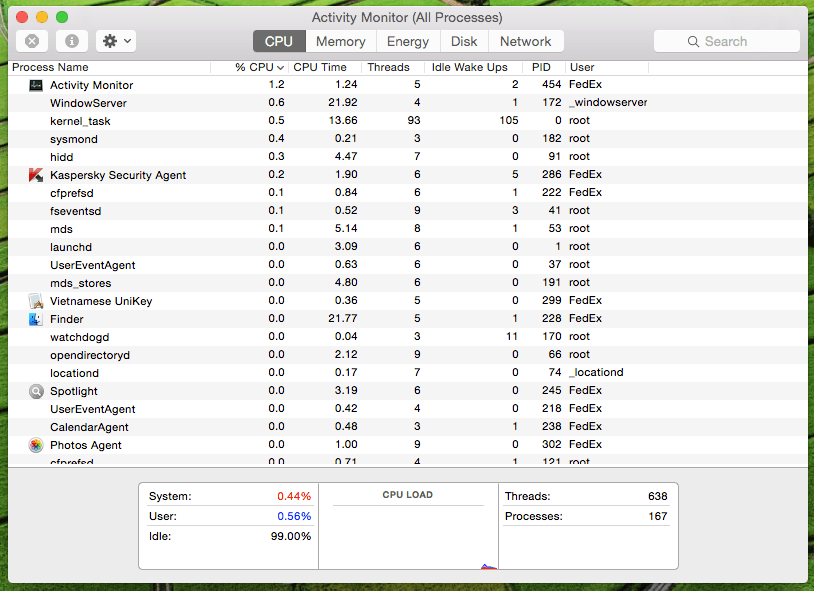
Activity Monitor is very useful because it not only shows applications that are run by the user but also shows information about a system-level task, kerntake, daemone, prosesse wat in die agtergrond loop wat aan 'n ander gebruiker behoort.
Jy kan Aktiwiteitsmonitor gebruik om Mac-programme af te dwing wanneer programme nie reageer nie. you can also use a Shortcut key to quit any app with force. simply press, Kommandeer + Keuse + Esc to bring up Force Quit Application. after choosing the application that you want to force quit.

