آیا می خواهید هدفون های بی سیم کوردن را با دستگاه های خود جفت کنید؟? آیا هر زمان که می خواهید به موسیقی گوش دهید و با تلفن همراه یا دستگاه های دیگر مانند رایانه شخصی تماس بگیرید، از سیم های درهم خسته شده اید؟, تب لپ تاپ, و غیره.?
اگر چنین است, وقت آن است که به هدفون های بی سیم تغییر دهید. از گزینه های متعدد موجود در بازار, یکی از برندهای برجسته Kurdene است. هدفون های بی سیم کوردن با فناوری پیشرفته و طراحی منحصر به فرد خود تجربه شنیداری یکپارچه و تناسب راحت را برای ما فراهم می کنند..
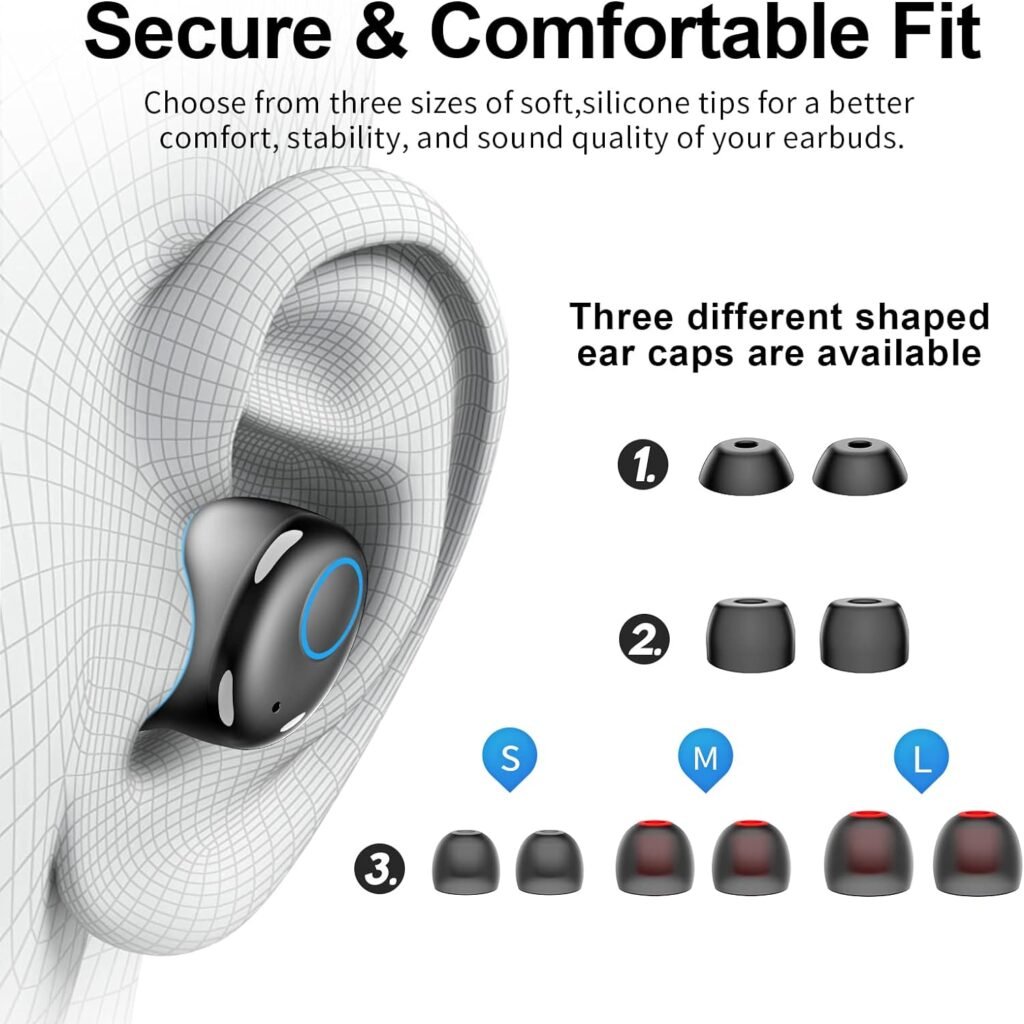
هر سطحی که گوش شما را لمس می کند از سیلیکون مایع ساخته شده است - پلاستیک سخت نیست اندازه M نصب شده است, 6 جفت کلاهک گوش با اشکال مختلف با اندازه S/M/L برای گزینه ای برای تناسب قابل تنظیم.
نازل سیلیکونی مایع برای راحتی، فشار را به طور مساوی در گوش شما پخش می کند, ثبات, و مسدود کردن نویز غیرفعال. به شما برای راحتی تمام روز با خستگی کمتر مناسب است
اگر به دنبال طول عمر باتری هستید، هدفون های بی سیم کوردن راه حلی هستند, باس کوبنده, و مقاومت در برابر آب. چون کوردنه گوشواره های بی سیم برای هر نوع فعالیتی ایده آل هستند.
اینجا, ما شما را راهنمایی می کنیم تا هدفون های بی سیم کوردن را با دستگاه های خود جفت کنید. اگر تازه وارد لوازم جانبی بی سیم هستید, ما دستورالعمل های گام به گام را برای جفت کردن هدفون های بی سیم کوردن با دستگاه های شما ارائه خواهیم کرد..
هدفون بی سیم کوردن
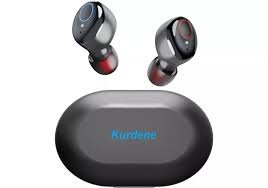
را هدفون بی سیم کوردن از طریق پر انرژی بودن خود در بازار نامی دست و پا کرده اند, ملودی های باس سنگین و طراحی چشم نواز. هدفون های بی سیم کوردن کیفیت صدای عالی و اتصال قابل اعتماد را ارائه می دهند.
با طراحی ارگونومیک و عمر باتری طولانی, این هدفون ها برای بهبود تجربه تلفن همراه شما طراحی شده اند. هدفون های بی سیم کوردن با استانداردهای IPX8 در برابر آب مقاوم هستند. این ویژگی آنها را فقط برای ورزش ایده آل نمی کند, بلکه برای دوش گرفتن و شنا.
آنها زمان باتری خوبی دارند که هر هدفون کوردن به آن دست می دهد 6 ساعت ها پخش با یک بار شارژ. کیس شارژ نیز چهار شارژ اضافی را ارائه می دهد, افزایش عمر باتری به 30 ساعت ها. آنها دارای برد سیگنال 40-50 فوت هستند.
هدفون های بی سیم کوردن گزینه خوبی برای مکالمه هندزفری هستند, و نویز پس زمینه از طریق قابلیت حذف نویز کاهش می یابد. این هدفون ها برای مناطق پر سر و صدا بهترین استفاده را دارند.
هدفون های بی سیم کوردن را با دستگاه های خود جفت کنید
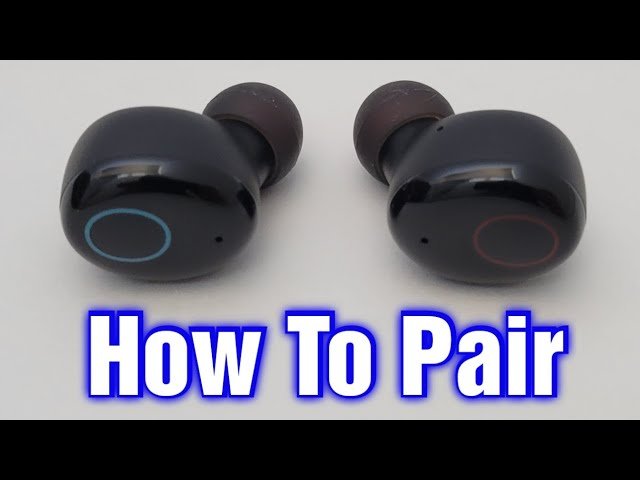
بسته به نوع دستگاهی که استفاده می کنید، هدفون های بی سیم کوردن را با دستگاه های خود جفت کنید, اما مراحل کلی یکسان است. دستورالعملهای ارائه شده در زیر را دنبال کنید تا هدفونهای بیسیم کوردن را با موفقیت جفت کنید. برای جفت کردن هدفون های بی سیم کوردن با دستگاه های خود مراحل زیر را دنبال کنید.
هدفون های کوردن را با آیفون خود جفت کنید
برای جفت کردن هدفون های کوردن با آیفون خود 11, 12, یا 13, مراحل زیر را دنبال کنید
- برنامه تنظیمات را در آیفون خود باز کنید.
- اکنون, در تنظیمات آیفون شما, روی بلوتوث ضربه بزنید.
- هدفون ها را از قاب بیرون بیاورید و به طور خودکار وارد حالت جفت شدن می شوند. نشانگر LED روی هدفون سمت چپ به رنگ آبی و سفید چشمک می زند.
- اگر هدفون های هدفون در حالت جفت شدن هستند, آنها را در لیست تلفن خواهید دید. ساده, هدفون های کوردن خود را از لیست دستگاه ها انتخاب کنید, و به صورت خودکار به آیفون شما متصل می شوند.
هدفون های Kurdene را با گوشی های اندرویدی خود جفت کنید
برای جفت کردن هدفون های کوردن با گوشی های اندرویدی سامسونگ, شیائومی, اوپو, و گوگل پیکسل, دستورالعمل های زیر را دنبال کنید
- اولین, هدفون ها را روشن کنید و هدفون ها به طور خودکار وارد حالت جفت شدن می شوند. نشانگر LED روی هدفون سمت چپ به رنگ آبی و سفید چشمک می زند.
- به برنامه تنظیمات در تلفن Android خود بروید
- سپس, به تنظیمات بلوتوث بروید.
- اکنون هدفون های Kurdene خود را از لیست دستگاه های موجود انتخاب کنید تا آنها را با دستگاه اندروید خود جفت کنید.
هدفون های کوردن را با MacOS جفت کنید, مک بوک پرو, مک بوک ایر, و آی مک
این دستورالعمل ها را دنبال کنید تا هدفون های Kurdene را به MacOS خود متصل کنید, مک بوک پرو, مک بوک ایر, و آی مک
- System Preferences را در مک خود باز کنید.
- روی بلوتوث در گزینه ها کلیک کنید.
- سپس, در سمت چپ, روی Turn Bluetooth on کلیک کنید تا بلوتوث در مک شما فعال شود.
- هدفون های کوردن خود را در حالت جفت شدن قرار دهید. در حالت جفت شدن, نشانگر LED هدفون سمت چپ بین نورهای آبی و سفید به طور متناوب تغییر می کند.
- در سمت راست پنجره بلوتوث, هدفون های Kurdene خود را می بینید و روی Connect ضربه بزنید.
- اکنون, شما با موفقیت هدفون های Kurdene خود را با مک یا مک بوک خود جفت کرده اید.
هدفون های Kurdene را با رایانه شخصی ویندوزی خود جفت کنید
دستورالعمل های زیر را دنبال کنید تا هدفون های کوردن خود را با ویندوز جفت کنید 11 یا ویندوز 10 کامپیوتر یا لپ تاپ
- اولین, هدفون های کوردن خود را در حالت جفت شدن قرار دهید. برای انجام این کار, نشانگر LED روی هدفون سمت چپ بین الگوهای چشمک زن آبی و سفید متناوب می شود.
- برنامه Settings را با جستجوی آن در منوی Start باز کنید.
- در تنظیمات ویندوز, بلوتوث را انتخاب کنید & دستگاه, and then click Bluetooth to enable it.
- اکنون, tap on the Add device option.
- بعد, بلوتوث را انتخاب کنید.
- اکنون, wait for your Windows PC to search for available devices before selecting your Kurdene earbuds from the list.
نحوه تنظیم مجدد هدفون های بی سیم کوردن?
TurnOff your earbuds. To achieve this you will need toPut the Earbuds Into the Charging Case. Delete Previous Connections with your devices. You can do this in the Bluetooth Settings of your device.
Press and hold the Touchbutton of both earbuds simultaneously for at least 15 ثانیه. The earbuds should shut off. Now turn it on again, and press and hold the Touch buttons for 3 ثانیه.
You can now turn on Bluetooth and Pair Kurdene Wireless Earbuds to Your Devices again by following the above-mentioned steps carefully.
نحوه شارژ هدفون و جعبه شارژ?
Before you can start using your Kurdene wireless earbuds, it is important to ensure that they are fully charged. Here is a step-by-step guide on how to charge your Kurdene earbuds.
- ساده, put the earbuds in the charging case the earbuds automatically start charging.
- When the earbuds are properly connected to the charging cable, you will usually see an LED indicator light up on the earbuds or the charging cable. This light indicates that the earbuds are successfully charging.
- Once the earbuds are fully charged, the LED indicator should change color or turn off to indicate that the charging process is complete.
- To charge the charging case take the charging cable that came with your Kurdene earbuds and connect it to a power source. This can be a USB port on a computer, a wall adapter, or a power bank.
توجه داشته باشید: با دنبال کردن این مراحل ساده, you can ensure that your Kurdene wireless earbuds are properly charged and ready to use. Charging your earbuds regularly will help you enjoy uninterrupted music playback and calls without worrying about a drained battery.
نکات عیب یابی
While Kurdene wireless earbuds provide a seamless and convenient listening experience, you may have issues pairing them to your devices. Don’t fret Here are some troubleshooting tips to help you resolve these problems and get back to enjoying your favorite track.
شارژ کردن: Make sure that your earbuds are fully charged. Because low battery sometimes causes connectivity problems. Make sure your Kurdene wireless earbuds are fully charged before Pair Kurdene Wireless Earbuds to Your Devices. Plug them into the charging case and wait until the LED indicators show a solid green light.
Reset the earbuds: If you’re experiencing persistent connection issues, try resetting your Kurdene wireless earbuds. برای انجام این کار, put both earbuds back into the charging case and leave them for a few seconds. Take out them again and try to Pair Kurdene Wireless Earbuds to Your Devices.
Check Bluetooth settings: Make sure that the Bluetooth on your device is turned on and that it is discoverable. گاهی اوقات, connectivity issues can occur due to a device not being visible to the earbuds. Go to your device’s settings and make sure Bluetooth is enabled.
Keep devices within range: Bluetooth connectivity is limited by distance. Make sure your device is within range of the Kurdene earbuds. Being too far away can result in a weak or unstable connection. بنابراین, keep your device within 10 meters of the earbuds for stable performance.
Clear device and earbud pairing history: If you’ve previously paired the earbuds with multiple devices, the connection might be disrupted. Clear the pairing history on both the earbuds and your device, and then try to Pair Kurdene Wireless Earbuds to Your Devices again by following the above steps.
Disconnect and reconnect: If you’re experiencing intermittent connectivity problems, try to disconnect the earbuds from your device and then Pair Kurdene Wireless Earbuds to Your Devices again. This can help establish a fresh connection and resolve any temporary glitches.
Contact customer support: If you’ve tried all the troubleshooting steps and are still facing issues with the connection, don’t hesitate to reach out to Kurdene’s customer support. They will be able to provide further assistance and help resolve any persistent connectivity problems.
با رعایت این نکات عیب یابی, you can overcome most connection issues with Kurdene wireless earbuds and enjoy uninterrupted audio playback. یادآوری کردن, patience and persistence are key when troubleshooting technology, so don’t get discouraged if the issue persists. With a little troubleshooting, you’ll be back to enjoying your favorite music in no time.
سوالات متداول برای جفت کردن هدفون های بی سیم کوردن با دستگاه های شما
چرا فقط یکی از هدفون های کوردن من کار می کند؟?
اگر, just one of your Kurdene earbuds is working. For both earbuds connection, the first thing you should do is make sure both earbuds are charged. After this when the connections are not properly. Clean the charging space on both the earbuds and the inside of the case this helps you to appropriate contact.
چگونه می توانم هدفون های کوردن خود را بازنشانی کنم?
To reset Kurdene earbuds, switch off both earbuds and remove the Bluetooth connection from all of your devices. Hold the touch panel on each earbud for 15 ثانیه, then release your hold. سرانجام, press and hold the earbuds’ touch panel for 3 seconds to switch them on, and Pair Kurdene Wireless Earbuds to Your Devices again by following the pair instructions.
چرا نمی توانم هدفون های کوردن خود را به دستگاهم وصل کنم?
The most typical reason for your Kurdene earbuds not working is a pairing process issue. در این موارد, simply disconnecting your earbuds from your Bluetooth device and resetting your Kurdene earbuds should fix the problem. Cleaning the charging pins in the charging casing and solve your problems in this way and again Pair Kurdene Wireless Earbuds to Your Devices.
آیا می توانم هدفون های کوردن را همزمان به چندین دستگاه متصل کنم؟?
آره, the Kurdene earbuds can be paired with many devices; با این حال, keep in mind that the headsets can only play music from one of the paired devices at a time.
نتیجه
Pair Kurdene Wireless Earbuds to Your Devices is a simple process that allows you to enjoy a seamless and immersive audio experience. با پیروی از دستورالعمل های گام به گام ارائه شده, you can effortlessly Pair Kurdene Wireless Earbuds to Your Devices and begin enjoying your favorite music, پادکست ها, یا تماس می گیرد.
راحتی و آزادی ایربادهای بی سیم آن ها را به انتخابی محبوب برای لوازم جانبی موبایل تبدیل کرده است. در این پست, we tell you how to Pair Kurdene Wireless Earbuds to Your Devices.
We showed you how to Pair Kurdene Wireless Earbuds to Your Devices like Windows, اندروید, آیفون, و مک. We also reviewed some earphones and answered some Kurdene wireless earbuds-related FAQs. در نهایت, امیدواریم این مقاله به شما کمک زیادی برای کسب اطلاعات در مورد این محصول کند.