Qee zaum Windows 10 Cov neeg siv ntsib qhov yuam kev thaum txuas cov tshuab luam ntawv uas hais “lub active directory domain cov kev pab cuam tam sim no tsis muaj”. Qhov yuam kev txhais tau hais tias lub kaw lus tsis tuaj yeem nrhiav thiab txuas nrog lub tshuab luam ntawv. lub computer tswj tag nrho cov peev txheej nrog kev pab los ntawm qhov system no. qhov yuam kev no ib txwm tshwm sim thaum tsim teeb meem nrog cov tsav tsheb thiab kev tso cai tswj hwm. qhov yuam kev tiv thaiv lub computer kom txuas nrog lub tshuab luam ntawv.
Hauv tsab xov xwm no, Kuv yuav coj koj los daws qhov kev ua yuam kev no nrog kev daws teeb meem zoo tshaj plaws thiab yooj yim. ua raws li cov kauj ruam hauv qab no kom tshem tawm qhov yuam kev no.
muaj peb txoj hauv kev los kho qhov teeb meem no. koj tuaj yeem sim txhua txoj kev no ib los ntawm ib qho.
Txoj kev 1: Xyuas Network Installation thiab Ntxiv Tshuab Luam Ntawv Manually
qee zaum qhov kev daws teeb meem yooj yim heev rau qhov teeb meem. thawj yam uas peb yuav tsum tau ua yog lub tshuab luam ntawv ntsia los yog tsis?
koj yuav tsum tau xyuas los ntawm cov kauj ruam no. ua raws li kuv los daws cov kev pabcuam sau npe ua haujlwm tam sim no tsis muaj windows 10
- Xovxwm Windows key + X
- Nyem rau ntawm Control Vaj Huam Sib Luag
- Tam sim no nrhiav cov Devices thiab Printers xaiv thiab nyem rau ntawm nws.
- koj tuaj yeem pom ob pawg Ntaus thiab tshuab luam ntawv.
- xyuas koj lub tshuab luam ntawv muaj los yog tsis. yog tias tam sim no ob npaug nias rau nws kom pom kev txuas lossis tsis tau.
- yog tias koj lub tshuab luam ntawv tsis nyob, koj tuaj yeem ntxiv nws manually. Nyem rau Ntxiv lub tshuab luam ntawv thiab xaiv lub tshuab luam ntawv los ntawm cov npe thiab ntxiv nws.
- yog tias koj lub tshuab luam ntawv txuas nrog koj lub computer ua tiav ces nws ua haujlwm ib txwm.
yog tias tseem muaj qhov yuam kev ces mus rau qhov kev daws teeb meem tom ntej

Txoj kev 2: Hloov chaw tshuab luam ntawv Spooler
- nias lub Windows logo key thiab R hu rau Run Box
- Nyob rau hauv lub dialog box hom services.msc thiab nias nkag mus coj mus rau qhov kev pabcuam qhov rai.
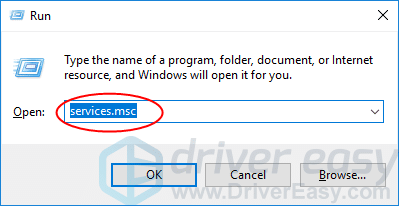
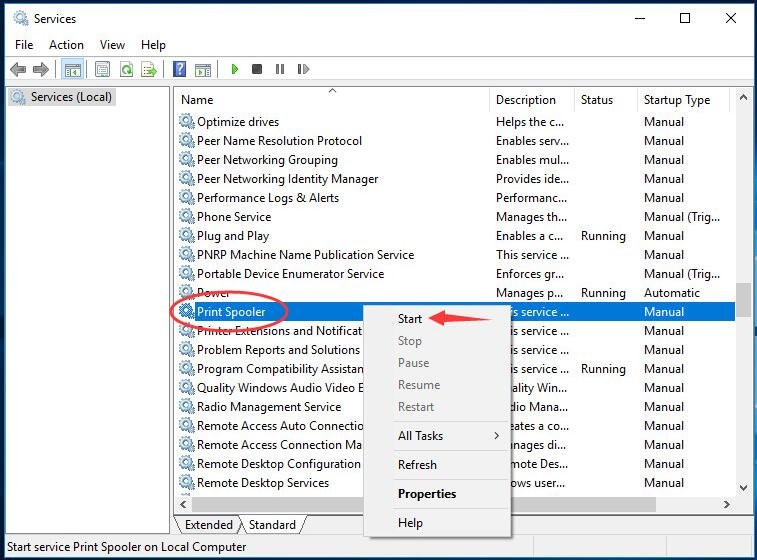
- Right-click rau Lub tshuab luam ntawv Spooler kev pabcuam thiab nias Pib.
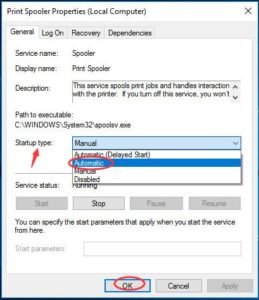
- Tom qab tau pib ob-nias rau nws. Teem nws hom pib rau Tsis siv neeg. Ces nyem OK txuag qhov chaw.
- Kaw Cov Kev Pabcuam qhov rai thiab xyuas seb koj puas tuaj yeem luam cov ntaub ntawv ua haujlwm tau zoo.
Txoj kev 3: Muab kev nkag mus rau PrinterPorts thiab Windows
Yog tias ob txoj hauv kev tsis ua haujlwm ces peb yuav tsum sim hloov kev tso cai nrog kev pab los ntawm tus sau npe editor. koj yuav tsum tau tso cai rau lub tshuab luam ntawv ports.
- Windows logo key thiab R mus qhib lub Run app.
- Hom regedit thiab nias Nkag mus qhib Registry Editor.

Nyem Yog lawm thaum hais los ntawm User Account Control.
- Ib zaug nyob rau hauv lub npe editor, taug kev mus rau cov kab ntawv hauv qab no:
- Hauv Registry window, mus HKEY_CURRENT_USER > Software > Microsoft > Windows NT > CurrentVersion.
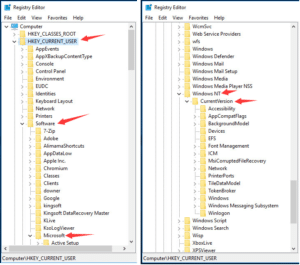
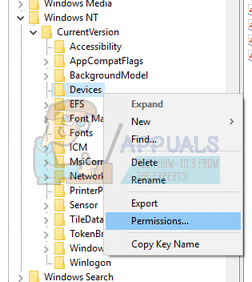
- Right-click rau Kua roj hauv qab CurrentVersion dialog.
Ces nyem Tso cai.
- nrhiav koj tus account los ntawm daim ntawv teev npe no. tickmark tag nrho cov checkboxes hauv qab no “tso cai” kem.
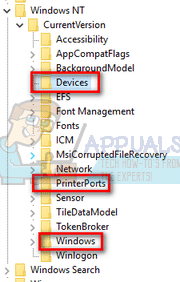
- ua tib yam txheej txheem rau “tshuab luam ntawv” thiab “qhov rais” zaub mov.
- Tom qab ua tiav. thov restart koj lub computer.
Ntawm no koj daws qhov yuam kev ua tiav cov active directory domain cov kev pab yog tam sim no tsis muaj windows 10.Kuv vam tias koj tau txais koj qhov kev daws teeb meem. yog koj nyiam kuv qhov post thov qhia rau cov neeg txom nyem hauv Facebook, Twitter, Txuas hauv, lwm.