Qhov tsab xov xwm no yog hais txog yuav ua li cas nkag mus rau Task Manager rau Mac. Tag nrho cov ntaub ntawv hais txog Task Manager muaj uas koj xav paub.
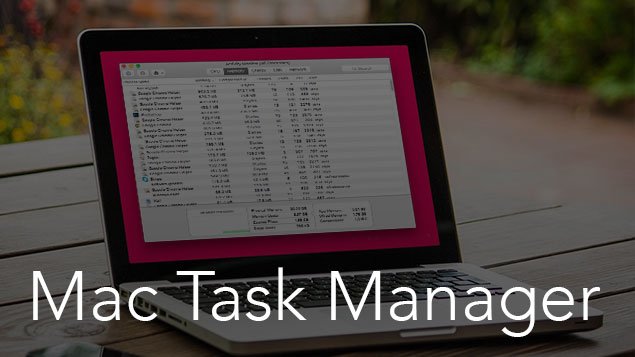
Tej zaum daim ntawv thov crash unexpectedly thiab koj lub computer yuav dai. Koj PC txheej txheem mus qeeb. Ib cov ntaub ntawv yuav ploj nrog cov tsis paub yuam kev. Tus Thawj Saib Xyuas Kev Ua Haujlwm yog ib daim ntawv thov muaj txiaj ntsig los saib xyuas cov txheej txheem ntaus ntawv thiab kaw sai sai txhua tus txheej txheem thiab cov cuab yeej tsis zoo. Tus Thawj Saib Xyuas Haujlwm rau Mac thiab Tus Thawj Saib Xyuas Haujlwm rau Windows yog ob qho tib si muaj.
Cov neeg siv Windows tsis tu ncua siv Tus Thawj Saib Xyuas Haujlwm los nres cov ntawv thov tam sim ntawd. Thaum koj tab tom tsiv teb tsaws chaw los ntawm Windows rau Mac, Feem ntau ntawm cov yuam sij luv luv tsis ua haujlwm ntawm Mac operating systems. koj xav tias zoo li tus neeg tshiab nrog lub platform tshiab thiab cov yam ntxwv.
Hauv Windows, kom nqa Task Manager, Cia li nias Ctrl+Hloov+Rho tawm Lub popup yuav tshwm sim ntawm qhov screen hauv ib pliag. Tab sis cov neeg siv Mac tsis tuaj yeem khiav cov lus txib no. Tus Thawj Saib Xyuas Haujlwm rau Mac kuj muaj, tab sis nws muaj lub npe txawv. Nws muab lub computer kev ua tau zoo thiab khiav cov ntsiab lus software. Nws tseem muab qhov kev xaiv txiav tawm kom nres txhua tus txheej txheem hauv ib pliag.
Mac muaj Tus Thawj Saib Xyuas Kev Ua Haujlwm nrog lub npe txawv 'Tus Saib Xyuas Kev Ua Haujlwm'. Nws qhib hauv txoj kev sib txawv. Saib xyuas kev ua si zoo ib yam li Windows Task Manager. Nws tsis nyuaj siv nws.
Tsab xov xwm no yog hais txog Tus Thawj Saib Xyuas Haujlwm rau Mac, Nws tuaj yeem ua li cas, Yuav ua li cas nkag mus rau Tus Thawj Saib Xyuas Haujlwm ntawm Mac.
Txoj kev qhib Task Manager rau Mac
Option 1:
- Qhib Finder
- Mus rau Utilities nyob rau hauv cov ntawv thov tab
- Click on Activity Monitors.
Option 2:
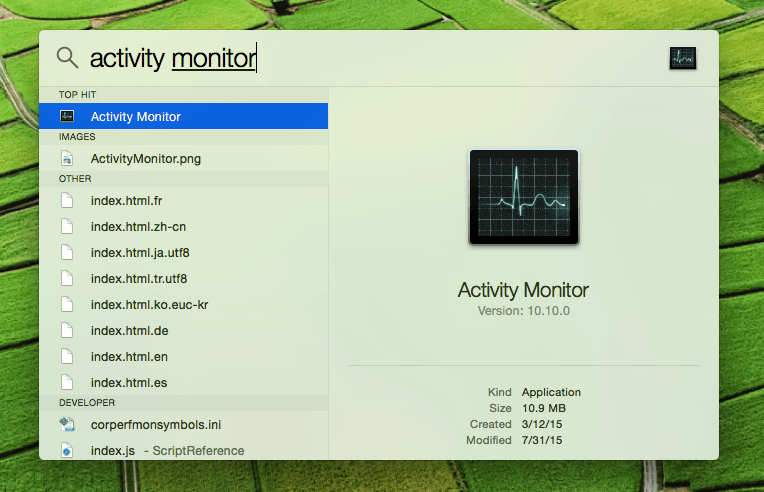
- Press the Command + Space key to launch Spotlight. it can also be available from the Upper right menu bar.
- Yam ‘Activity Monitor‘ Hauv thaj chaw tshawb nrhiav.
- hit Enter
There are different tabs available on Task Manager Windows: CPU, Nco, energy, disk, network, and cache. each one show different information for running software and process.
Simply click on the application/process that you want to quit then click on the large Quit Button on the Activity Monitor window. it shows Quit Windows on the screen. if an app becomes unresponsive simply click the “Force Quit” button to shut down the app immediately.
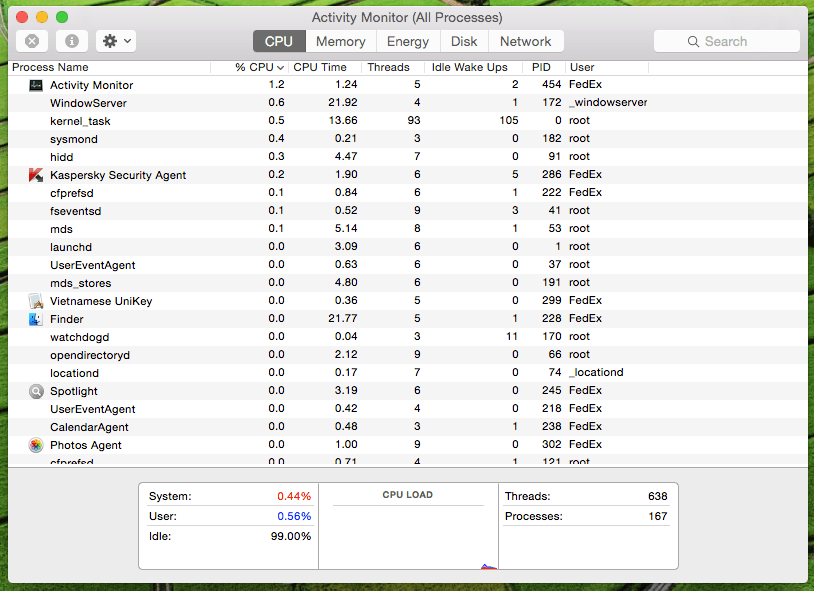
Activity Monitor is very useful because it not only shows applications that are run by the user but also shows information about a system-level task, kernel tasks, daemons, processes that run in the background that belong to another user.
You can use Activity Monitor to Force Quit Mac apps when apps become unresponsive. you can also use a Shortcut key to quit any app with force. simply press, Command + Option + Esc to bring up Force Quit Application. after choosing the application that you want to force quit.
![Nyeem ntxiv txog tsab xov xwm 20+ Niaj hnub nimno dub wallpaper rau iPhone [Download dawb]](https://toolpub.com/wp-content/uploads/2021/11/yousef-alfuhigi-yuuAGGXfe54-unsplash-240x300.jpg)