
Molumo oa iPhone ha o sebetse ka lebaka la mathata a Software le Hardware. Bothata ba Software bo ka lokisa habonolo. ho na le mabaka a mangata a thibelang ho bapala sebui sa fono. U ka 'na ua tobana le mathata nakong ea ho utloa lentsoe la hau ha u ntse u letsa, Molumo ha o sebetse ha o ntse o bapala molumo kapa video, etc., Mona ke tla arolelana tharollo ea ts'ebetso ho rarolla mathata ana.
[lwptoc]
10 Litokiso tsa molumo oa iPhone ha li sebetse
Lokisa 1: Qala iPhone bocha
Haeba molumo oa hau oa iPhone o sa sebetse Feela Qala hape fono ea hau. E tla rarolla mathata ohle a amanang le software. Mathata a hau a amanang le molumo a ka lokisoa. o ka qala fono ea hau bocha ka litsela tse peli. Soft Reset le Hard Reset.
Mokhoa oa ho tsosolosa o bonolo
Bakeng sa reset e bonolo, u sa tsoa tobetsa konopo ea Side Volume up le konopo ea Matla ho fihlela selaete sa matla se hlaha skrineng.
Hang ha u se u fumane Power Slider, feela Hula selaete ho tloha ho le letšehali ho ea ho le letona. Fono ea hau e tla qala ka bo eona.
Reset e thata

- Tobetsa Konopo ea Phatlalatso ea Phatlalatso le ho lokolla kapele.
- Tobetsa Konopo ea Volume Down 'me u lokolle kapele.
- Tobetsa Side Button ho fihlela o fumane aekhone ea apole skrineng.
- Fono e tla Seta Botjha.
ithuta ka ho qaqileng ho reset iPhone hao ho tloha Mokhoa oa ho fetola iphone ea iphone
Lokisa 2: Tlosa Mokhoa o Khutsitseng
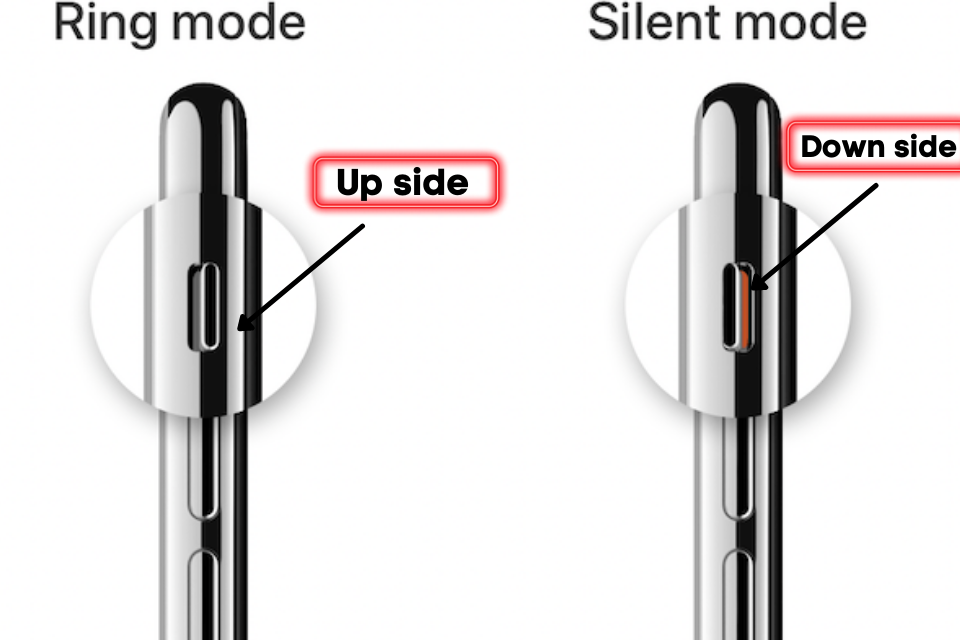
Apple Fana ka konopo ea Silent Button ka lehlakoreng le ka thōko. konopo ena e sebelisoa ho etsa hore mokhoa o khutsitseng. Haeba senotlolo se behiloe ka tlase ho bolela hore mokhoa oa ho khutsa o lumelletsoe.
Haeba konopo e setetsoe lehlakoreng la skrine hoo ho bolela hore mokhoa oa ho khutsa o tiisitsoe. kahoo ka kopo etsa bonnete ba hore mokhoa oa ho khutsa oa fono ea hau o tlameha ebe o koetsoe.
Lokisa 3: Tima Bluetooth
Haeba Fono ea hau e fetisetsa molumo ho sebui se seng sa molumo kapa AirPods ka Bluetooth, molumo o tla khutsisoa bakeng sa mohala oa hau..
Ho bulela Bluetooth, Tsamaea ho "Paneli ea Taolo" 'me u tobetse aekhoneng ea Bluetooth ho e tima.
U ka boela ua tima Bluetooth ka tsela e latelang Ho beha > Kakaretso > bluetooth le Toggle khetho ea Bluetooth.
Lokisa 4: Ntlafatsa ntlafatso ea iOS
Apple Khafetsa e nchafatsa mofuta oa ios ho ntlafatsa sistimi. lula u boloka fono ea hau e ntse e le teng ho thibela mathata a software. E tla ntlafatsa ts'ebetso ea mobile.
Ho ntlafatsa mofuta oa iOS, latela ho ea tseleng Ho beha > Kakaretso > Ntlafatso ea software
Lokisa 5: Seta Litlhophiso bocha
Haeba Li-setting tsa Mehala ea hau li fetotsoe ka phoso 'me molumo o tsoile fonong, seta botjha ke khetho e ntle ka ho fetisisa ea ho lokisa li-setting tsa kamehla..
Lintlha tsohle tsa hau li tla bolokeha. Likhetho tsena li seta bocha li-setting tseo u li fetotseng. ho seta boleng botjha, e ea ho Litlhophiso > Kakaretso > Seta > Seta li-setting tsohle bocha
Lokisa 6: Phetoho ea U se ke Ua Khathatsa
O ka bulela tshebeletso ya Seke wa Tshwantsha ka phoso. e khutsisa molumo le tsebiso. ho tima se sitiso, leba ho Li-setting > U se ke ua khathatseha khetho ebe u fetola mokhoa.
Lokisa 7: Leka Sebui sa Mohala
Haeba o fokotsa boemo ba molumo, o ka fetola maemo a Volume hore o mamele hantle.
Ho eketsa molumo o ea ho Litlhophiso > Molumo & Haptics le ho eketsa tlhokomeliso ea Ringer ho isa boemong bo holimo.
Lokisa 8: Tlosa sesebelisoa sa ho boloka betri ho Lisebelisoa tsa Batho ba Boraro
Lisebelisoa tsa motho oa boraro ka linako tse ling li fetola boemo ba molumo oa molumo. ha re khone ho e utloa hantle. haeba u kenya sesebelisoa leha e le sefe 'me ka tšohanyetso lentsoe le felile joale u tlose app.
Lokisa 9: Seta Reset
Haeba u leka litharollo tsohle empa bothata ba hau bo ntse bo emetse, o ka seta mohala oa hau bocha ka botlalo. Ho seta botjha fono ya hao, ya ho Litlhophiso > Seta > Tlosa dikahare tsohle
Ts'ebetso ea ho seta bocha e nka nako hore e phethe.
Lokisa 10: Numella tsebiso ea Mohala
Haeba u sa khethe molumo oa Tsebiso le SMS, litlhokomeliso tsa mohala li tla lula li khutsitse. o ka seta molumo oa tsebiso ho tsoa ho li-setting.
Taba ea Hardware
Hardware hape ke lebaka la tsamaiso ea molumo. haeba sebui sefe kapa sefe se senyehile u ka 'na ua tobana le mathata ha u ntse u mametse molumo. u ka ea ho tlhokomelo ea liapole ho lokisa kapele.
FAQs
Ke hobane'ng ha fono ea ka e se na molumo ka tšohanyetso?
Ho na le mabaka a mangata a thibelang molumo oa molumo joalo ka ts'ebeletso ea DND, Mokhoa o khutsitseng, Karolo ea boraro ea lisebelisoa, Litlhophiso tse fosahetseng, ntlafatso ea sistimi, software bugs, etc.
Ke hobane'ng ha ke sa utloe mang kapa mang ha a mpitsa ka iPhone ea ka?
Ho na le mabaka a mabeli a tloaelehileng a tlalehiloeng ke basebelisi. ea pele ke hore sesebelisoa sa hau se tobane le Bothata ba Hardware, Taba ea bobeli ea marang-rang hape ke lebaka la bothata ba lentsoe.
Ke etsa joang hore iPhone ea ka e tlohe maemong a khutsitseng?
Apple Fana ka konopo ea mokhoa o khutsitseng karolong e ka thōko. isa senotlolo sena skrineng sa mohala ho tima mokhoa o khutsitseng.
Kakaretso
Ba tobane le bothata ba molumo ka iPhone. U ka e lokisa ka Deactive seke oa khathatsa, Koala Bluetooth, Qala hape sesebelisoa, Seta bocha li-setting tsa marang-rang, tsosolosa li-setting tsohle, le ho tsosolosa fektheri. haeba u ntse u fumana bothata bona joale ikopanye le sehlopha sa liapole. li tla u thusa ho tsoa bothateng.
Ke ts'epa hore o tla fumana tharollo bakeng sa molumo oa iPhone ha o sebetse. Haeba o lokisitse bothata, o arolelane le basebelisi ba iPhone.


![Bala ho eketsehileng ka sehlooho se reng Voicemail ha e sebetse ka iPhone? [Rarolla Habonolo]](https://toolpub.com/wp-content/uploads/2021/11/jason-goodman-BAanEbxe9No-unsplash-200x300.jpg)