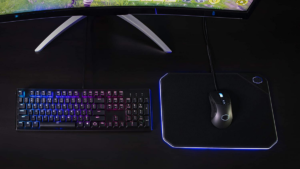
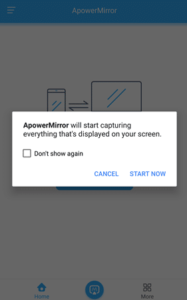
O'yin oynalarida sichqonchaning kechikishidan charchadim 10? Yoki sichqoncha kursoringiz silliq harakatlanmaydi? Sichqoncha sozlamalarini tekshirishingiz kerak, sichqoncha drayverini o'zgartiring yoki batareyani almashtiring. Windows 10-da sichqonchaning kechikishini qanday tuzatish mumkin.
Men simli sichqonchani ham ishlatishga harakat qildim va xuddi shu narsa sodir bo'ladi, Men DPI sozlamalarini pasaytirishga ham harakat qildim va bu hali ham sodir bo'lmoqda, shuning uchun nima sabab bo'lganini bilmayman. Agar siz simsiz sichqonchadan foydalanayotgan bo'lsangiz va sichqonchangiz kechiksa yoki kechiksa, sichqoncha kursorini boshqa dpi sichqoncha sozlamalariga sozlashingiz kerak bo'lishi mumkin. sekin javob vaqtini yoki sichqonchaning kechikishini tuzatish.
Windows 10 sichqonchaning kechikishi ko'p narsaning natijasi bo'lishi mumkin. Agar siz o'yin o'ynashda qiynalayotgan bo'lsangiz, yoki kursor sekin harakatlanayotganini sezsangiz, Windows-da sichqonchaning kechikishidan xalos bo'lish uchun bir necha qadamlar mavjud 10.
O'yindagi kechikishdan ko'ra yomonroq narsa yo'q, chunki sichqoncha kursori silliq harakatlanmasa, o'ynash yoki nishonni nishonga olish qiyin. Sichqoncha drayveri sozlamalari kechikishga sabab bo'lishi mumkin, shuning uchun ularni tekshirish muhim. Tekshirish uchun boshqa narsalar ham bor, batareyangiz kabi.
Kompyuter sichqonchasi har qanday ish stoli yoki noutbukda mavjud bo'lgan eng asosiy kiritish qurilmalaridan biridir. Sichqoncha kursorni yoki kursorning fokusini ekranda siljitish uchun ishlatiladi. U tanlash uchun ishlatilishi mumkin, sudrab olib tashlang yoki belgini bosing. Sichqoncha eng murakkab kiritish qurilmasi bo'lmasligi mumkin, lekin u eng asosiy va eng muhim qurilmalardan biridir..
Texnologiyaning paydo bo'lishi bilan, kompyuterlar rivojlandi va u bilan birga sichqoncha ham rivojlandi. Kompyuter sichqonchasining asosiy funktsiyasini saqlab qolgan holda ishlab chiqaruvchilar bir qator xususiyatlar va funktsiyalarni taqdim etdilar.
Windows-da sichqonchaning kechikishini tuzatish 10 agar sichqonchangiz to'satdan avvalgidek silliq bo'lmasa, va keyin siz ba'zi sozlamalarni tekshirishingiz kerak. Bu post sichqonchaning kechikishi haqida, qanday tashxis qo'yish kerak, va bosqichma-bosqich echimlar, shunda siz silliq musing tajribasini qaytarib olishingiz mumkin.
Windows o'yinlarida sichqonchaning kechikishini qanday tuzatish mumkin 10:
Bu erda biz o'yinlarda sichqonchaning kechikishini qanday tuzatishni tushunishga yordam beramiz, Shuningdek, sichqonchaning orqada qolishi va sakrashini qanday tuzatish kerakligini tushuntiring. Xuddi ism taklif qilganidek, sichqonchaning kechikishi kursorni ekran bo'ylab harakatlantirganda yuzaga keladigan sekinlik hissini anglatadi.
Agar siz professional dizayner yoki shunchaki qattiq o'yinchi bo'lsangiz, sichqonchaning kechikishi sizning asabingizga ta'sir qilishi mumkin bo'lgan narsadir. Bu bir necha millisekund bo'lishi mumkin, ammo bu o'yin seansini yoki chizmachilik vazifangizni yoki dizayn jarayoningizni buzish uchun etarli.. Yaxshi xabar shuki sichqonchaning kechikishini tuzatishingiz mumkin ba'zi narsalarni o'zgartirish orqali.
Haqiqatan ham muhim bo'lgan narsa aytilgan, so'ngida, Sizning ishingiz miqdori emas, balki uning sifati. Va, ish joyida bajarilishi kerak bo'lgan ko'plab vazifalar bilan, odamlar ish uchun har qanday eng yaxshi sichqonchani sotib olishmoqda. Ba'zan, odamlar uchun eng yaxshisini tanlash qiyin.
Boshqa kun, Men eng yaxshisi deb hisoblagan sichqonchani uchratdim, lekin do'stim menga bu yaxshi sichqoncha emasligini aytdi. Shu sababli, Odamlar qidirayotgan narsalarini topishlari uchun sichqoncha uchun qo'llanma yozishim kerak deb o'yladim.
Ko'pincha, kompyuteringizda sichqonchaning kechikishini faqat siz boshdan kechirayotgandek tuyulishi mumkin, ammo, Uy kompyuteringizda sichqonchaning kechikishiga duch keladigan boshqa holatlar ham mavjud va bu sizning kompyuteringizga bog'liq emas.. Ushbu blog sichqonchaning kechikishi bilan bog'liq muammolarning sabablariga qaratiladi, Nima uchun muammo faqat sizning kompyuteringizda emas, va uni qanday tuzatishingiz mumkin.
Sichqoncha bilan bog'liq muammolarni bartaraf etish:
Agar sizning sichqonchaning orqada qolishi va sakrashi foydalanish paytida va u to'g'ri ishlamaydi. Birinchidan, Bu kompyuter muammosi emas, balki sichqoncha muammosi ekanligiga ishonch hosil qiling. Agar sizda boshqa sichqoncha bo'lsa, uni kompyuteringizda ishlatishga harakat qiling. Agar u ishlayotgan bo'lsa, muammo USB portingizda emas, balki sichqonchangizda ekanligini bilasiz.
Endi muammolarni bartaraf etishda davom etamiz. Birinchidan, yangi batareyalar borligiga ishonch hosil qiling. Agar bu simsiz sichqoncha bo'lsa, batareyalarni yangilariga almashtiring. Agar u simli sichqoncha bo'lsa, uni kompyuteringizdan ajratib oling va qayta ulang. Uni boshqa USB portiga ulang. Agar bularning hech biri ishlamasa, sichqonchangiz buzilgan bo'lishi mumkin.
Sichqonchangizni tozalang:
Bu umumiy stsenariy, Siz to'satdan sichqonchani boshlaganda kompyuteringizda ishlayapsiz kechikish va sichqonchani sudrab borish. Siz biror narsani bosishga harakat qilyapsiz, but it’s hard to move the pointer. You try to click on an icon or a link, but you can’t get your mouse to move over there.
It’s like it’s stuck on the spot. You move the mouse and it lags. You wiggle it around, but still no movement. Keyin, somehow, the problem fixes itself, and you can go back to clicking around. So what causes this lag?
The mouse is probably the most used input device for our computers, and if it is not in a good condition, nothing will work correctly. Vaqt o'tishi bilan, dirt and grease can accumulate inside the mouse, thus reducing its performance and even preventing you from using it properly. If your mouse is not working correctly, the first thing that you should do is clean it.
The easiest way is to use a can of compressed air in order to blow out all the dirt and grease, but this will only work if there is not so much dirt that the mouse is not moving properly. If that is the case, you will need to open the mouse and clean the dirt manually.
Sichqonchangizni boshqa qurilmada sinab ko'ring:
If you experience mouse lag issues on your Windows 10 kompyuter, it’s most likely due to an issue with your computer. This can happen because your computer is having trouble processing the data from the mouse, or it’s suffering from a hardware issue. It’s important to rule out a hardware issue as soon as possible.
The first thing you should do if you experience mouse lag issues is to use the same mouse on another computer. It’s possible your mouse is broken. Biroq, if the mouse works fine on another computer, then it’s most likely an issue with your computer.
USB portingizni sinab ko'ring:
If your mouse is connected via USB and you are still having trouble getting it to work, try plugging it into a different USB port. If you have more than one available, try another one. If you have a desktop computer, try a different port on the back of your computer. If you’re using a laptop, try a different port on the side of your laptop. Try plugging your mouse into a different USB port on your computer. If you are using a USB 3.0 port, try to use a USB 2.0 port.
Sichqoncha drayverini yangilang:
If the mouse works fine on another device but you see mouse lag on your Windows 10 you know the issue is with your computer, not the mouse. If you test the mouse on another device and see that the issue is your computer you need to take a look at the drivers of your mouse and need to update your mouse latest and official drivers.

Sichqoncha tezligi va sezgirlik sozlamalari:
If you have recently updated your Windows 10, and have noticed that it is acting strange then it is possible that you have reset your mouse speed and sensitivity settings back to default. To fix these problems go to your mouse option or settings and click on the advanced tab or go to the mouse properties and then click on the settings tab.
Now you should see a slider that allows you to adjust the speed and sensitivity of your mouse. The best way to get back to the way your mouse was is to slide the slider all the way to the right and then move it to the left until it is about halfway.

Cortana-ni o'chirish:
A lot of Windows 10 users have reported solving mouse lag issues by disabling Cortana. Many have reported that once they turned off Cortana, their mouse started moving smoothly. One user said that they had noticed mouse lag when they first bought their PC and then the mouse stopped responding. They then discovered that the problem was with Cortana.
Yuqori aniqlikdagi audio qurilmani o'chirish:
If you’re experiencing issues with mouse lag on your Windows 10 qurilma, it could be caused by a high-definition audio device that’s enabled. To resolve the issue, you’ll want to try disabling your high-definition audio device.

Quvvatni tejash rejimini o'chirish:
While you are using a laptop, the USB ports may be powered down to save battery life. This can cause the mouse to lag. If this issue occurs, check the power options to make sure that the USB ports are not in Power Saving mode. If the USB ports are in Power Saving Mode, you can disable this feature so that the USB ports are always available regardless of whether the system is plugged in or running on battery.
Batareyalar bilan bog'liq muammolar:
A lot of people use a wireless mouse and in my experience, if you use a wireless mouse for about a year, you will likely encounter battery problems. It’s not a big deal if you know how to fix it, but if you don’t, it can be frustrating. After a year of use, the batteries in your wireless mouse will probably die.
When this happens it usually means that you’re about to lose the functionality of your mouse. In many cases, it means that it will not pair with your computer anymore. When that happens you’re pretty much stuck with a dead mouse until you find new batteries.
The best thing to do is to replace the batteries as soon as you see the light on the mouse blinking. The reason this happens is that the mouse is not able to communicate with the computer to tell it that there is a low battery. So you have to replace the batteries before this happens.
Xulosa
Whenever you experience the issue of mouse lag in Windows 10 and the mouse is slow and jerky, you might feel like you’re using a really old computer. Lekin, it’s really not the case. The reason that you are experiencing the issue is due to over-heating and it can be fixed. Ushbu yozuvda, we tried to explain how to fix mouse lag Windows 10.
If you are facing a mouse lag issue, you are not the only one. Many Windows users have reported this issue over the years. The lag is a result of some hardware or software issues. Windows 10 has improved the operating system greatly, but few people are still facing the issue. The above-discussed solutions may help you resolve the lag with your mouse.
A common problem with the mouse is a jerky, slow cursor. This problem can happen for a variety of reasons, ranging from poor mouse drivers to a high DPI setting. We hope this article was able to help you get your cursor back to a smooth, responsive state. Agar sizda biron bir savol bo'lsa, please feel free to contact us at any time. Thanks for reading and sharing our blog!