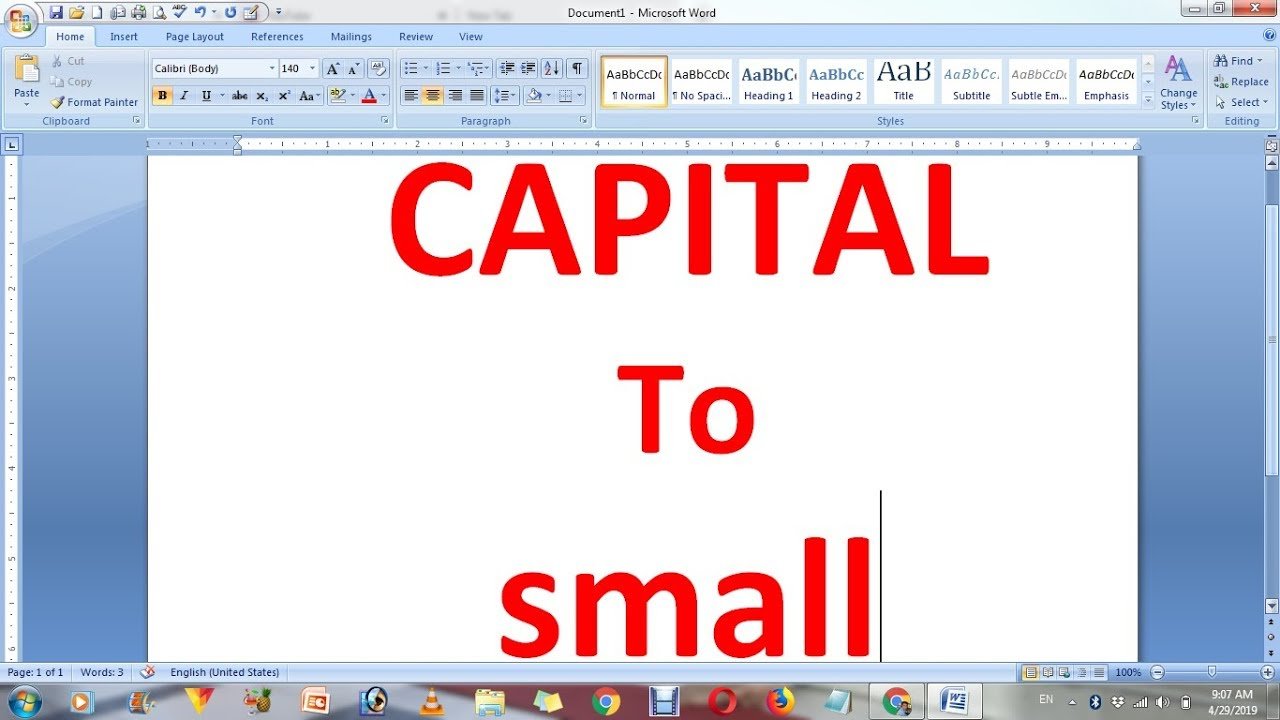
Trong thời đại kỹ thuật số, định dạng chính xác của bạn chữ là quan trọng. Khi bạn viết email, việc tạo tài liệu hoặc tạo tài liệu cho trang web của bạn, văn bản viết hoa toàn bộ có thể trông thô tục và thiếu chuyên nghiệp hoặc khó hiểu. Nếu bạn đã từng nghĩ tới cách chuyển văn bản của bạn sang chữ hoa toàn bộ thành chữ nhỏ và ngược lại, hướng dẫn này sẽ chỉ cho bạn cách.
Chúng ta sẽ xem xét nhiều phương pháp và thủ thuật đơn giản khác nhau để làm cho nội dung của bạn trở nên hấp dẫn và chuyên nghiệp hơn.
Tại sao tất cả văn bản viết hoa có thể có vấn đề

Việc sử dụng toàn bộ chữ hoa có thể giống như một phương pháp thuận tiện để thu hút sự chú ý, nhưng nó đi kèm với những tiêu cực:
- khó đọc hơn: Chữ toàn chữ hoa khó đọc mắt. Chữ thường làm tăng khả năng hiểu và dễ đọc.
- Ngoại hình thiếu chuyên nghiệp: Khi viết theo phong cách trang trọng, tất cả chữ hoa có thể trông giống như đang hét lên.
- Trải nghiệm người dùng Trên các trang web và nội dung số, tất cả giới hạn có thể làm giảm mức độ tương tác và khiến nội dung khó theo dõi hơn.
Các phương pháp đổi văn bản từ toàn bộ Caps thành Letters
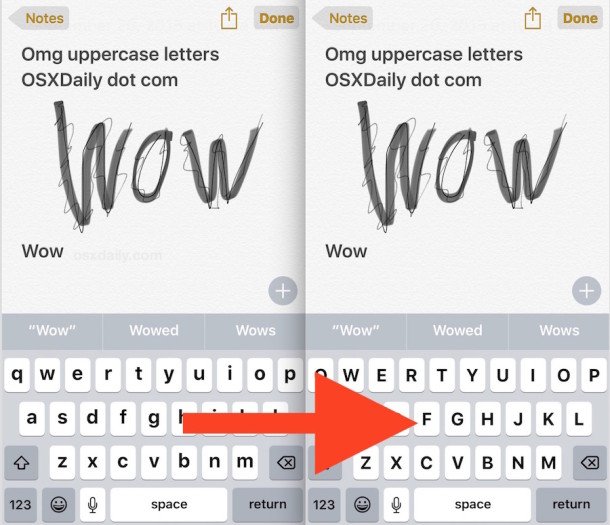
Có nhiều phương pháp khác nhau để chuyển đổi tất cả mũ văn bản thành chữ thường. Tùy thuộc vào nhu cầu của bạn, bạn có thể sử dụng các tính năng tích hợp trong phần mềm cũng như các công cụ trực tuyến và phím tắt.
1. Sử dụng Microsoft Word
Microsoft Word cung cấp một phương pháp nhanh chóng và đơn giản để thay đổi văn bản trường hợp:
- Đảm bảo bạn đánh dấu văn bản bạn muốn thay đổi.
- Bấm vào trang chủ trên “Trang chủ” chuyển hướng.
- Chọn Trường hợp thay đổi cái nút (một chữ hoa “MỘT” và chữ thường “Một”).
- Lựa chọn chữ thường.
Văn bản bạn chọn sẽ ngay lập tức chuyển từ chữ lớn sang chữ nhỏ.
2. Sử dụng Google Tài liệu
Google Docs cũng có sẵn tùy chọn thay đổi kiểu chữ:
- Đánh dấu văn bản bạn muốn chỉnh sửa.
- nhấp chuột nút Định dạng Từ menu thả xuống.
- Di chuột qua Chữ – nhấp chuột Viết hoa – Lựa chọn chữ thường.
Văn bản của bạn sẽ ngay lập tức chuyển đổi sang chữ thường.
3. Sử dụng công cụ trực tuyến
Nếu bạn không sử dụng Word và các công cụ trực tuyến của Google Docs sẽ cung cấp một tùy chọn dễ dàng:
- Sao chép toàn bộ văn bản bằng chữ in hoa.
- Sao chép phần này vào một công cụ chuyển đổi trực tuyến cho văn bản.
- Lựa chọn chữ thường.
- Sau đó sao chép văn bản bạn đã chuyển đổi vào tài liệu của mình.
Phương pháp này tương thích với mọi thiết bị, và cực kỳ nhanh chóng.
Mẹo để tránh tất cả các lỗi viết hoa
- Trước tiên hãy sử dụng chữ thường: Chỉ sử dụng chữ hoa cho tiêu đề và những điểm nổi bật quan trọng.
- Khả năng đọc: Đảm bảo văn bản của bạn đơn giản cho người đọc và được viết một cách chuyên nghiệp.
- Giữ tính nhất quán của nội dung của bạn: Giữ kiểu chữ giống nhau trong suốt nội dung của bạn.
- Đừng hét lên: Tránh sử dụng chữ hoa toàn bộ trong email hoặc nội dung trang trọng khác. Nó có thể trông thô lỗ.
Lợi ích của việc sử dụng chữ nhỏ
- Tăng cường khả năng tiếp cận: Dễ nhìn hơn và đọc nhanh hơn.
- Giọng điệu chuyên nghiệp: Làm cho nội dung của bạn dễ tiếp cận hơn.
- Cải thiện trải nghiệm người dùng Nó giúp người xem tương tác dễ dàng với thông điệp của bạn.
Phần kết luận
Thực hiện thay đổi văn bản ở dạng viết hoa toàn bộ hoặc chữ nhỏ hơn là điều dễ dàng và cần thiết trong văn bản chuyên nghiệp. Không thành vấn đề nếu máy tính của bạn là Word, Google Tài liệu, Excel hoặc bất kỳ công cụ trực tuyến nào khác Có giải pháp cho bất kỳ ai.
Làm cho bạn chữ chữ thường làm tăng khả năng đọc, mang lại cho nó vẻ ngoài chuyên nghiệp và cải thiện trải nghiệm người dùng. Nếu bạn tình cờ tìm thấy văn bản được viết hoa toàn bộ, đừng căng thẳng–chỉ cần chọn tùy chọn phù hợp với bạn và dễ dàng chuyển đổi nó.