Mae Airdrop yn dechnoleg trosglwyddo data cyflymach ar gyfer Defnyddwyr Mac. Mae'n eich helpu i drosglwyddo cyfryngau megis lluniau, fideos, a ffeiliau eraill rhwng dyfeisiau iOS heb gysylltiad rhyngrwyd. Mae Airdrop yn gweithio gyda Bluetooth. Mae'n creu rhwydwaith rhithwir gan ddefnyddio cysylltiad Wifi. Mae'r broses rhannu ffeiliau yn rhedeg yn esmwyth, ond weithiau ni all Airdrop baru'r ddyfais â'i gilydd am ryw reswm. Yn y wers heddiw, byddwn yn darparu'r ateb ar gyfer Airdrop ddim yn gweithio.
Nid yw Airdrop yn cael ei gefnogi ar gyfer y fersiynau iOS Hŷn. Mae wedi'i ymgorffori gyda iOS 7 fersiwn diweddarach a hefyd Mac OS X Yosemite neu fersiynau diweddarach. Felly gwiriwch bob amser a yw'ch dyfais yn cefnogi Airdrop ai peidio?
Mae Airdrop yn defnyddio Bluetooth i ddarganfod dyfeisiau cyfagos ar draws 30 ystod traed. Os nad yw'ch dyfais yn agosach at y cynnwys, yna ni allwch ymuno â dyfais arall. Hefyd, Mae Airdrop yn defnyddio wifi ar gyfer cysylltiadau rhwng cyfoedion. Mae'n creu rhwydwaith rhithwir ar gyfer rhannu cyfryngau. Felly dyma'r pethau sylfaenol y mae'n rhaid i chi eu gwybod. Nawr gadewch i ni ddysgu am ryw broblem y mae'n rhaid ei thrwsio ar gyfer cysylltiad llwyddiannus.
[lwptoc]
Rhestr atebion ar gyfer Airdrop not Working
Ateb 1: Ailgychwyn eich Dyfais
Gallwch ei drwsio'n gyflym trwy ailgychwyn eich dyfais. Pan fyddwch chi'n ailgychwyn eich ffôn, mae pob ap yn cychwyn o'r dechrau. Felly dylai'r rhan fwyaf o'r problemau ddatrys. Nid jôc mohoni. Rhaid i chi roi cynnig ar hyn o leiaf unwaith. Gallai'r ailgychwyn atgyweirio'r holl fygiau meddalwedd trwy ailgychwyn eich dyfais. Gallwch chi hefyd ailosod eich dyfais yn galed os nad ydych chi'n gwybod gwneud y peth hwn. Gallwch ddilyn y canllaw hwn. Sut i ailosod caled iPhone 11
Ateb 2: Ailosod Cysylltiad Bluetooth a wifi
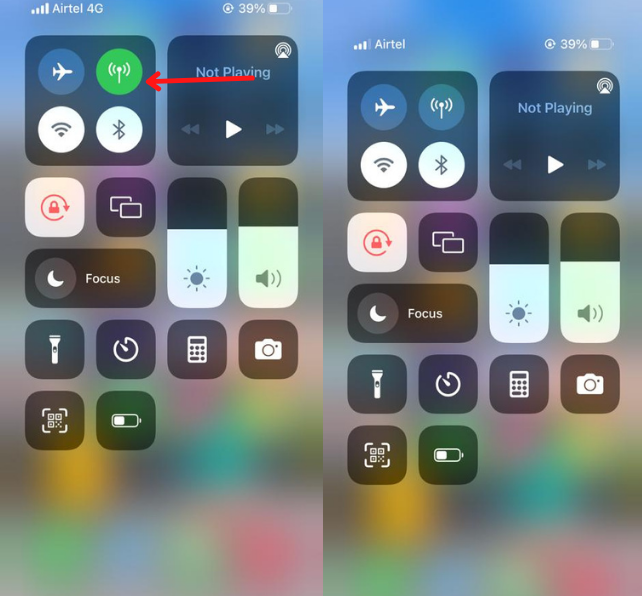
Mae Toglo Bluetooth a chysylltiad wifi hefyd yn ddefnyddiol ar gyfer y mater Airdrop. Unwaith y byddwch yn eu hailosod, bydd y Rhwydwaith yn adnewyddu eto ar ôl i chi allu eu paru â dyfais arall.
- I analluogi Bluetooth a wifi llusgwch eich bys o fyny i lawr.
- Fe welwch eiconau wifi a Bluetooth ar yr ochr chwith uchaf.
- Tapiwch i'w hanalluogi. Nawr aros am 30 eiliadau ac Ail-alluogi'r ddau. Dyna y gwnaethoch chi, nid yw'r broses ar gyfer Airdrop yn gweithio.

Ateb 3: Analluogi Hotspot
A fyddech cystal â chadw nodyn Ni allwch gysylltu â dyfais arall nes i chi analluogi'r cysylltiad â phroblem? Gallwch analluogi'r man cychwyn o'r bar gosodiadau neu Widgets. Llusgwch eich bys o fyny i lawr. Ar ôl i chi ddod o hyd i'r eicon man cychwyn o'r rhestr eiconau, analluoga os gwelwch yn dda.
Ateb 4: Ailosod Gosodiadau Rhwydwaith
Ailosod eich Rhwydwaith iPhone hefyd wedi atal y mater hwn. Gallai Ailosod Rhwydwaith ddatrys llawer o broblemau trwy gywiro cyfluniad eich rhwydwaith.
- Agorwch eich gosodiadau a mynd i'r cyffredinol opsiwn.
- Cliciwch ar y Ailosod opsiwn
- Yna Ailosod Rhwydwaith Gosodiadau.
Ateb 5: Mewngofnodwch eto gydag Apple ID
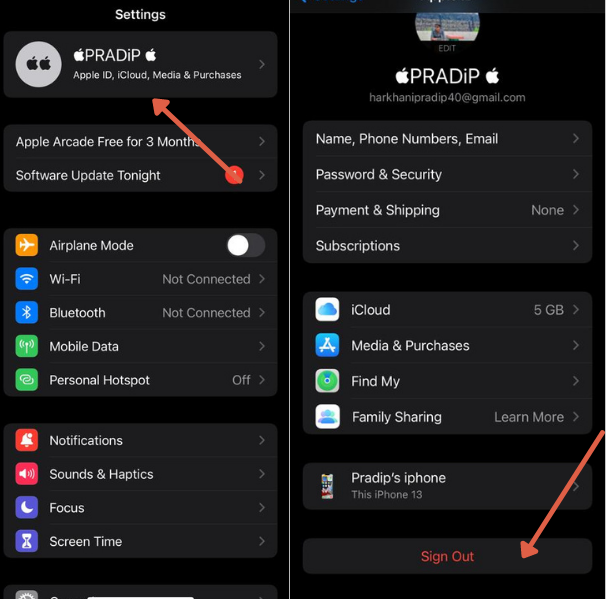
Os dal, nid ydych yn ddarganfyddadwy, gallwch ailosod eich afal id. Gallai Apple Id hefyd fod yn rheswm i gywiro'ch problem. Ewch i'r gosodiadau a thapio ar eich enw. Yna, ewch i iCloud ac allgofnodi o'r cyfrif.
Nesaf, mewngofnodi eto gyda'ch cyfrif iCloud. Mae llawer o ddefnyddwyr yn datrys problemau trwy roi cynnig ar y mater hwn.
Ateb 6: Diweddaru'r Fersiwn iOS
Weithiau mae materion yn cael eu datrys yn awtomatig trwy ddiweddariad system. Er enghraifft, yn y fersiwn hŷn, mae yna nam sy'n eich atal rhag symud ymlaen yn llwyddiannus. Os oes angen trwsio diweddariad gallwch fynd am y fersiwn newydd. Gallwch wirio drwodd gosodiadau>Cyffredinol>Diweddariad Meddalwedd.
Os oes angen diweddaru unrhyw beth, fe welwch ffenestr naid ar y sgrin.
I ddiweddaru ar gyfrifiadur Mac. gallwch ddilyn y llwybr hwn Eicon Afal> Dewisiadau System > Diweddariad meddalwedd
Ateb 7: Cysylltwch â Chymorth Apple
Os ceisiwch bopeth, ond nid oes dim yn gweithio i chi. Mae'n bosibl y bydd eich dyfais yn wynebu problem caledwedd. Mae'n rhaid i chi gysylltu cymorth afal i ddatrys y mater hwn. Byddant yn trefnu apwyntiad i chi ac yn eich helpu i ddatrys y broblem cyn gynted â phosibl.
Ateb 8: Caniatáu Firewall
Gall y wal dân rwystro'r caniatâd i gysylltu â dyfais arall. Os ydych chi'n defnyddio apiau gwrthfeirws ar eich iPhone, analluoga nhw wrth rannu cyfryngau am gyfnod cyfyngedig.
Ar Mac, gallwch chi fynd i Afal > Dewisiadau System > Diogelwch & Preifatrwydd > Mur gwarchod
Analluoga'r Rhwystro Pob Cysylltiad sy'n Dod i Mewn a gwasg iawn.
Felly mae'r rhain i gyd yn atebion gweithio ar eu cyfer Airdrop ddim yn gweithio mater. Rwy'n gobeithio eich bod wedi cael eich ateb i'r broblem hon. Rhannwch y canllaw hwn gyda defnyddwyr iPhone i'w helpu.
Cwestiynau Cyffredin
Sut mae trwsio AirDrop ar fy iPhone?
Trwsio Airdrop mewn sawl ffordd. Mae rhywfaint o gamgyflunio sy'n atal rhannu ffeiliau. Gallwch ailosod Bluetooth, gosodiadau wifi a Rhwydwaith.
Pam mae fy AirDrop yn dal i ddiffodd?
Os ydych chi'n galluogi modd arbed batri neu osod app trydydd parti sy'n atal y defnydd o bŵer, yna stopio Airdrop May.
Sawl llun allwch chi AirDrop ar unwaith?
Gallwch anfon ffeiliau diderfyn i ddyfais arall heb unrhyw broblem. Dylai'r ddyfais derbynnydd gael digon o le.
Pam nad yw fy Mac AirDrop yn ymddangos ar fy iPhone?
Cadwch yn agos eich dyfais Mac at eich iPhone. Mae'r Airdrop yn dal y ddyfais o fewn 30 Ystod Traed.
Crynodeb
Nid yw Airdrop yn gweithio mewn llawer o amodau. Nid yw'r iPhone neu Mac yn cefnogi Airdrop, Pellter rhwng y ddyfais, Mater rhwydwaith, wifi, Bluetooth, problem caledwedd, ac ati., yr holl faterion a drafodwyd gennym yn fanwl. Byddai'n well pe baech yn trwsio'r holl faterion ar gyfer rhannu Ffeil. Os nad ydych yn gallu datrys y broblem hon, gallwch gysylltu â chymorth afal.
![Darllenwch fwy am yr erthygl Neges llais ddim yn gweithio ar iPhone? [Datrys yn Hawdd]](https://toolpub.com/wp-content/uploads/2021/11/jason-goodman-BAanEbxe9No-unsplash-200x300.jpg)