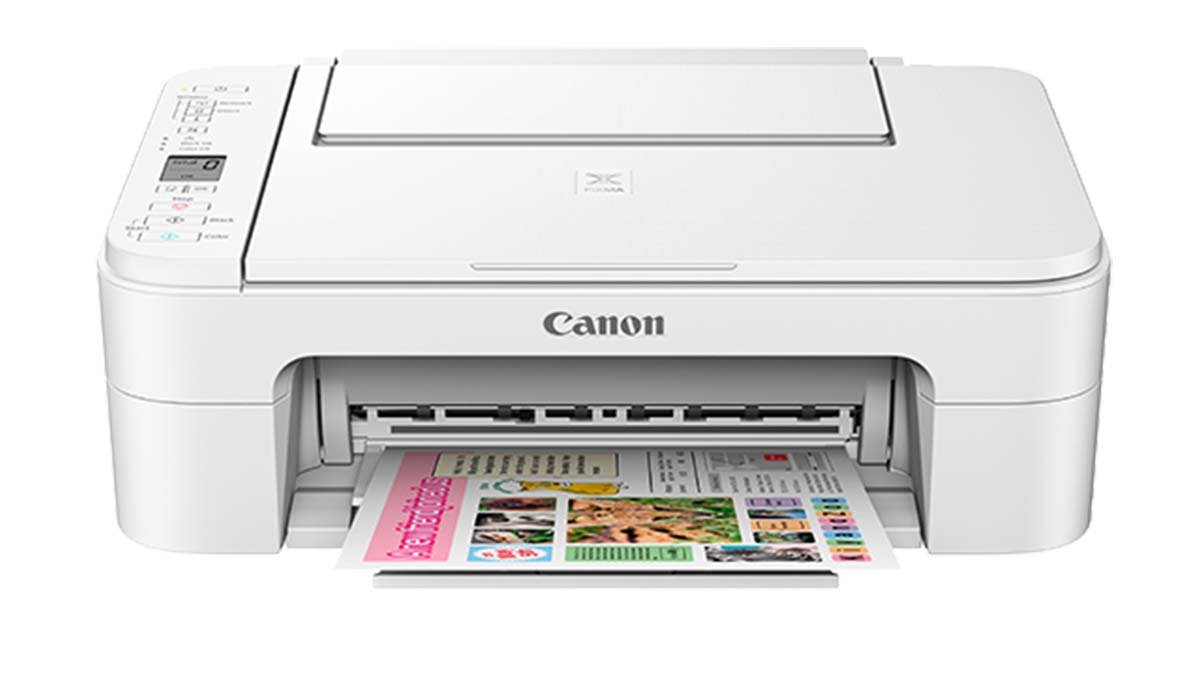
Ydych chi wedi methu â chysylltu'ch argraffydd Canon Color imageCLASS MF624Cw â rhwydwaith Wi-Fi, Wel, peidiwch â phoeni eich bod yn y lle iawn i gael gwared ar y mater hwn.
I gael eich argraffydd dosbarth delwedd lliw canon MF624VW ar waith mewn dim o amser, soniasom am broses canllaw cam wrth gam ddefnyddiol iawn yn yr erthygl hon.
Cofiant, yn gyntaf oll cyn dechrau'r broses rhaid i'ch argraffydd gael ei droi ymlaen a dylai fod yn ystod eich rhwydwaith Wi-Fi. Yn ogystal, rhaid i chi gael enw eich Wi-Fi (SSID) a'i gyfrinair wrth law.
Proses Cysylltu Argraffydd Canon Colour Imageclass Mf624cw I Wifi
Felly, er mwyn cysylltu dosbarth delwedd lliw Canon wf624cw â wifi, mae'n rhaid i chi ddilyn y camau canlynol yn ofalus:
- Yn gyntaf, mae'n rhaid i chi wasgu'r botwm "Settings" ar banel rheoli eich argraffydd. Bydd yn codi'r ddewislen ganolog. Gallwch ddod o hyd i'r botwm "Gosod" ar ochr dde'r panel rheoli, yn syml o dan eich sgrin arddangos.
- Ar ol hynny, rhaid i chi ddefnyddio'r botymau saeth sydd wedi'u lleoli ar y panel rheoli, yna rhaid i chi lywio i "Gosodiadau Rhwydwaith" a nawr mae'n rhaid i chi wasgu'r botwm "OK".
- Ar ôl yr ail gam, rhaid i chi ddewis "Wi-Fi Setup" o'r rhestr opsiynau. Bydd yn codi'r ddewislen gosod Wi-Fi.
- Nesaf, mae'n rhaid i chi ddewis "Gosod â Llaw" yn y ddewislen gosod Wi-Fi ac yna rhaid pwyso'r botwm "OK".
- Yn awr, ar y panel rheoli, rhaid i chi ddefnyddio'r botymau saeth a llywio i'ch rhwydwaith Wi-Fi, ac yna byddwch yn pwyso'r botwm "OK".. Cofiant, os na fyddwch chi'n dod o hyd i'ch enw rhwydwaith yn y rhestr, yna mae'n rhaid i chi ddewis "Chwilio Eto" i adfer neu adnewyddu'r rhestr.
- Ar ôl dewis y rhwydwaith wifi, mae'n rhaid i chi nodi'ch cyfrinair wifi. Er mwyn nodi'ch cyfrinair mae'n rhaid i chi ddefnyddio'r bysellbad alffaniwmerig ar y panel rheoli ac yna byddwch yn pwyso'r botwm "OK". Os wrth fynd i mewn i'ch cyfrinair, rydych chi'n gwneud camgymeriad fel nodi unrhyw ddigid neu symbol anghywir, yna mae'n rhaid i chi ddefnyddio'r botymau saeth i wthio'r cyrchwr a defnyddio'r botwm "Backspace" er mwyn dileu'r nodau anghywir.
- Yma, pan fyddwch wedi rhoi eich cyfrinair, bydd eich argraffydd yn ceisio cysylltu â'ch rhwydwaith Wi-Fi. Gan fod eich argraffydd wedi'i gysylltu, byddwch yn sylwi ar neges cadarnhau cysylltiad ar y panel rheoli. Ond Os nad yw'r cysylltiad rhwng eich argraffydd a'ch rhwydwaith wifi yn llwyddiannus, mae'n rhaid i chi wirio ddwywaith eich bod wedi nodi'r cyfrinair cywir a gwneud yn siŵr bod eich argraffydd o fewn ystod eich rhwydwaith Wi-Fi.
- Yn awr, ar ôl cysylltu eich argraffydd dosbarth delwedd lliw Canon mf624cw â wifi mewn gwirionedd, rhaid i chi osod y gyrwyr argraffydd ar eich cyfrifiadur. Gallwch ddefnyddio gwefan Canon i lawrlwytho'r gyrwyr neu gallwch ddefnyddio'r CD gosod at y diben hwn, daeth y CD gosod hwn gyda'ch argraffydd. Ond cadwch mewn cof, rhaid i chi aseinio'r gyrwyr cywir ar gyfer eich system weithredu.
- Felly, pan fyddwch wedi gosod y gyrwyr argraffydd, rhaid i chi ychwanegu'r argraffydd i'ch cyfrifiadur. Bydd y weithdrefn hon yn amrywio yn dibynnu ar eich system weithredu a'r feddalwedd rydych chi'n ei defnyddio ond fel arfer mae'n golygu dewis “Ychwanegu Argraffydd” o'r “Argraffwyr & Sganwyr” a ddefnyddir wrth osod eich cyfrifiadur.
- Ar y cam olaf hwn, rhaid i chi brofi eich argraffydd i sicrhau bod eich argraffydd yn gweithio'n berffaith. Wel, mae'n rhaid i chi Argraffu dogfen neu dudalen brawf er mwyn cadarnhau bod argraffydd dosbarth delwedd lliw Canon Mf624cw wedi'i gysylltu â'ch rhwydwaith Wi-Fi a bod eich argraffydd yn argraffu'n gywir.
FAQs Of Connect Canon Color Imageclass Mf624cw Argraffydd I Wifi
Beth Yw'r Botwm WPS Ar Eich Argraffydd?
Mae gan rai argraffwyr HP nodwedd a elwir yn Wi-Fi Protected Setup (WPS) mae'r nodwedd hon yn caniatáu ichi gysylltu'ch argraffydd â rhwydwaith diwifr a hyd yn oed nid oes angen cyfrifiadur a gliniadur arnoch neu enw'r rhwydwaith a chyfrinair hefyd.
Sut Ydych Chi'n Cysylltu Eich Argraffydd â'ch Cyfeiriad IP Wi-Fi?
Mae'n rhaid i chi glicio ar "Ychwanegu argraffydd" yn y ffenestr Dyfeisiau ac Argraffwyr. Mae'n rhaid i chi Dewiswch “Ychwanegu argraffydd lleol neu argraffydd rhwydwaith gyda gosodiadau llaw”, wedi hyny, rhaid i chi glicio Nesaf. Yn awr, rhaid i chi Dewiswch Creu porthladd newydd a dewis Standard TCP/IP Port, yna byddwch yn clicio Nesaf. Felly, o dan gyfeiriad IP neu enw gwesteiwr: Teipiwch gyfeiriad IP yr argraffydd rydych chi'n bwriadu cysylltu ag ef.
Sut Ydych Chi'n Cysylltu Eich Argraffydd â Diwifr?
Yn gyntaf, mae'n rhaid i chi Bweru ar yr argraffydd ac yna mae'n rhaid i chi ei gysylltu â'ch rhwydwaith Wi-Fi. Rhaid bod gennych enw'r rhwydwaith Wi-Fi (SSID) a chyfrinair fel y byddwch eu hangen. Ar gyfer argraffu diwifr, rhaid i'ch cyfrifiadur fod ar yr union rwydwaith Wi-Fi. Ar iOS, gallwch ddefnyddio AirPrint er mwyn argraffu yn ddi-wifr, ac mae Android yn caniatáu ichi ddewis argraffydd adfail.
Casgliad
Felly, mae'r broses o gysylltu'ch argraffydd â'ch rhwydwaith WiFi yn hawdd ac yn syml. A thrwy hyn, gallwch wella eich profiad argraffu yn fawr. Mae'n rhaid i chi ddilyn y camau uchod, ac yna gallwch chi fwynhau hyblygrwydd a chyfleustra argraffu diwifr.
Wel, ar ôl cysylltu y Canon lliw delwedd dosbarth MF624CW Argraffydd i wifi, gallwch chi allu manteisio ar nodweddion eraill yr argraffydd fel copïo a sganio, tra nad oes angen i chi gysylltu'ch cyfrifiadur â'ch argraffydd!