Airdrop is a faster data transfer technology for Mac Users. It helps you transfer media such as photos, vidéos, and other files between iOS devices without an internet connection. Airdrop works with Bluetooth. It creates a virtual network using a Wifi connection. The file-sharing process runs smoothly, but sometimes Airdrop can’t pair the device with each other for some reason. In today’s lesson, we will provide the solution for Airdrop not working.
Airdrop is not supported for the Older iOS versions. It is inbuilt with iOS 7 version ultérieure et également Mac OS X Yosemite intégré ou versions ultérieures. Vérifiez donc toujours si votre appareil prend en charge Airdrop ou non.?
Airdrop utilise Bluetooth pour découvrir les appareils à proximité 30 gamme de pieds. Si votre appareil n'est pas plus proche du contenu, alors vous ne pouvez pas vous connecter avec un autre appareil. Aussi, Airdrop utilise le wifi pour les connexions peer to peer. Il crée un réseau virtuel pour le partage de médias. Voici donc les choses de base que vous devez savoir. Découvrons maintenant un problème qui doit être résolu pour une connexion réussie.
[lwptoc]
Solutions list for Airdrop not Working
Solution 1: Restart your Device
Vous pouvez le réparer rapidement en redémarrant votre appareil. Lorsque vous redémarrez votre téléphone, toutes les applications démarrent depuis le début. Donc la plupart des problèmes devraient être résolus. Ce n'est pas une blague. Vous devez essayer ceci au moins une fois. Le redémarrage pourrait corriger tous les bugs logiciels en redémarrant votre appareil. You can also hard reset your device if you don’t know to do this thing. You can follow this guide. Comment réinitialiser l'iPhone 11
Solution 2: Reset Bluetooth and wifi Connection
Toggle Bluetooth and wifi connection are also helpful for the Airdrop issue. Once you reset them, the Network will refresh again after you can pair them with another device.
- To disable Bluetooth and wifi drag your finger from up to down.
- You will see wifi and Bluetooth icons on the top left side.
- Tap to disable them. Now wait for 30 seconds and Re-enable both. That’s it you done the process for Airdrop is not working.

Solution 3: Disable Hotspot
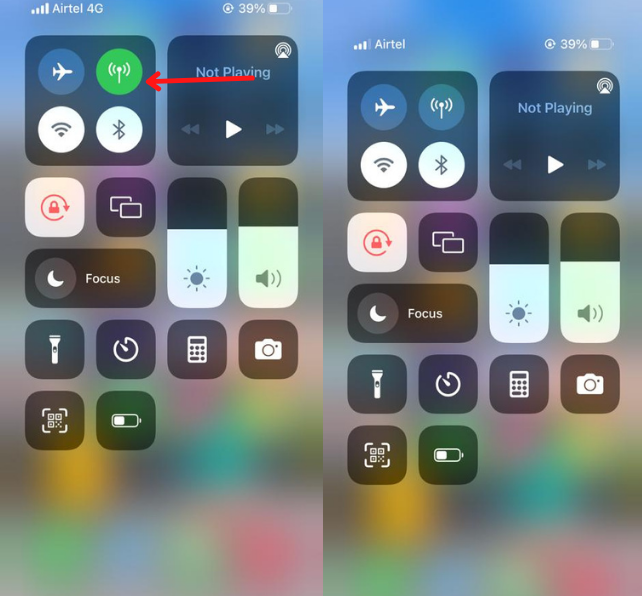
Would you please keep a note You can’t connect with another device until you disable the hotspot connection? You can disable the hotspot from the setting or Widgets bar. Drag your finger from up to down. Once you find the hotspot icon from the icon list, please disable it.
Solution 4: Réinitialiser les réglages réseau
Reset your iPhone Network has also stopped this issue. Reset Network could fix many problems through correct your network configuration.
- Open your paramètres and go to the general option.
- Click on the Réinitialiser option
- Alors Reset Network Paramètres.
Solution 5: Sign in again with Apple ID
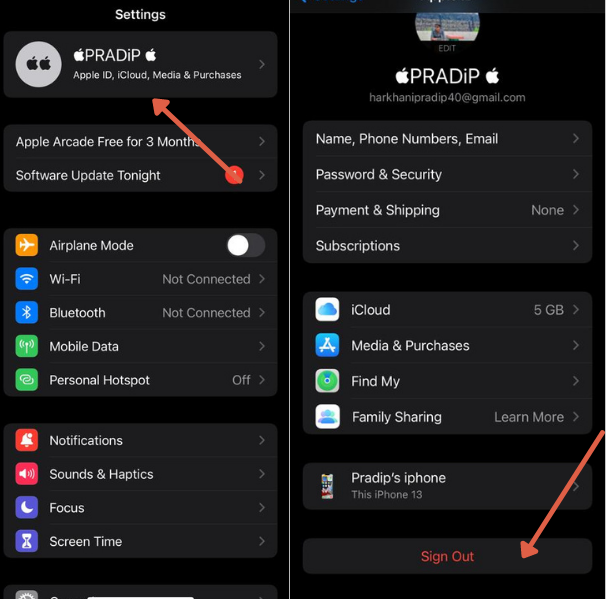
Si encore, you are not discoverable, you can reset your apple id. Apple Id could also be a reason to correct your problem. Just go to settings and tap on your name. Alors, go to iCloud and sign out from the account.
Prochain, sign in again with your iCloud account. Many users fix issues by trying this issue.
Solution 6: Update the iOS Version
Sometimes issues are automatically solved through a system update. Par exemple, in the older version, there is a bug that prevents you from successfully proceeding. If there is an update need to fix you can go for the new version. You can check through paramètres>Général>Mise à jour logicielle.
If anything needs to update, you will see a popup on the screen.
To update on Mac computer. you can follow this path Apple Icon> Préférences du système > Software update
Solution 7: Contacter l'assistance Apple
If you try everything, but nothing works for you. Your device may face a hardware issue. You have to contact assistance pomme to solve this issue. They will set an appointment for you and help you to fix the problem as early as possible.
Solution 8: Allow Firewall
The firewall may block the permission to connect with another device. If you are using antivirus apps on your iPhone, disable them while sharing media for a limited time.
Sur Mac, tu peux aller à Pomme > Préférences du système > Sécurité & Confidentialité > Firewall
Disable the Block All Incoming Connections et appuyez sur ok.
So these are all working solutions for Airdrop not working issue. I hope you got your answer to this problem. Please share this guide with iPhone users to help them.
FAQ
How do I fix AirDrop on my iPhone?
Airdrop fix in many ways. Il y a une mauvaise configuration qui empêche le partage de fichiers. Vous pouvez réinitialiser Bluetooth, paramètres wifi et réseau.
Pourquoi mon AirDrop continue de s'éteindre?
Si vous activez le mode d'économie de batterie ou installez une application tierce qui empêche l'utilisation de l'énergie, puis Airdrop peut s'arrêter.
Combien de photos pouvez-vous AirDrop à la fois?
Vous pouvez envoyer un nombre illimité de fichiers vers un autre appareil sans aucun problème. L'appareil récepteur doit disposer de suffisamment d'espace.
Pourquoi mon Mac AirDrop n'apparaît-il pas sur mon iPhone?
Gardez votre appareil Mac proche de votre iPhone. L'Airdrop capture l'appareil à l'intérieur 30 Portée des pieds.
Sommaire
Airdrop ne fonctionne pas dans de nombreuses conditions. L'iPhone ou le Mac ne prend pas en charge Airdrop, Distance entre l'appareil, Problème de réseau, Wifi, Bluetooth, problème matériel, etc., toutes les questions dont nous avons discuté en détail. Il serait préférable que vous résolviez tous les problèmes liés au partage de fichiers.. If you are unable to solve this problem, you can contact apple support.
Vidéo