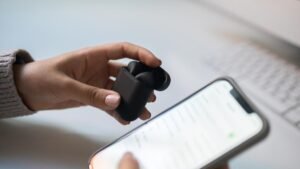
Comment connecter les aides auditives Oticon à un iPhone? Les aides auditives vous permettent non seulement d'observer le monde avec une clarté incroyable, mais également d'écouter votre musique préférée et de diffuser vos appels via votre téléphone.!
Les aides auditives Oticon sont des appareils remarquables, qui offrent une offre de chances et de possibilités. Mais le souci est que vous ne savez pas comment connecter les aides auditives Oticon à un iPhone et que vous devez les connecter à votre iPhone.. Bien, voici un guide détaillé étape par étape sur la façon de connecter les aides auditives Oticon à un iPhone. Donc, commençons………
Guide étape par étape pour connecter les aides auditives Oticon à un iPhone
Pour se connecter Aides auditives Oticon à un iPhone, vous devez suivre ces étapes simples
- Tout d'abord, vous devez appuyer sur les paramètres, puis faire défiler jusqu'à un onglet nommé accessibilité.
- Après cela, encore une fois, vous devez faire défiler vers le bas jusqu'à ce que vous découvriez l'onglet appelé Connecter les appareils auditifs.
- Alors, vous devez allumer et éteindre les aides auditives. Pour ça, vous devez ouvrir et fermer la zone ou la section de la batterie.
- À présent, sur votre iPhone, le nom de vos aides auditives devrait alors apparaître.
- Prochain, vous devez appuyer sur le nom de vos aides auditives, puis vous appuyerez deux fois sur la paire d'options lorsque vous y êtes invité.
- Et maintenant, vos aides auditives seront correctement connectées à votre iPhone.
Connectez les aides auditives Oticon à Android
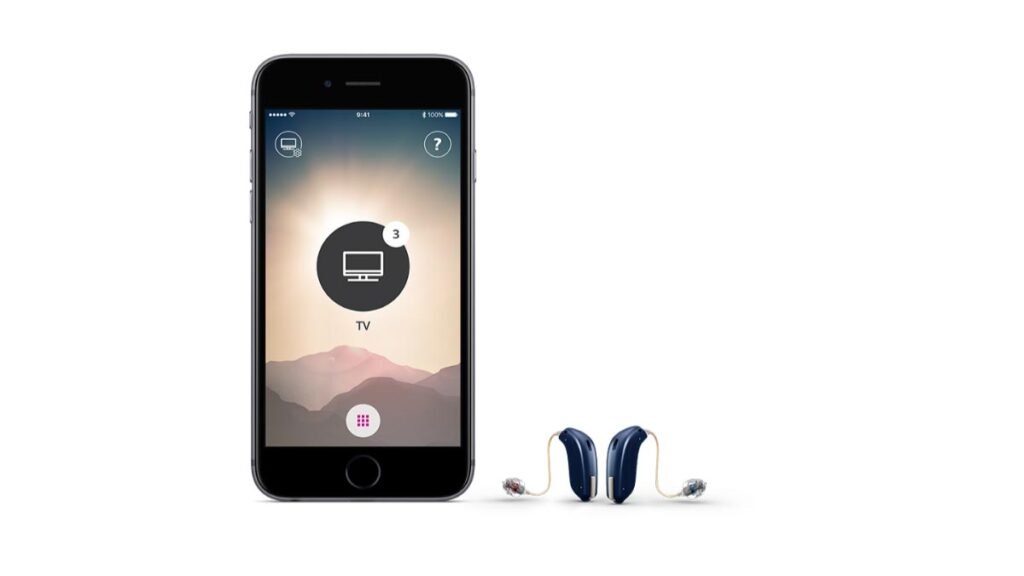
Pour connecter les aides auditives Oticon à Android, vous devez suivre ces étapes
- Tout d'abord, vous devez mettre les aides auditives en mode appairage. Pour ça, il faut ouvrir le compartiment à piles. Si vous possédez des appareils rechargeables, placez-les sur le chargeur pendant cinq à dix secondes.
- Après cela, vous devez appuyer sur l'icône d'engrenage bleue sur l'écran d'accueil de votre téléphone Android pour ouvrir votre application Paramètres.
- À présent, vous devez faire défiler la section Appareils connectés, alors vous devez sélectionner Associer un nouvel appareil.
- Alors, vos aides auditives devraient voir les appareils disponibles. S'il y a deux aides auditives à connecter, vous devrez vous connecter un par un.
- Une fois la connexion Bluetooth finalisée, un bip retentira.
L’aide auditive Oticon ne se connecte pas au Bluetooth
Si vous devez connecter vos aides auditives à Bluetooth alors d'abord, vous devez vous assurer que le Bluetooth est activé. Mais, si Bluetooth est désactivé sur votre gadget ou appareil, alors, automatiquement il vous indiquera ce message, Appuyez sur Activer Bluetooth et continuez. À présent, tu dois vérifier pour les appareils auditifs.
Réinitialiser Oticon Bluetooth
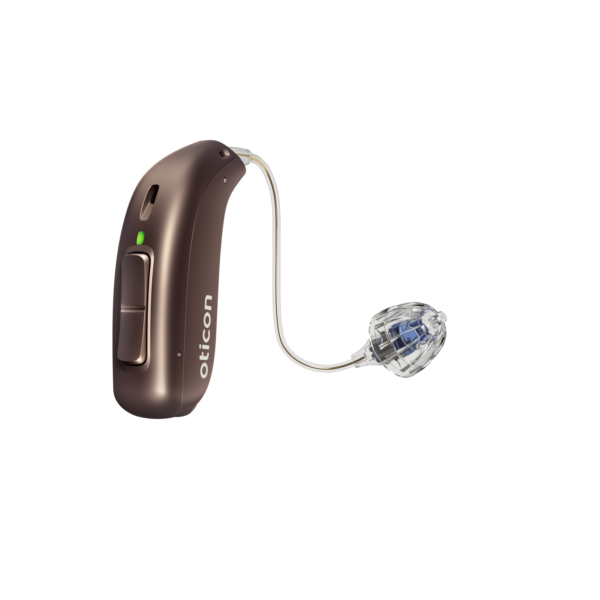
Alors, votre gadget se connectera à vos aides auditives lorsque vous lancerez l'application Oticon ON.
Pour réinitialiser Oticon Bluetooth, vous devez entrer dans les paramètres. Vous devez vous assurer que le Bluetooth est activé. À présent, vous devez sélectionner les appareils auditifs. Alors, vous sélectionnerez Oublier l’application de réinitialisation. Et démarrez l'application Oticon ON. Alors, vous devez entrer dans les paramètres. Prochain, vous devez appuyer sur l'icône Paramètres pour accéder aux fonctionnalités secondaires de l'application Oticon ON. N'oubliez pas que la réinitialisation de l'application effacera également l'ancien appariement.
FAQ pour connecter les aides auditives Oticon à un iPhone
Pourquoi vos aides auditives Oticon ne restent-elles pas connectées à votre iPhone?
Vous devez désactiver puis réactiver Bluetooth avant de recommencer le couplage.. Vous devez ouvrir puis fermer le couvercle de la batterie qui est placé sur les appareils pour que votre iPhone puisse les identifier. Vous devez sélectionner les aides auditives lorsqu'elles sont disponibles. Vous devez confirmer la demande d'appairage Bluetooth une fois pour chaque aide auditive.
Pouvez-vous répondre à votre iPhone avec vos aides auditives Oticon?
Les dernières aides auditives d'Oticon, Zircon, Plus, et Play PX peuvent être utilisés avec les appareils iPad ou iPhone choisis pour recevoir vos appels téléphoniques mains libres ou vos appels vidéo, Appels Facetime, et plus.
Comment connecter des aides auditives à IOS?
Pour ça, vous devez mettre vos aides auditives en mode appairage, vous devez ouvrir le boîtier de la batterie et si vous conservez un appareil rechargeable, vous devez le mettre sur le chargeur pour 5 à 10 secondes. Dans, votre iPad ou iPhone, vous devez aller dans l'application Paramètres, alors, vous devez choisir l'option Bluetooth et vous assurer que le curseur est allumé. À présent, dans Paramètres, vous devez choisir l'onglet Accessibilité, puis faire défiler jusqu'à la section Appareils auditifs. Alors, vous devez activer le curseur Compatibilité des aides auditives.
À présent, la connexion sans fil de vos aides auditives doit avoir lieu dans la section Appareils auditifs MFi. Alors, vous devez sélectionner vos appareils pour le couplage. Après l'achèvement, une coche devrait apparaître.
Conclusion
Avec un peu de chance, Après avoir lu cet article, vous pourrez connecter les aides auditives Oticon à un iPhone. Il vous suffit de suivre les instructions mentionnées ci-dessus pour les connecter correctement à votre iPhone!