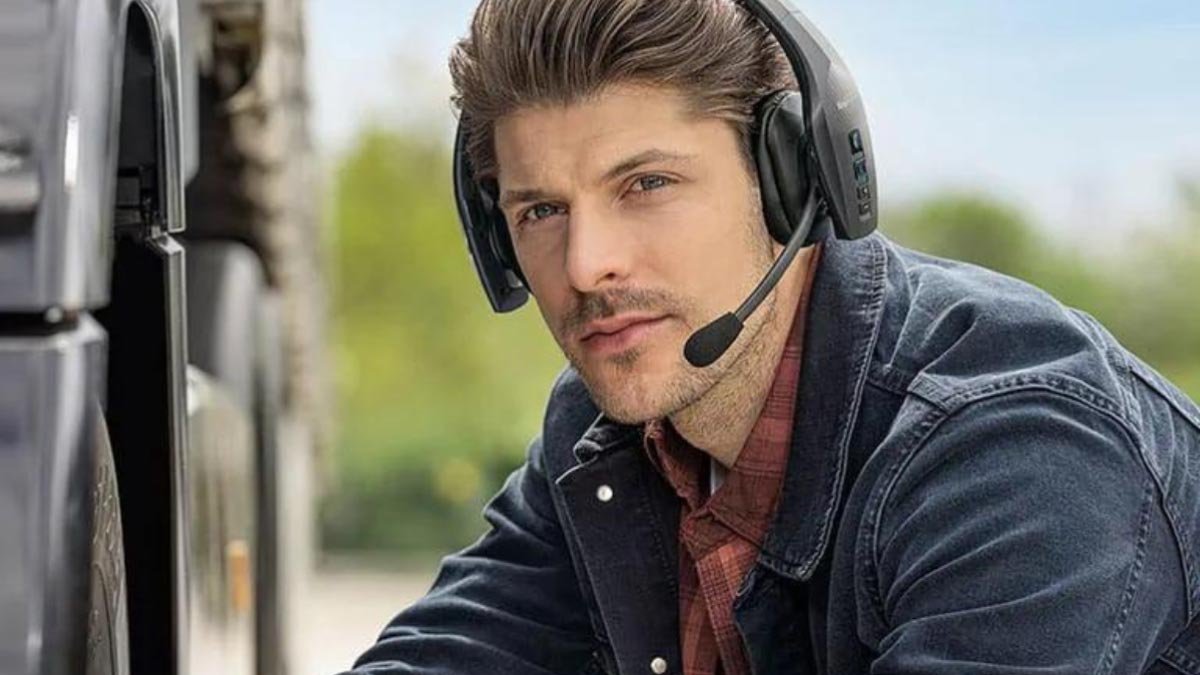
How to Pair a Blue Parrot Headset with your Smartphone? वहाँ हैं 3 ब्लू पैरेट हेडसेट को अपने स्मार्टफ़ोन के साथ जोड़ने के तरीके. Select your preferred set of instructions to pair a Blue Parrott headset with your smartphone.
तरीका:1 Pair Using NFC one-touch
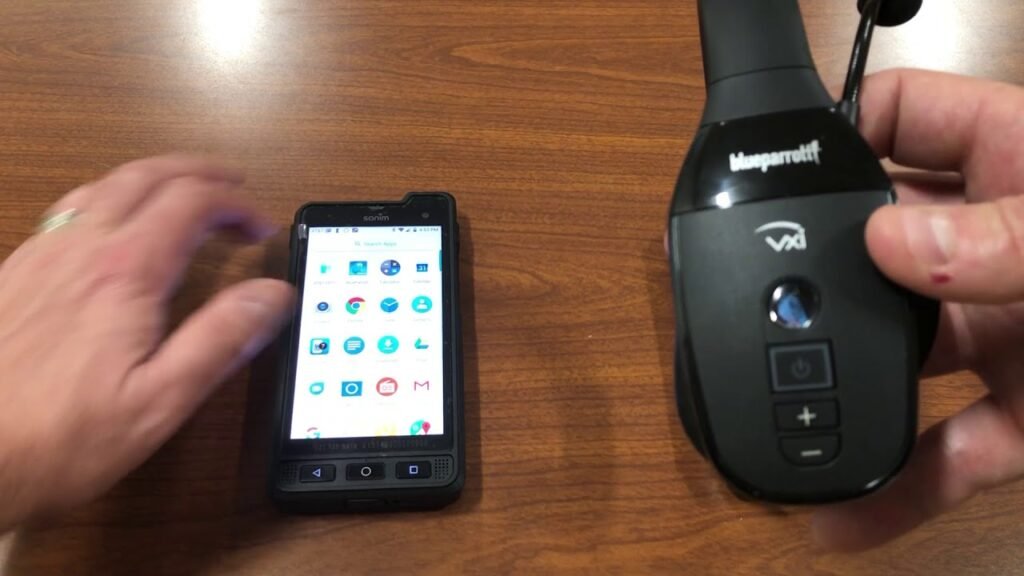
- Ensure your headset is on, and that NFC is enabled on your smartphone.
- Place the NFC zone of your smartphone against the NFC zone of your headset until your smartphone registers the headset.
- Follow the prompts on your smartphone to complete the pairing.
Enter 0000 four zeros if you are asked for a PIN code.
तरीका:2 Pair Using the Buttons
- Ensure your headset is off.
- Press and hold 6 seconds the Multifunction button until you hear Power on. Continue to hold the button until the LED flashes alternating blue and red and you hear Pair mode.
The headset is now in pairing mode. - Go to the Bluetooth menu on your smartphone and select the Blue Parrott B450-XT from the list of available devices.
Enter 0000 four zeros if you are asked for a PIN code.
तरीका:3 Pair Using Voice Commands
- Ensure your headset is on.
- Press the Blue Parrott Button or press and hold the Volume Up button.
- After the voice prompt, say pair mode. The headset is now in pairing mode.
- Go to the Bluetooth menu on your smartphone and select the Blue Parrott B450-XT from the list of available devices.
Enter 0000 (चार शून्य) if you are asked for a PIN code.
What do if my Blue Parrott headset does not pair with my mobile device?
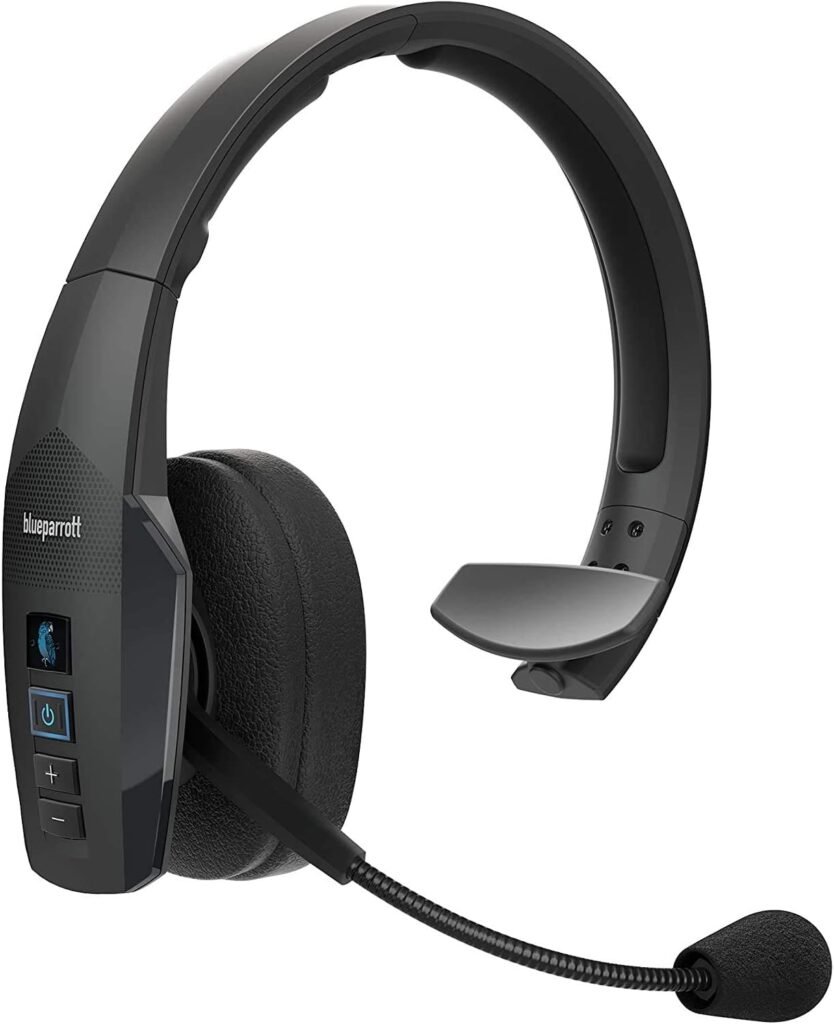
- If you are having trouble pairing a Blue Parrott headsetwith your smartphone., गोली, or other mobile device, निम्नलिखित चरणों का प्रयास करें. प्रत्येक चरण के बाद अपने ब्लू पैरट हेडसेट को पुनः जोड़ने का प्रयास करें.
- सबसे पहले, अपने मोबाइल डिवाइस पर, ब्लूटूथ सेटिंग को बंद और चालू करें. अपने मोबाइल डिवाइस को बंद और चालू करें और अपने ब्लू पैरट हेडसेट को बंद और चालू करें.
- तब, किसी भिन्न मोबाइल डिवाइस का उपयोग करके अपने ब्लू पैरट हेडसेट को जोड़ने का प्रयास करें. यह पुष्टि करने के लिए है कि एक अलग मोबाइल डिवाइस आपके ब्लू पैरट हेडसेट को ढूंढेगा और उसके साथ जोड़ेगा.
- अब, अपना ब्लू पैरट हेडसेट रीसेट करें.
- यदि आप अभी भी अपने हेडसेट को अपने मोबाइल डिवाइस से कनेक्ट नहीं कर पा रहे हैं, समर्थन से संपर्क करें.
FAQS to Pair a Blue Parrot Headset with your Smartphone
How do I manually reset my Bluetooth headset?
जब आप अपना ब्लूटूथ हेडसेट रीसेट करते हैं, पहले से युग्मित डिवाइस और सेटिंग्स साफ़ कर दी जाएंगी. रीसेट करने के लिए इन चरणों का पालन करें.
- पहला, सुनिश्चित करें कि आपका हेडसेट चालू है.
- तब, दबाकर पकड़े रहो 6 वॉल्यूम ऊपर और नीचे दोनों बटनों को सेकंड तक दबाएं जब तक कि आपके सिर पर दो बीप न बजने लगे और उसके बाद पेयर मोड आ जाए, या जब तक एलईडी बारी-बारी से लाल और नीले रंग में चमकने न लगे.
टिप्पणी: रीसेट करने के बाद, आपको हेडसेट को अपने स्मार्टफोन के साथ फिर से जोड़ना होगा. दोबारा जोड़ने से पहले पिछली जोड़ी को हटाना याद रखें.
Can I pair my headset with more than one Bluetooth device?
हाँ. आपके ब्लू पैरट हेडसेट को आठ तक के साथ जोड़ा जा सकता है 8 विभिन्न उपकरण. यदि आप 9वें डिवाइस को पेयर करने का प्रयास करते हैं, यह मौजूदा जोड़ियों में सबसे पुरानी जोड़ी का स्थान ले लेगा.
What is the passcode or PIN for pairing my headset?
यदि आपके हेडसेट को जोड़ते समय संकेत दिया जाए, पासकोड या पिन है 0000.
निष्कर्ष
ब्लू पैरट हेडसेट को अपने स्मार्टफ़ोन के साथ जोड़ना कोई कठिन काम नहीं है, आप इसे कुछ ही सेकंड में कर सकते हैं. हमने उल्लेख किया है 3 ब्लू पैरट हेडसेट को अपने स्मार्टफ़ोन के साथ जोड़ने के विभिन्न तरीके.
उचित कनेक्शन बनाने के लिए आपको कोई भी कदम छोड़े बिना उपयुक्त तरीकों और उनके चरणों का सावधानीपूर्वक पालन करना होगा.
इसलिए, आपको बस यह जानना है कि ब्लू पैरेट हेडसेट को अपने स्मार्टफ़ोन के साथ कैसे जोड़ा जाए. हमें उम्मीद है कि यह लेख आपकी बहुत मदद करेगा!