Koj muaj Ubotie keyboard thiab xav txuas A Ubotie Keyboard rau koj lub cuab yeej, tab sis tsis paub yuav txuas li cas. Ces tsis txhob txhawj, Ntawm no yog cov lus qhia ntxaws txog yuav ua li cas txuas Ubotie keyboard!
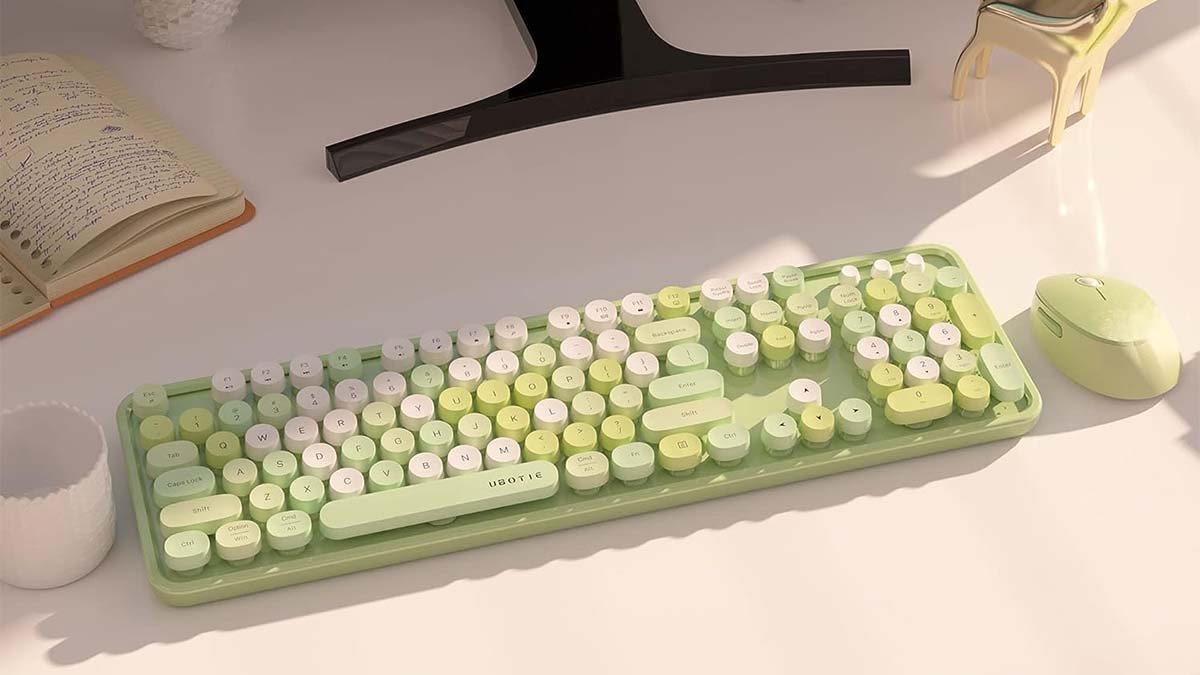
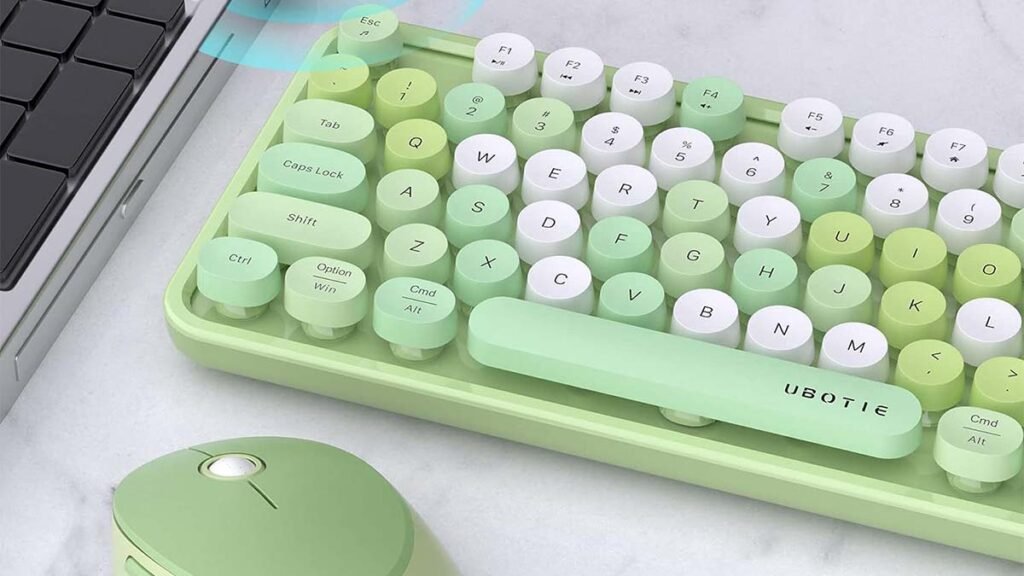
Ubotie keyboard yog ib qho me me Bluetooth keyboard uas yog tsim los ntawm cov laus retro ntaus ntawv. Cov keyboard no muaj nyob hauv cov xim sib txawv. Cov 84 Cov yuam sij tsim ua rau Ubotie keyboard ntau ntim thiab nruj.
Zoo tsis nkim sij hawm peb yuav tsum mus los ntawm cov txheej txheem mus cuag ib Siv Keyboard rau koj lub cuab yeej.
Txoj kev txuas A Ubotie Keyboard rau MacBook
Txhawm rau txuas Ubotie keyboard rau MacBook, koj yuav tsum ua raws li cov kauj ruam hauv qab no:
- Ua ntej tshaj plaws, koj yuav tsum xyuas kom meej tias koj cov keyboard qhib. Koj tuaj yeem qhib koj lub keyboard los ntawm kev muab ob lub roj teeb triple A hauv cov keyboard rov qab, nyob rau hauv kev txiav txim yog tsis muaj lub hwj chim khawm ntawm koj Ubotie keyboard. Yog li, koj cov keyboard yuav tsaug zog thiab tom qab ntawd tig tawm ntawm nws tus kheej.
- Tom qab ntawd, Koj yuav tsum qhib hom Bluetooth ntawm koj cov keyboard Ubotie. Koj tuaj yeem ua qhov no tsuas yog nias lub 'Fn’ thiab 'C’ cov yuam sij tib lub sijhawm kom txog thaum Bluetooth LED pib ntsais ntawm cov keyboard. Yog hais tias lub LED pib flashing ces nws txhais tau hais tias koj cov keyboard nyob rau hauv pairing hom thiab npaj mus txuas rau lub MacBook.
- Tam sim no, Koj yuav tsum mus rau MacBook thiab tom qab ntawd koj yuav tsum qhib Bluetooth nyiam. Txoj kev ceev tshaj plaws yog nrhiav “Bluetooth” hauv Kev Tshawb Fawb Txog Kev Tshawb Fawb, ces koj yuav tsum nias nkag.
- Hauv daim ntawv teev cov khoom siv, koj yuav tsum pom koj cov keyboard Ubotie teev tseg. Tseem, Yog tias nws tsis pom tam sim ntawd koj yuav tsum tau tos qee lub vib nas this vim nws yuav siv sij hawm qee lub sijhawm rau MacBook kom ntes nws.. Thaum koj tau pom koj cov keyboard Ubotie qaij lossis teev, koj yuav tsum nyem rau ntawm 'Connect’ khawm uas nyob ib sab ntawm nws. Raws li koj ntaus ntawv yog ntse txuas, koj yuav tsum nyem FN + E los pib cov keyboard uas koj nyob ntawm Mac OS ntaus ntawv.
- Koj yuav tsum nyem FN + Q/W/E (Android, IOS, Qhov rai, raws), hloov cov tshuab ( nyob rau hauv cov xwm txheej zoo li no yog tias koj tab tom txuas mus rau lwm lub cuab yeej)
- Tam sim no, koj lub Ubotie keyboard thiab MacBook yuav los ua khub, thaum koj tau nyem 'Txuas'. Kev vam meej kev twb kev txuas yuav provoke ib cov lus qhia, qhia tias koj tau khub koj lub laptop ua tiav. Lub 'Bluetooth’ LED yuav tsum tsis txhob xav ntawm koj cov keyboard Ubotie, hais txog kev sib txuas ua tiav.
Cov txheej txheem txuas A Ubotie Keyboard rau iPad
Txuas A Ubotie Keyboard rau iPad, koj tuaj yeem siv ob txoj kev sib txawv. Cov txheej txheem no yog siv Bluetooth thiab siv Bluetooth Receiver.
Txoj kev # 1 Siv Bluetooth
Thawj txoj hauv kev yog txuas Ubotie keyboard rau iPad los ntawm kev siv Bluetooth. Rau qhov no, koj yuav tsum ua raws li cov kauj ruam no:
- Ua ntej tshaj plaws, Koj yuav tsum qhib lub Bluetooth ntawm koj lub iPad. Tom qab ntawd koj yuav tsum mus rau qhov chaw.
- Tom qab ntawd, koj yuav tsum coj mus rhaub rau ntawm Bluetooth. Thiab koj yuav qhib lub Bluetooth.
- Tam sim no, koj yuav tsum kho cov roj teeb ntawm koj lub Ubotie keyboard, ces koj yuav tsum tuav “Fn” thiab “C” kom txog thaum lub teeb qhia LED pib flashing.
- Tom ntej no, Koj yuav tsum mus rau koj lub iPad lub Bluetooth teeb tsa. Ces, koj yuav coj mus rhaub rau ntawm lub cuab yeej tshawb nrhiav. Nws yuav qhia “Kev tua” ntawm qhov screen. Yog li, koj yuav tsum coj mus rhaub Pair Now thiab txuas nws.
Txoj kev # 2 Siv Bluetooth receiver
Txuas A Ubotie Keyboard rau lub iPad, txoj kev siv Bluetooth txais yuav yog txoj hauv kev zoo tshaj rau koj. Ntxiv rau, Koj yuav tsum xaiv txoj kev no yog tias koj muaj teeb meem nrog koj lub iPad Bluetooth.
Koj tsis tuaj yeem txuas A Ubotie Keyboard rau ib qho khoom siv yam tsis muaj Bluetooth vim nws yog Bluetooth-based keyboard. Zoo, Koj yuav tsum ua raws li cov lus qhia hauv qab no kom txuas A Ubotie Keyboard rau lub iPad siv Bluetooth txais.
- Ua ntej, Koj yuav tsum yuav ib tug Bluetooth receiver thiab ib tug USB converter rau koj iPad.
- Ces, Koj yuav tsum txuas lub USB converter rau koj iPad thiab ces txuas lub Bluetooth receiver rau no USB converter.
- Tam sim no, lub iPad yuav tau txais kev sib txuas Bluetooth los ntawm Bluetooth txais. Yog li, koj yuav tsum mus rau qhov chaw. Ntawm no, koj yuav tsum coj mus rhaub rau ntawm Bluetooth. Thiab tom qab ntawd koj yuav qhib qhov kev sib txuas ntawm Bluetooth ntawm lub receiver.
- Tom qab ntawd, Koj yuav tsum npaj cov roj teeb ntawm koj lub Ubotie keyboard, ces koj yuav tsum tuav “Fn lub function” thiab “C” kom txog thaum qhov taw qhia LED pib blinking.
- Tom ntej no, koj yuav tsum mus rau lub iPad lub Bluetooth teeb tsa thiab ces yuav tsum coj mus rhaub rau ntawm lub cuab yeej tshawb nrhiav. Nws yuav qhia “Kev tua” ntawm qhov screen. Tom qab ntawd koj yuav tsum coj mus rhaub Pair tam sim no thiab txuas nws.
- Zoo, Tam sim no Ubotie Bluetooth keyboard txuas tau zoo rau koj lub iPad los ntawm txoj kev siv Bluetooth txais.
FAQs Ntawm Txuas A Ubotie Keyboard
Yuav Ua Li Cas Koj Tig Lub Teeb Backlight ntawm Ubotie Keyboard?
Rau qhov no, koj yuav tsum nrhiav lub hwj chim khawm ntawm cov yuam sij ntawm koj cov keyboard thiab ces toggle nws.
Puas yog koj lub Ubotie Keyboard sib xws nrog koj lub cuab yeej?
Yog lawm, Qhov zoo kawg nkaus Ubotie Keyboard yog sib xws thiab ua tau raws li ntau yam khoom siv sib txawv, ib yam li Macs, laptops, thiab Windows computers.
Koj tuaj yeem kho cov xim thiab ci ntsa iab ntawm Backlight?
Yog lawm, ob qho tib si xim thiab ci ntsa iab ntawm backlight teeb los ntawm cov xim sib txawv yog adjustable.
Xaus
Vam tias, Yog tias koj muaj Ubotie keyboard thiab koj tab tom kho kom txuas nrog koj lub cuab yeej ces kab lus no yuav pab tau koj ntau.. Ntawm no yog yuav luag txhua yam uas koj xav paub kom txuas Ubotie keyboard rau koj lub cuab yeej!