Txuas Onn Soundbar rau TV yog yooj yim xwb, Yog tias koj tab tom sim txuas Onn Soundbar rau TV tab sis tsis tuaj yeem ua nws ces tsis txhob ntxhov siab! Nov yog cov lus qhia ua tiav rau koj los ua kom muaj kev sib txuas zoo tshaj plaws ntawm koj lub Soundbar thiab koj lub TV.
Onn Soundbar yog suav tias yog qhov zoo tshaj plaws ntxiv rau TV vim nws khaws txhua yam uas koj xav tau kom tau txais lub suab zoo tshaj. Muaj ntau txoj hauv kev uas koj tuaj yeem txuas Onn Soundbar rau TV nyob ntawm seb cov cuab yeej koj twb muaj lawm. Yog li, cia wb mus detail.....
Kauj ruam-by-step qhia txuas Onn Soundbar rau TV
Txhawm rau txuas Onn Soundbar rau TV, koj yuav tsum ua raws li cov kauj ruam no:
Mus ib ruam taw 1
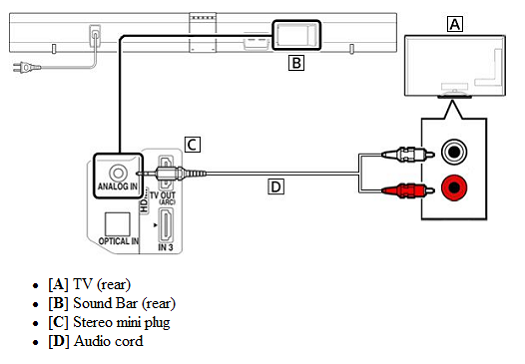
Thawj kauj ruam, Txhawm rau txuas Onn Soundbar rau TV koj yuav tsum ua qhov kev sib txuas zoo. Ua ntej tshaj plaws, Nyob rau hauv koj lub TV koj yuav tsum nrhiav ib tug HDMI input sau ARC. Nws sawv cev rau lub suab rov qab channel, uas txhais tau hais tias txhua lub suab los ntawm TV yuav dhau los ntawm koj lub suab nrov. Tab sis yog tias koj tsis pom HDMI cov tswv yim sau npe ARC, Tom qab ntawd koj yuav tsum siv cov khoom siv kho qhov muag nrog rau HDMI cable.
Koj yuav tsum muab ib qho kawg ntawm HDMI cable rau hauv HDMI ARC cov tswv yim ntawm koj lub TV thiab tom qab ntawd muab qhov kawg rau hauv koj lub suab nrov.. Koj yuav tsum pom qhov twg HDMI cov tswv yim koj xaiv vim tias thaum koj yuav teeb tsa hauv koj lub TV nws tau teeb tsa rau qhov kev tawm tswv yim no..
Ces, Koj yuav tsum ntsaws lub qhov muag cable rau hauv qhov chaw nres nkoj uas tau sau tias yog Optical lossis Digital Audio. Tab sis yog tias koj muaj HDMI cov tswv yim uas qhia tau tias yog ARC, nws txhais tau hais tias koj tsis tas yuav siv ib qho optical cable. Koj yuav tsum qhib koj lub TV thiab koj yuav tsum xyuas kom meej tias koj qhib lossis tso cai rau CEC. Qhov kev teeb tsa no yuav tso cai rau koj los tswj koj lub TV los ntawm kev siv lub Xyoo nyob deb los yog kho lub suab nrov nrog cov chaw taws teeb ntawm koj lub TV.
Cov neeg tsim khoom ntawm TV muab ntau lub npe rau qhov chaw. Yog li, koj yuav tsum mus saib phau ntawv qhia ntawm koj tus tswv lossis koj tuaj yeem mus ntsib goRoku.com/HDMIhelp yog tias koj lub TV yog Roku.
Yog tias koj lub TV yog Roku TV, ces qhov chaw yuav cia li tig rau thaum lub teeb. Koj tau tso cai CEC, thiab pab koj soundbar teeb tsa rau ntawm qhov chaw taws teeb ntawm koj lub TV.
Koj yuav tsum nrhiav ib lub pob uas sau tias yog Input lossis Source lossis ib yam dab tsi zoo sib xws. Tom qab ntawd, koj yuav tsum xyuas kom meej tias qhov tseeb HDMI cov tswv yim yog toggled raws li qhov koj tau siv los txuas koj lub suab nrov. Nws yuav tsis pom dab tsi ntawm qhov screen, txawm li cas los xij.
Mus ib ruam taw 2
Hauv kauj ruam no, Thaum lub sij hawm txuas Onn Soundbar rau TV koj yuav tsum ua kom muaj zog koj lub Soundbar thiab tej thaj chaw deb. Yuav ua li cas, Koj yuav tsum ntsaws ib kawg ntawm lub hwj chim cable rau hauv lub qhov hluav taws xob phab ntsa thiab tom qab ntawd lwm qhov kawg ntawm cov kab no rau hauv lub suab nrov.. Tam sim no, koj yuav pom lub logo ntawm koj qhov screen. Yog tsis yog, koj yuav tsum xyuas kom meej tias koj muaj cov tswv yim zoo ntawm koj lub TV.
Tam sim no, koj yuav tsum muab cov roj teeb tso rau hauv cov chaw taws teeb thiab xyuas kom meej tias lawv tau zaum los yog muab tso rau hauv qhov chaw kom raug. Ces, koj yuav tsum xaiv koj hom lus thiab txuas rau koj lub network.
Mus ib ruam taw 3
Tam sim no, koj yuav tsum txuas koj soundbar rau koj lub network. Koj yuav tsum xaiv koj lub wireless network, thiab tom qab ntawd koj yuav sau tus password lossis tus password. Passkey yog case-sensitive. Yog tias muaj tag nrho cov tshev yuav kos npe ntsuab, nws txhais tau tias koj mus zoo.
Yog hais tias muaj tshwm sim liab X ntawm daim duab, koj yuav tsum mus rau go.roku.com/onnsoundbar thiab tom qab ntawd tshawb rau "Kuv tsis tuaj yeem txuas rau kuv lub wireless network".
Koj lub suab nrov yuav pom cov software tam sim no thaum koj rub tawm nws. Koj tuaj yeem ua tau thaum twg koj xav tau. Txoj kev no, Thaum muaj cov tshiab channel hloov kho tshiab, koj soundbar yuav khaws lawv thiab. Tom qab rub tawm qhov tseeb software rau koj lub suab paj nruag, nws yuav hais kom koj tso cov zaub hom. Koj yuav tsum nias “OK” ntawm cov chaw taws teeb thiab tom qab ntawd koj lub suab nrov yuav txiav txim siab qhov kev daws teeb meem zoo rau koj lub TV tau txais.
Yog hais tias qhov screen yog displayed kom raug, ces koj yuav tsum xaiv “YOG”. Lwm yam, koj yuav tsum sim hloov qhov kev daws teeb meem. Tej zaum koj yuav tau txais cov lus no yog tias TV tsis muaj nyob hauv ARC lossis hauv qhov xwm txheej uas koj CEC tsis tau qhib. Koj yuav tsum qhib CEC hauv koj qhov chaw TV. Yog tias koj lub TV tsis muaj ARC, koj yuav tsum xaiv "Kuv TV tsis txhawb ARC" kom hla cov kauj ruam no thiab tom qab ntawd siv cov tswv yim kho qhov muag. Ces, koj yuav pom qhov qhib qhov screen.
Mus ib ruam taw 4
Tam sim no, Koj yuav tsum qhib koj lub Onn soundbar. Rau qhov no, Koj yuav tsum ua raws li cov lus qhia ntawm lub vijtsam kom ua thiab qhib tus account Roku. Yog tias koj muaj Roku tus account lawm, ces koj tsuas yog yuav tsum tau kos npe rau hauv. Tam sim no, koj yuav tsum tau ntxiv qee qhov ntawm koj cov channel uas koj nyiam kom cov channel no yuav npaj los tso rau hauv koj lub TV.
Koj tuaj yeem muaj peev xwm ib txwm ntxiv ntxiv tom qab tsuas yog nyem rau ntawm "Ntxiv Channel" thiab koj tuaj yeem tshem tawm cov channel uas koj xav tshem tawm tsuas yog nyem qhov "Tshem tawm Channel" kev xaiv hauv qab koj cov channel xaiv.. Tsuas yog ob peb lub sijhawm cov txheej txheem no yuav ua tiav thiab tam sim no koj tau teeb tsa tag nrho thiab koj npaj tau kwj!
Txuas Onn Soundbar rau TV Los ntawm Bluetooth txuas
Txuas Onn Soundbar rau TV Los ntawm Bluetooth txuas, koj yuav tsum ua raws li cov kauj ruam no:

- Ua ntej tshaj plaws, Koj yuav tsum qhib koj lub suab thiab koj lub TV. Tam sim no, Koj yuav tsum qhib lub Bluetooth txuas los ntawm kev siv cov chaw taws teeb ntawm lub soundbar.
- Ces, Koj yuav tsum mus rau TV Bluetooth chaw, thiab ces pib scanning.
- Tam sim no, koj yuav pom koj soundbar nyob rau hauv daim ntawv teev cov khoom siv. Koj tsuas yog yuav tsum xaiv Onn soundbar los ntawm cov npe no, thiab tom qab ntawd nws yuav tsum txuas rau koj lub soundbar.
- Yog tias koj lub soundbar txuas nrog lub TV los ntawm kev siv Bluetooth, tag nrho cov teeb uas tso rau ntawm lub monitor yuav tsum tsis txhob ntsais.
- Ces, koj yuav tsum xyuas lub suab ntawm koj lub TV.
- Yog tias koj pom lub suab ntawd tseem los ntawm cov neeg hais lus txuas, tom qab ntawd koj yuav tsum mus rau qhov chaw suab. Ntawm no, Koj yuav tsum xaiv Bluetooth txuas tsis siv lub xov tooj.
Cov lus qhia ntawm Txuas onn Soundbar rau TV
Koj tuaj yeem txuas koj Onn Soundbar koj lub TV Wirelessly?
Yog lawm, Koj tuaj yeem yooj yim Txuas Onn Soundbar rau TV wirelessly, vim nws los nrog Bluetooth txuas.
Vim li cas koj Onn Soundbar tsis ua haujlwm ntawm Bluetooth hom?
Ua ntej tshaj plaws, koj yuav tsum xyuas seb lub suab puas yog muted los tsis. Yog lub suab tsis muted, tom qab ntawd koj yuav mus rau qhov chaw suab, ntawm no nyob rau hauv tej chaw koj yuav xyuas lub suab hom, yog xaiv lub suab hom rau wired, Tom qab ntawd nws txhais tau tias koj yuav tsum tau siv lub wireless txuas.
Xaus
Yog tias koj muaj Onn Sound bar thiab xav tau txuas rau koj lub TV tab sis koj tsis tuaj yeem ua nws, ces tsab xov xwm no tsuas yog rau koj thiab cia siab tias, yuav pab tau koj heev rau Txuas Onn Soundbar rau TV.