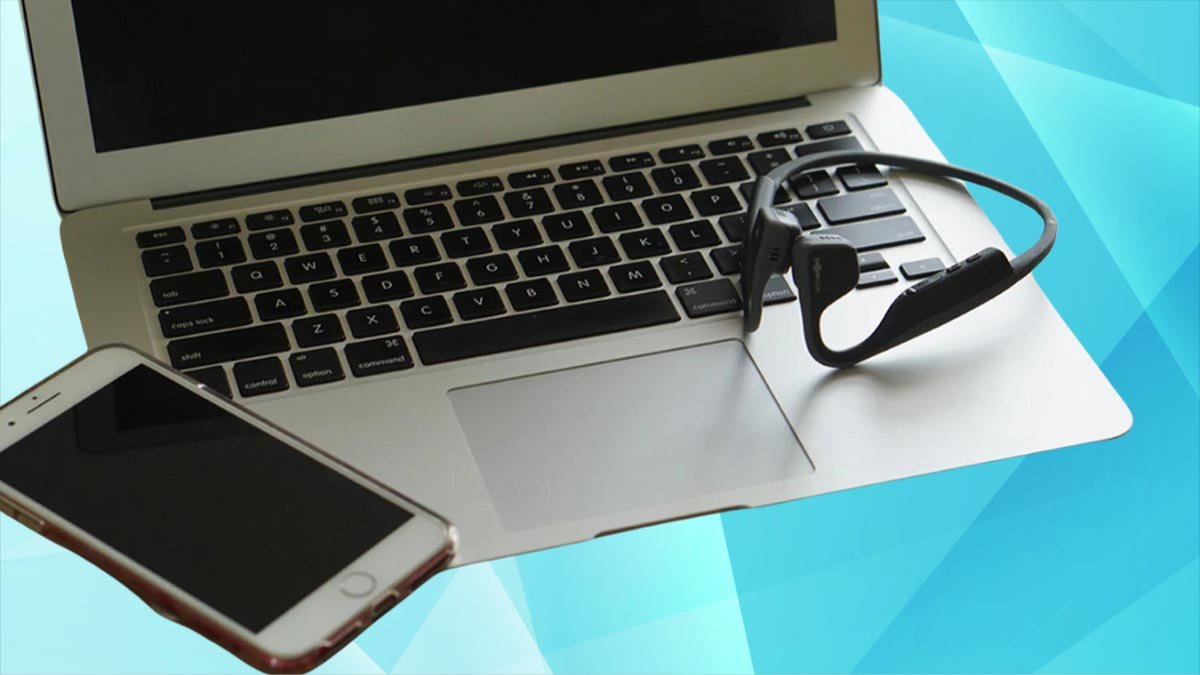
Rau khub shokz lub mloog pob ntseg nrog koj cov khoom siv koj yuav tsum qhib koj lub pob ntseg hauv kev nias hom los ntawm nias thiab tuav lub pob up khawm rau 7 vib nas this thiab nrhiav lawv hauv koj li. Saib cov lus qhia ib ntus ntawm yuav ua li cas khub Shokz Headphones rau txhua lub cuab yeej xav tau.
Qhib Pairing Hom ntawm Shokz headphones
Shokz pob txha conduction lub mloog pob ntseg yuav tsum nyob rau hauv kev ua khub ua ntej ua ke nrog ib tug Bluetooth ntaus ntawv. Koj tuaj yeem qhib hom no tau los yog manually.

Thaum koj qhib lub headphones pairing hom activates txiav.
Txhawm rau qhib lub mloog pob ntseg manually, koj yuav tsum tau
- Tua koj lub mloog pob ntseg Shokz.
- Tuav lub ntim nce khawm rau 5 rau 7 vib nas this lossis kom txog thaum koj pom ib qho LED ntawm lub mloog pob ntseg ntsais liab thiab xiav.
- Tam sim no, txheeb xyuas Bluetooth nqis ntawm koj lub cuab yeej Bluetooth kom pom tias Shokz lub mloog pob ntseg tau tshwm sim hauv qab Cov khoom siv muaj.
Yuav ua li cas Pair Shokz Headphones rau ib lub iPhone & iPad
Pairing headphones rau iOS pab kiag li lawm yog heev yooj yim, tab sis tsis ncaj nraim li ntawm Android, tab sis ntxiv rau qhov ntawd tom qab. Ntawm no yog koj ua li cas
- Coj mus rhaub rau ntawm Bluetooth icon.
- Ces, coj mus rhaub thiab tuav lub Bluetooth icon mus rau Bluetooth Settings.
- Tom qab ntawd xyuas kom meej tias koj lub mloog pob ntseg Shokz nyob rau hauv kev sib koom ua ke.
- Tom qab nkag mus rau kev ua khub, headphones yuav tsum tshwm nyob rau hauv Lwm yam Devices, thiab coj mus rhaub rau lawv.
- Tom qab cov theem no, thaum lawv tsiv mus rau My Devices, lawv tau ua tiav kev sib txuas.
Yuav ua li cas Pair Shokz Headphones rau ib qho khoom siv hauv Android
Cov khoom siv hauv Android yog qhov yooj yim dua los txuas rau ntau dua li iPhones vim tias lawv cov txheej txheem Bluetooth txuas tau qhib txhua yam koj xav tau rau kev sib txuas ceev..
- Xauv koj lub cuab yeej hauv Android thiab pom lub cim Bluetooth coj mus rhaub nws kom qhib nws.
- Muab koj lub mloog pob ntseg tso rau hauv kev sib koom ua ke los ntawm nias thiab tuav lub ntim nce khawm rau 5 rau 7 vib nas this lossis kom txog thaum koj pom ib qho LED ntawm lub mloog pob ntseg ntsais liab thiab xiav.
- Tam sim no, mus rau Bluetooth settings, scroll down mus rau Available devices, thiab coj mus rhaub rau ntawm koj lub mloog pob ntseg. Yog tias lawv tsis tau tshwm sim nias Scan.
Yuav ua li cas Pair Shokz Headphones nrog Windows 11

Pairing Shokz headphones rau lub Windows yog qhov nyuaj me ntsis dua li nrog lwm cov khoom siv Bluetooth, tab sis tsis txhob txhawj. Nov yog qhov koj ua tau yooj yim.
- Ntawm koj lub desktop screen, txav koj tus cursor hla cov cim tshawb nrhiav thiab nias rau sab laug rau lawv.
- Nyem rau ntawm Bluetooth thiab xaiv Mus rau Chaw.
- Ces, nyem Ntxiv ntaus ntawv.
- Tam sim no, Xyuas kom tseeb tias Shokz lub mloog pob ntseg tau qhib thiab hauv hom kev sib koom ua ke.
- Mus rau koj lub cuab yeej Windows, qhov twg koj xaiv qhov kev xaiv Bluetooth, Windows tab tom nrhiav rau koj lub mloog pob ntseg.
- Tom qab ob peb feeb koj lub mloog pob ntseg tshwm rau ntawm qhov screen, nyem rau ntawm lawv kom txuas.
Yuav ua li cas Pair Shokz Headphones nrog Windows 10
- Txoj kev ua khub rau Qhov rai 10 zoo ib yam li Windows 11.
- Ntawm koj lub desktop screen, txav tus cursor mus rau Daim Ntawv Ceeb Toom icon thiab nias rau sab laug kom qhib cov chaw ceev.
- Nyem rau ntawm Bluetooth thiab ces right-click nws xaiv mus rau Chaw.
- Hauv Chaw, nyem rau ntawm Ntxiv Bluetooth lossis lwm yam khoom siv.
- Ua ntej txuas ntxiv cov txheej txheem no, pab txoj kev ua khub ntawm koj lub mloog pob ntseg Shokz.
- Rov qab mus rau Windows thiab nyem rau ntawm Bluetooth xaiv. Ua siab ntev tom qab ob peb feeb, vim Windows yuav siv sij hawm ib pliag los nrhiav koj lub mloog pob ntseg.
- Thaum koj lub mloog pob ntseg tshwm nyob rau hauv lub qhov rais, nyem rau ntawm lawv kom txuas.
Yuav ua li cas Pair Shokz Headphones rau Mac, Macbook
Yog tias koj xav Pair headphones rau MacOS ua raws cov kauj ruam no
- Ntawm koj lub desktop screen, nyem lub Apple logo nyob rau sab laug ces kaum, thiab nyem rau ntawm SystemPreferences.
- Muab koj lub mloog pob ntseg tso rau hauv kev sib koom ua ke.
- Hauv qhov System Preferences, nrhiav thiab nyem rau ntawm Bluetooth qhib nws cov chaw.
- Tam sim no, nyob zeDevices, koj yuav tsum pom lub npe ntawm koj lub mloog pob ntseg Shokz sai sai. Nyem rau ntawm qhov kev xaiv Txuas ib sab ntawm nws.
Yuav ua li cas Pair Shokz Headphones rau lwm yam khoom siv Bluetooth
Shokz lub mloog pob ntseg feem ntau yog txhais tau rau kev ua kis las, koj yuav siv lawv sab nraum zoov thiab mloog nkauj siv koj lub smartwatch. Yog li, Peb tseem yuav qhia koj yuav ua li cas muab lawv nrog smartwatches los ntawm:
- Kua
- Huawei
- Garmin
Pairing rau Apple Watch
- Nias lub kaus mom digital ntawm sab xis ntawm koj Saib mus rau txhua lub apps.
- Nrhiav thiab coj mus rhaub rau ntawm Settingsicon.
- Scroll down thiab coj mus rhaub rau Bluetooth.
- Tam sim no, muab koj lub mloog pob ntseg Shokz hauv kev sib koom ua ke los ntawm nias thiab tuav lub ntim nce khawm rau 5 rau 7 vib nas this lossis kom txog thaum koj pom ib qho LED ntawm lub mloog pob ntseg ntsais liab thiab xiav.
- Tshawb xyuas koj lub Apple Watch kom pom seb koj li Shokz puas muaj nyob hauv Cov Khoom Siv.
- Ces, coj mus rhaub rau lawv txuas.
Pairing rau Huawei smartwatch
- Ua ntej tshaj plaws, nyem rau ntawm lub cev khawm ntawm sab ntawm lub smartwatch.
- Nrhiav thiab coj mus rhaub rau qhov chaw icon.
- Coj mus rhaub Bluetooth, thiab lub moos yuav cia li pib nrhiav lub mloog pob ntseg los ua khub.
- Qhib hom kev ua khub ntawm koj lub mloog pob ntseg Shokz.
- Thaum koj pom koj lub mloog pob ntseg Shokz lub npe ntawm lub moos, coj mus rhaub nws mus txuas.
Pairing rau Garmin smartwatch
- Tuav lub pob nruab nrab ntawm sab laug ntawm lub moos kom mus rau qhov chaw.
- Mus rau Music app thiab xaiv Headphones.
- Qhib hom kev ua khub ntawm koj lub mloog pob ntseg Shokz siv cov lus qhia saum toj no.
- Tam sim no, ntawm koj lub moos, coj mus rhaub rau Ntxiv Tshiab thiab coj mus rhaub rau ntawm koj lub mloog pob ntseg lub npe thaum koj pom nws txuas.
Yuav ua li cas rov pib dua lub Shokz Headphones
Txhawm rau rov pib dua koj lub mloog pob ntseg Shokz, ua raws li cov kauj ruam no.
- Tua tawm lub mloog pob ntseg thiab qhib lawv txoj kev ua khub los ntawm nias thiab tuav lub pob Volume Up tsawg kawg 7 vib nas this los yog kom txog thaum koj pom ib tug LED flashing liab thiab xiav.
- Tam sim no, nias tag nrho cov nyees khawm ib txhij(multifunction, Volume Up, thiab Volume Down khawm) yam tsawg kawg 5 vib nas this los yog kom txog thaum lub mloog pob ntseg tsis beep los yog vibrate.
- Tom qab rov pib dua, tig lawv OFF thiab rov qab ON.
FAQS rau Pair Shokz Headphones
Kuv yuav qhib Shokz headphones li cas?
Koj tig rau lawv los ntawm kev tuav lub (Volume Up) khawm rau ob peb feeb.
Yuav ua li cas koj muab Shokz headphones nyob rau hauv pairing hom?
Koj muab Shokz lub mloog pob ntseg tso rau hauv kev sib koom ua ke los ntawm kev xa lawv OFF thiab rov qab ON thaum nias thiab tuav lub zog (Volume Up) khawm rau txog 7 vib nas this los yog kom txog thaum koj pom lub teeb LED flashing liab thiab xiav.
Shokz lub mloog pob ntseg tuaj yeem ua khub rau ob qho khoom siv?
Shokz qauv OpenRun, OpenRun Pro, OpenFit, Aeropex, thiab OpenComm tuaj yeem ua khub rau ob lub cuab yeej siv Bluetooth multipoint.
Koj rov pib dua Shokz headphones li cas?
Koj rov pib dua Shokz lub mloog pob ntseg los ntawm kev muab lawv tso rau hauv kev sib koom ua ke, thiab ces ib txhij tuav tag nrho cov nyees khawm rau 5 vib nas this los yog kom txog thaum lub mloog pob ntseg vibrate.
Xaus
Peb cia siab tias tom qab nyeem tsab xov xwm no koj tau ua tiav khub koj lub mloog pob ntseg Shokz rau koj cov khoom siv Bluetooth.