
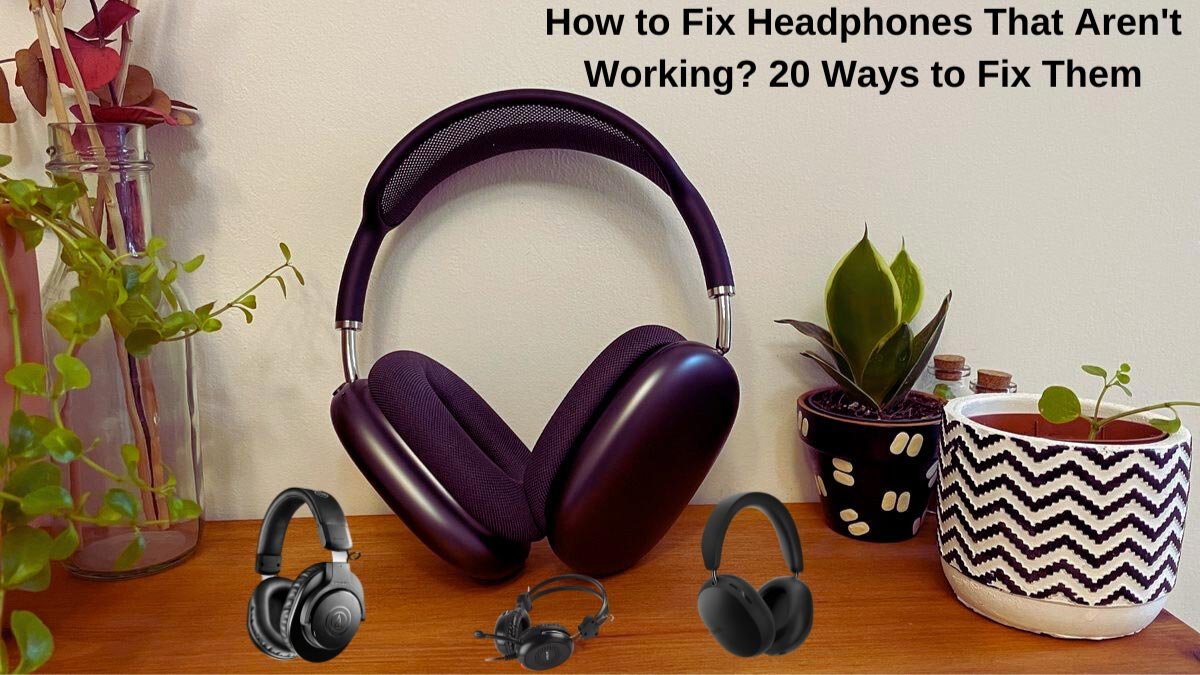
Hogyan lehet rögzíteni a nem működő fejhallgatót? Különböző technikai problémák vannak, amelyeken a fejhallgató nem tud dolgozni, és a megoldások a fejhallgató okától függően változnak.
Így, hogy megtudja, miért nem működik a fejhallgatója, először végezze el ezt az ellenőrzési sorozatot, majd próbálja ki a javasolt tippeket a fejhallgató. Így, Kezdjük el!
A fejhallgató javítása
1: Kapcsolja be a fejhallgatót
Sok fülhallgatók, fülhallgató, és a fejhallgatók beépített akkumulátorral rendelkeznek, és nem működnek, ha nem kapcsolja be őket. A fejhallgató tápkapcsolóját általában az egyik fülhallgató oldalára vagy annak lapos felületére helyezik.
2: Kapcsolja ki, majd be újra a fejhallgatót
Ez a klasszikus technikai tipp olyan számítógépeken működik, amelyek nem működnek, és ez a tipp olyan fejhallgatóval is működhet, amely nem működik. Ezt követően, ha a fejhallgatója nem működik, kapcsolja ki, majd újra be őket, miután csatlakoztatta őket, és nézd meg, hogy ez megoldja-e a problémát.
3: Töltse fel a fejhallgatót
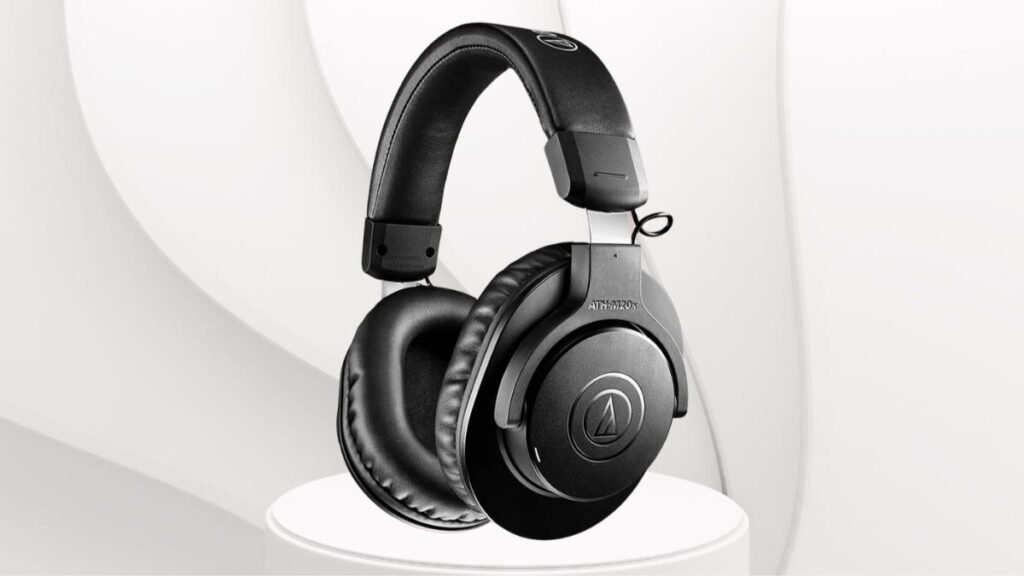
Néhány fejhallgató, különösen ezekkel a funkciókkal bővítve, mint például a zajszűrés és a beépített LED lámpák, külső áramforrástól vagy akkumulátortól függ.
Ha egy ideje nem használta őket, lehet, hogy az akkumulátor lemerült, és fel kell tölteni. Töltse fel a fejhallgatót egy Micro USB port segítségével.
4: Ellenőrizze az USB tápellátási követelményeket
Néhány fejhallgató csatlakoztatható egy eszközhöz USB-n keresztül. De, ha ez az USB-csatlakozás szükséges a fejhallgató tápellátásához a hang vétele mellett, ez csökkentheti a fejhallgató teljesítményét.
5: Kapcsolja be a Bluetooth funkciót a fejhallgatón
Ha vezeték nélküli fejhallgatót használ, be kell kapcsolnia a Bluetooth-t, hogy csatlakozhassa a párosított eszközökhöz.
6: Tekerje fel a hangerőt
Ha hangproblémák vannak a fejhallgatóval, vagy nem hall semmit, lehet, hogy véletlenül lehalkította a hangerőt vagy elnémította a fejhallgatót.
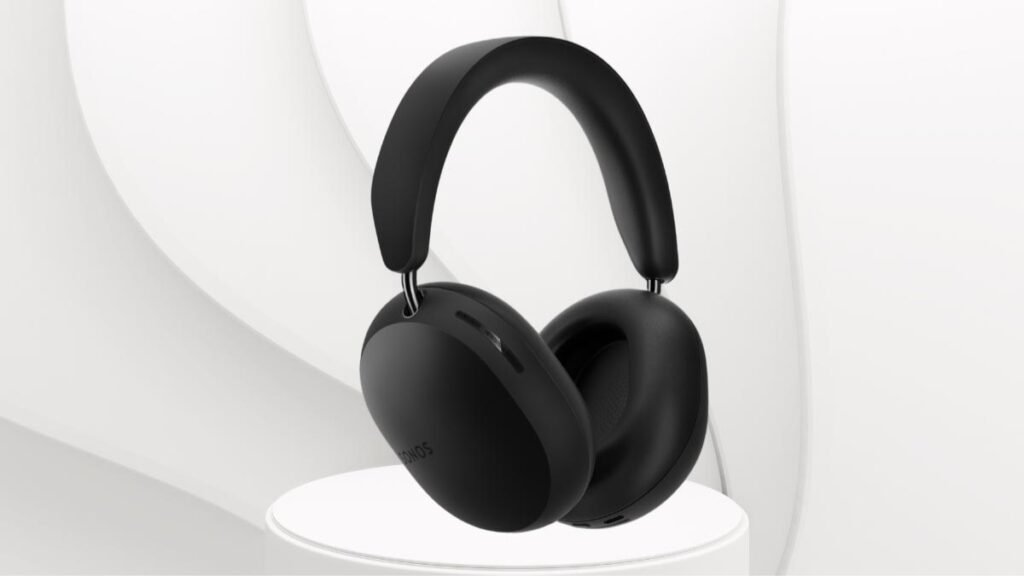
Először ezt javítani, növelje a fejhallgató hangerejét a beépített hangerőszabályzó gombokkal, ha a fejhallgató rendelkezik ezekkel a gombokkal. Ha ez nem oldja meg a problémát, ellenőrizze a hangerőt a párosított eszközön.
7: Sikeresen párosítsa a Bluetooth fejhallgatót az eszközzel
Néhány általános lépés párosítása, amelyek a legtöbb fejhallgatóval működnek.
- Első, győződjön meg arról, hogy a fejhallgató teljesen fel van töltve, és párosítási módban van.
- Kapcsolja be eszközén a Bluetooth-t, és keresse meg fejhallgatóját a listából.
- Kattintson a névre, és most a fejhallgató párosítva van az eszközzel.
8: Javítsa meg a telefon vagy a számítógép fejhallgatóját
A csatlakozási problémák megoldásához távolítsa el a fejhallgató párosítását, majd párosítsa újra a fejhallgatót telefonjával vagy más Bluetooth-eszközével. Mert néha a javítás megoldhatja a csatlakozási problémákat.
A Bluetooth-párosítás eltávolításához Mac számítógépen kövesse ezt a lépést. Első, válassza a Rendszerbeállítások és a Bluetooth lehetőséget, majd a fejhallgatót’ név, X, majd az Eltávolítás lehetőséget.
Fejhallgató eltávolítása Windows rendszeren 10, nyissa meg az ablakokat, és válassza az Összes beállítás és eszköz elemet, majd a fejhallgató nevét. Távolítsa el az eszközt, és kattintson az Igen gombra.
9: Válassza le a nem használt eszközöket a fejhallgatóról
Szüntesse meg az összes nem használt eszköz párosítását, amelyet nem használ. Ezt a kapcsolódó fejhallgató alkalmazásban teheti meg, mint például a Bose Connect alkalmazás Bose fejhallgatókhoz és Bose fülhallgatókhoz, vagy használja a fenti lépést PC-n vagy Mac-en.
10: Távolítsa el a vezetékes csatlakozást
A vezetékes kapcsolat néha felülírja a Bluetooth-kapcsolatot. De ha a fejhallgatót számítógéppel vagy laptoppal tölti, blokkolhatják a hang vezeték nélküli továbbítását okostelefonjáról vagy táblagépéről.
11: Ellenőrizze a sérüléseket a kábel meghajlításával
Az audiokábel sérülése gyakori probléma a fejhallgató kábelekkel. Ha a kábel sérült, finoman hajlítsa meg a kábelt két centiméteres időközönként egyik végétől a másikig.
12: Próbáljon ki egy másik alkalmazást
Ha egy adott alkalmazásból hallgat hangot, de most nem hall hangot, az alkalmazás lehet a probléma. A probléma megoldásához lépjen ki az alkalmazásból, majd nyissa meg újra, az is megoldhatja a problémákat, de ha nem működik, próbáljon ki egy másik alkalmazást.
13: Ellenőrizze az audio csatlakozót
Néha a laptop fejhallgató-csatlakozója, tabletta, vagy az okostelefon elromolhat. Annak ellenőrzésére, hogy az audiocsatlakozó eltörött-e vagy sem, tisztítsa meg az audioaljzatot, vagy használjon másik fej- vagy fülhallgatót.
14: Ellenőrizze a fejhallgatót egy másik eszközön
Ha a fejhallgató nem működik, használja a fejhallgatót egy másik hangforrással, hogy ellenőrizze, működik-e a fejhallgató vagy sem.
15: Próbáljon ki más fejhallgatót vagy fülhallgatót ugyanazon az eszközön, miközben ugyanazt az alkalmazást futtatja
A fenti tanáccsal, meg tudja határozni, hol a probléma. De ha ugyanazzal a problémával találkozik, nem a fejhallgatóval van a probléma. A probléma az alkalmazással vagy az eszközzel lehet.
16: Frissítse a fejhallgató firmware-jét
Sok modern fejhallgató firmware-frissítést igényel a hibák kijavításához és a megfelelő működéshez. Ezeket a frissítéseket gyakran vezeték nélkül is letöltheti és telepítheti a hivatalos okostelefon-alkalmazás használatával. Sok márka frissítési fájlokat is kínál hivatalos webhelyén, amelyeket letölthet és átvihet USB-kábelen keresztül.
17: Frissítse a számítógép vagy az eszköz operációs rendszerét
A legújabb operációs rendszer frissítés telepítéséhez javítsa a kompatibilitást a tartozékok széles skálájával, beleértve a fejhallgatót.
18: Indítsa újra a számítógépet, okostelefon, vagy tabletta
Az újraindítás számos technikai problémát megoldhat, beleértve a hibás fejhallgatókkal kapcsolatosakat is.
19: Kapcsolja ki a Bluetooth-t a nem használt eszközökön
Ha a Bluetooth fejhallgatót több eszközzel párosította a kívánt eszköz előtt, előfordulhat, hogy a fejhallgató a kívánt eszköz helyett ezen eszközök valamelyikéhez csatlakozik. A probléma orvoslására, kapcsolja ki a Bluetooth-t az összes többi eszközön, amíg a fejhallgató nem csatlakozik a kívánt eszközhöz.
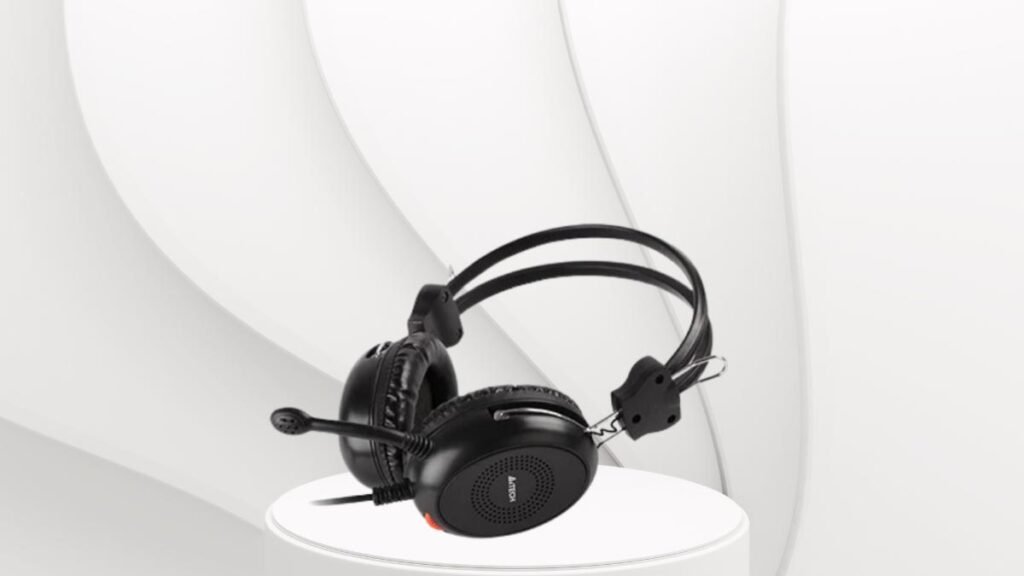
Ehhez előfordulhat, hogy ki- és újra be kell kapcsolnia a fejhallgatót, miután letiltotta a Bluetooth funkciót a többi eszközön.
20: Ellenőrizze az illesztőprogram-frissítéseket
Ha bármely eszköznek valamilyen problémája van, vagy hibát generál, frissítse az illesztőprogramot, mert az illesztőprogramok frissítése nagyszerű hibaelhárítási lépés az eszközökön.
GYIK a nem működő fejhallgatók javításához? 22 A javítás módjai
Miért nem működik a fejhallgató egyik oldala??
Ha a fejhallgatónak csak az egyik oldala nem működik, megsérülhetnek a vezetékek, amelyek erre az oldalra vezetnek.
Hogyan javíthatom meg a víz által sérült fejhallgatót?
A probléma megoldásához győződjön meg arról, hogy a fejhallgató ki van kapcsolva, majd szerelje szét őket, és egy vattakorong segítségével enyhén itassa fel a vizet, majd várja meg, amíg az alkatrészek levegőn megszáradnak, majd szerelje össze őket.
Hogyan javíthatom ki a hangkésleltetést a Bluetooth fejhallgatómon??
A hangkésleltetés javításához csatlakoztassa újra a fejhallgatót, és frissítse eszköze Bluetooth-illesztőprogramjait. Ha a fejhallgató számítógéphez csatlakozik, futtassa a Windows Audio hibaelhárítót, és állítsa vissza a Windows audioszolgáltatást.
Következtetés
Ha meg akarja javítani a nem működő fejhallgatót, akkor kipróbálhatja a fent említetteket 20 lépéseket, és megemlítette a GYIK-et is, amelyek ebben az esetben sokat segítenek. Így, ez minden, amit tudnia kell a nem működő fejhallgatók javításáról. Reméljük, hogy ez a cikk ebben az esetben sokat segít!
![További információ a cikkről, hogyan lehet csatlakozni a 4moms Bluetooth -hoz? [Iphone & Android]](https://toolpub.com/wp-content/uploads/2023/08/Connect-To-4Moms-Bluetooth-300x169.jpg)


