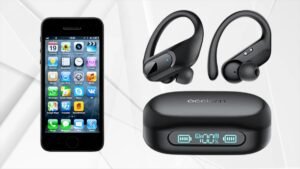
Apakah Anda bertanya-tanya tentang cara menghubungkan headphone nirkabel Brookstone ke iPhone? Anda telah membeli headphone luar biasa ini dan sekarang Anda harus menghubungkannya ke iPhone Anda, baiklah, jangan khawatir, Anda berada di tempat yang tepat untuk mendapatkan cara mudah menghubungkan Brookstone Anda ke iPhone. Di sini kita akan membahas cara membuat hubungan antara keduanya. Jadi, mari kita mulai……
Hubungkan Headphone Nirkabel BrookStone ke iPhone
Untuk Menghubungkan headphone nirkabel Brookstone ke iPhone, Anda harus mengikuti langkah-langkah ini:
- Pertama, Anda harus memastikan bahwa Headphone Anda mati sebelum memulainya memasuki mode berpasangan . Indikator LED di kedua EARCUP headphone Anda tidak akan menyala .
- Sekarang, untuk memulai prosedur pemasangan, Anda harus menekan dan menahan Tombol POWER yang terletak di bagian bawah earcup kanan sekitar 5 detik atau tahan hingga Anda melihat Indikator LED mulai berkedip cepat.
- Sekarang, Anda harus mengaktifkan atau mengizinkan layanan Bluetooth di perangkat seluler Anda dan kemudian Anda harus mencari atau memindainya”BT-H31″ perangkat . (Anda harus mengacu pada instruksi manual perangkat seluler Anda, atau Anda harus menghubungi produsen perangkat seluler. jika Anda memerlukan informasi lebih lanjut.)
- Setelah itu, dari daftar, Anda harus memilih perangkat “BT-H31” dan kemudian Anda harus memasukkan kunci penyandingan “0000”jika diminta . Sekarang, perangkat seluler kemudian akan menyelesaikan pemasangan secara otomatis .
- Jika proses pairing sudah selesai atau selesai, Indikator LED yang ditempatkan pada kedua earcup akan berhenti berkedip cepat dan akan kembali ke flash lebih lambat untuk menunjukkan bahwa mereka telah menyelesaikan atau menyelesaikan pemasangan .
Ingatlah bahwa proses yang disebutkan di atas penting saat Anda menggunakan Headphone Bluetooth untuk pertama kalinya dengan perangkat seluler Anda. Untuk menggunakan Headphone Bluetooth Anda dengan perangkat seluler lain, Anda harus mengulangi proses di atas. Untuk menggunakan perangkat Bluetooth, di perangkat seluler Anda, Anda harus pergi ke menu Bluetooth dan Anda harus memilih “BT-H31” untuk menyambung kembali.
FAQ
Cara Memasang Headphone Nirkabel dalam Mode Berpasangan?
Untuk Pemasangan Bluetooth yang Mudah
Pertama, Anda harus meletakkan headphone Anda dalam mode berpasangan. Biasanya, untuk melakukan itu Anda hanya perlu menahan tombol power; headphone terkadang perlu dimatikan terlebih dahulu sebelum memulai proses. Sejumlah pasangan memicu lampu berkedip setelah beberapa detik untuk menunjukkan mode berpasangan aktif, dan beberapa kali juga ada isyarat audio.
Cara Menambahkan Perangkat Bluetooth Secara Manual?
Untuk menambahkan perangkat Bluetooth secara manual, pertama-tama Anda harus membuka aplikasi Pengaturan di ponsel Anda dan kemudian Anda harus mengetuk Bluetooth (atau Pengaturan > Koneksi > Bluetooth). Setelah itu, Anda harus memastikan bahwa Bluetooth dihidupkan (tombolnya harus berwarna biru). Kemudian, Anda harus memeriksa perangkat Bluetooth Anda dan memastikan perangkat tersebut dihidupkan dan dalam mode penemuan. Di ponsel Anda, Anda harus menunggu hingga muncul di Perangkat yang Tersedia.
Mengapa Headphone Anda Tidak Berfungsi?
Anda harus memeriksa pengaturan Bluetooth
Untuk ini, langkah-langkahnya bisa berbeda-beda tergantung perangkat Android yang Anda gunakan. Anda harus membuka Pengaturan > Koneksi > Bluetooth. Setelah itu, Anda harus mematikan sakelar Bluetooth, atau Anda harus memutuskan sambungan perangkat audio Bluetooth yang sudah terhubung ke ponsel Anda. Anda harus mencolokkan headphone ke jack audio dan kemudian Anda akan memutar sesuatu untuk memeriksa apakah berfungsi.
Bisakah Anda Menghubungkan Beberapa Headphone Bluetooth ke iPhone Anda?
Ya, iPhone terbaru atau modern memungkinkan penggunanya terhubung ke sejumlah speaker atau headphone Bluetooth secara bersamaan melalui AirPlay. Fiturnya, yang disebut 'Bagikan Audio,’ telah diluncurkan 2019 dengan iOS 13.1, memungkinkan pengguna iPhone untuk berbagi satu aliran audio antara dua pasang headphone atau earbud Anda.
Kesimpulan
Semoga, artikel ini akan banyak membantu Anda untuk menyelesaikan masalah Anda. Cara menghubungkan headphone nirkabel Brookstoon ke iPhone sangatlah mudah. Anda hanya perlu mengikuti panduan yang disebutkan di atas untuk menghubungkan headphone nirkabel Brookstone Anda ke iPhone.