Kurdene 무선 이어 버드를 장치에 페어링하고 싶습니까?? 음악을 듣고 휴대 전화 나 PC와 같은 다른 기기에서 전화를 걸고 싶을 때마다 엉킨 전선에 지쳤습니까?, 노트북 탭, 등.?
그렇다면, 이제 무선 이어 버드로 전환 할 때입니다. 시장에서 이용할 수있는 수많은 옵션 중, 눈에 띄는 브랜드 중 하나는 Kurdene입니다. Kurdene Wireless Eorbuds는 원활한 청취 경험과 고급 기술과 고유 한 디자인에 편안한 착용감을 제공합니다..
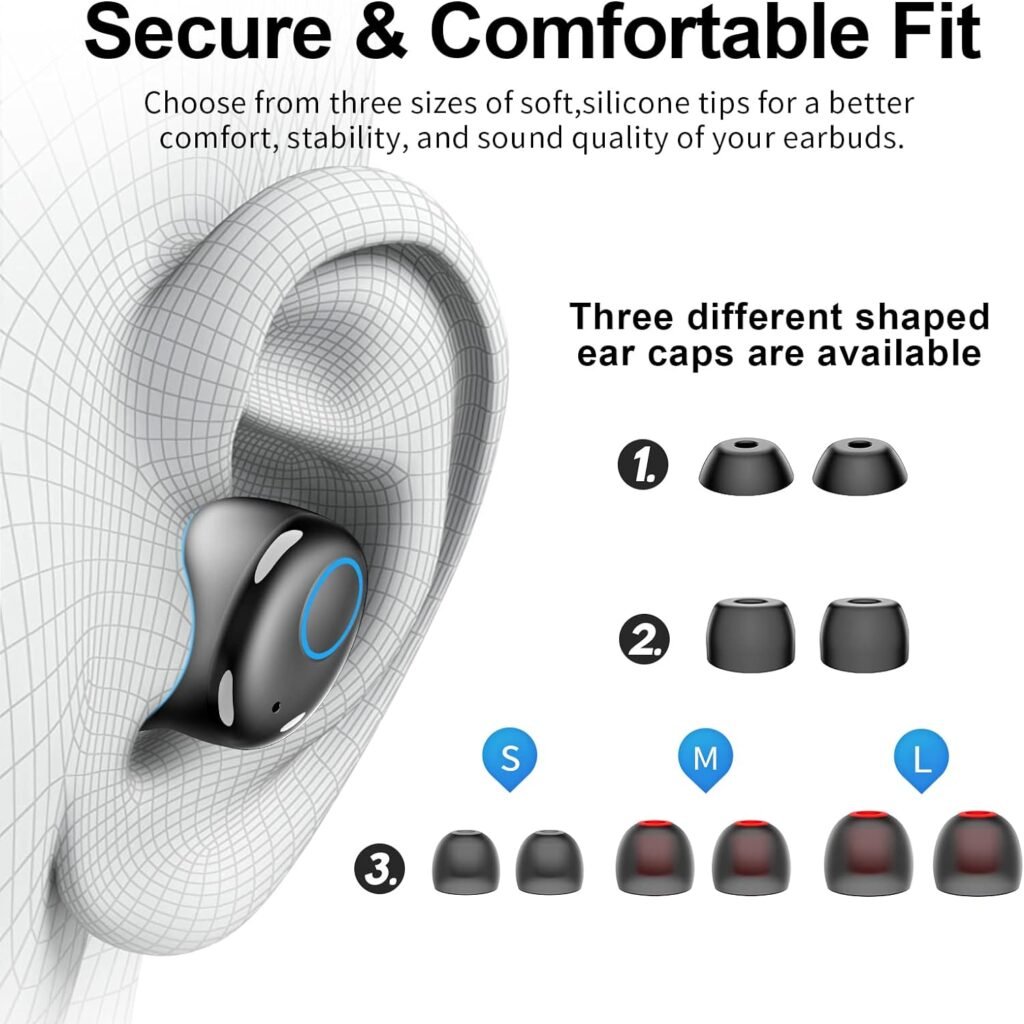
귀에 닿는 모든 표면은 액체 실리콘으로 만들어지며 단단한 플라스틱 M 크기가 설치됩니다., 6 사용자 정의 가능한 맞춤 옵션을위한 크기 S/ M/ L의 다양한 이어 캡 쌍.
액체 실리콘 노즐은 편안함을 위해 귀에 고르게 압력을 전합니다., 안정, 수동 소음 차단. 피로가 적은 하루 종일 편안함을 제공합니다.
Kurdene Wireless Eorbuds는 배터리 수명을 검색하는 경우 솔루션입니다., 두드리는베이스, 그리고 방수. 쿠르 데인이기 때문에 무선 이어폰 모든 종류의 활동에 이상적입니다.
여기, Kurdene Wireless Eorbud를 귀하의 장치에 짝을 이루도록 안내합니다.. 무선 액세서리를 처음 사용하는 경우, Kurdene 무선 이어 버드를 장치에 페어링하는 단계별 지침을 제공합니다..
Kurdene 무선 이어 버드
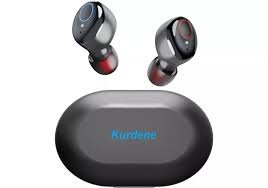
그만큼 Kurdene 무선 이어 버드 에너지를 통해 시장에서 이름을 만들었습니다., 베이스가 많은 멜로디와 시선을 사로 잡는 디자인. Kurdene 무선 이어 버드는 우수한 음질과 안정적인 연결성을 제공합니다..
인체 공학적 디자인과 긴 배터리 수명으로, 이 이어 버드는 모바일 경험을 향상 시키도록 설계되었습니다. Kurdene Wireless Eorbud는 IPX8 표준에 대한 방수 기능입니다. 이 기능은 운동에만 이상적이지 않습니다., 샤워와 수영을 위해서도.
그들은 각 Kurdene 이어 버드가 포기하는 배터리 시간이 좋습니다. 6 한 번의 충전 시간으로 재생 시간. 충전 케이스는 또한 4 개의 추가 요금을 제공합니다, 배터리 수명을 연장합니다 30 시간. 그들은 40-50 피트 신호 범위를 가지고 있습니다.
Kurdene Wireless Eorbuds는 핸즈프리 통화를위한 좋은 옵션입니다., 노이즈 취소 기능을 통해 배경 노이즈가 줄어 듭니다.. 이 이어 버드는 시끄러운 지역에 가장 잘 사용됩니다.
Kurdene 무선 이어 버드를 장치에 페어링하십시오
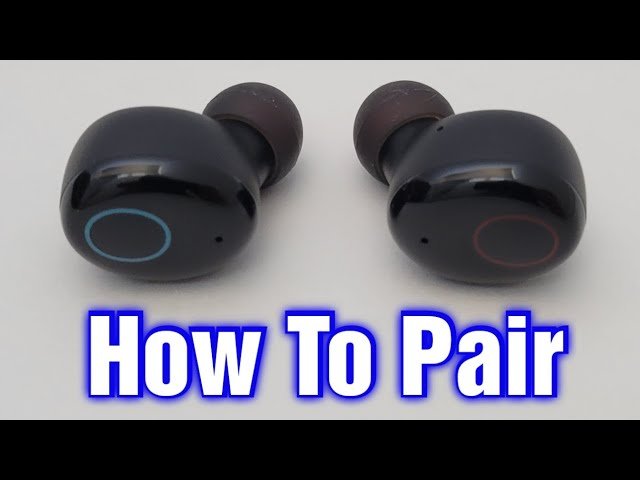
사용중인 장치 유형에 따라 Kurdene 무선 이어 버드를 장치에 약간 다릅니다., 그러나 일반적인 단계는 동일합니다. 아래에 주어진 지침에 따라 Kurdene Wireless Eorbud를 장치에 성공적으로 짝을 이루십시오.. 아래 STP를 따라 Kurdene Wireless Eorbud를 장치에 페어링하려면.
iPhone과 Kurdene 이어 버드를 페어링하십시오
Kurdene Eorbud를 iPhone과 페어링합니다 11, 12, 또는 13, 아래 단계를 따르십시오
- iPhone에서 설정 앱을 엽니 다.
- 지금, iPhone 설정에서, Bluetooth를 탭하십시오.
- 케이스에서 이어 버드를 꺼내면 자동으로 페어링 모드에 들어갑니다.. 왼쪽 이어 버드의 LED 표시기는 파란색과 흰색으로 깜박입니다..
- 이어 버드가 페어링 모드에있는 경우, 전화 목록에 표시됩니다. 간단히, 장치 목록에서 Kurdene 이어 버드를 선택하십시오, 그리고 그들은 iPhone에 자동으로 연결됩니다.
Kurdene Eorbuds를 Android 전화에 짝을 이루십시오
Kurdene Eorbuds를 Android 폰 Samsung과 짝을 이루기 위해, Xiaomi, OPPO, 그리고 Google Pixel, 아래 지침을 따르십시오
- 첫 번째, 이어 버드를 켜면 이어 버드가 자동으로 페어링 모드로 들어갑니다.. 왼쪽 이어 버드의 LED 표시기는 파란색과 흰색으로 깜박입니다..
- 안드로이드 폰의 설정 앱으로 이동하십시오
- 그 다음에, Bluetooth 설정으로 이동하십시오.
- 이제 사용 가능한 장치 목록에서 Kurdene Eorbud를 선택하여 Android 기기에 페어링하십시오..
Kurdene Eorbuds와 MacOS를 페어링하십시오, MacBook Pro, MacBook Air, 그리고 iMac
다음 지침에 따라 Kurdene Eorbuds를 MacOS와 연결하십시오., MacBook Pro, MacBook Air, 그리고 iMac
- Mac에서 시스템 환경 설정을 열어줍니다.
- 옵션에서 Bluetooth를 클릭하십시오.
- 그 다음에, 왼쪽에, Mac에서 Bluetooth를 활성화하려면 Bluetooth를 켜는 것을 클릭하십시오..
- Kurdene 이어 버드를 페어링 모드에 넣으십시오. 페어링 모드에서, 왼쪽 이어 버드의 LED 표시기는 파란색과 흰색 조명을 번갈아 가며.
- Bluetooth 창의 오른쪽에 있습니다, Kurdene 이어 버드를보고 연결을 탭합니다.
- 지금, Kurdene 이어 버드와 Mac 또는 MacBook을 성공적으로 짝을 이루었습니다..
Windows PC와 Kurdene Eorbud를 페어링하십시오
아래 지침을 따라 Kurdene 이어 버드를 창문과 짝을 이루십시오. 11 또는 창 10 PC 또는 노트북
- 첫 번째, Kurdene 이어 버드를 페어링 모드에 넣으십시오. 그러기 위해서는, 왼쪽 이어 버드의 LED 표시기는 파란색과 흰색 플래싱 패턴 사이를 번갈아 가며.
- Open the Settings app by searching for it in the Start Menu.
- In the Windows Settings, choose Bluetooth & 장치, and then click Bluetooth to enable it.
- 지금, tap on the Add device option.
- 다음, 블루투스를 선택하세요.
- 지금, wait for your Windows PC to search for available devices before selecting your Kurdene earbuds from the list.
Kurdene 무선 이어 버드를 재설정하는 방법?
TurnOff your earbuds. To achieve this you will need toPut the Earbuds Into the Charging Case. Delete Previous Connections with your devices. You can do this in the Bluetooth Settings of your device.
Press and hold the Touchbutton of both earbuds simultaneously for at least 15 초. The earbuds should shut off. Now turn it on again, and press and hold the Touch buttons for 3 초.
You can now turn on Bluetooth and Pair Kurdene Wireless Earbuds to Your Devices again by following the above-mentioned steps carefully.
이어 버드 및 충전 케이스를 충전하는 방법?
Before you can start using your Kurdene wireless earbuds, it is important to ensure that they are fully charged. Here is a step-by-step guide on how to charge your Kurdene earbuds.
- 간단히, put the earbuds in the charging case the earbuds automatically start charging.
- When the earbuds are properly connected to the charging cable, you will usually see an LED indicator light up on the earbuds or the charging cable. This light indicates that the earbuds are successfully charging.
- Once the earbuds are fully charged, the LED indicator should change color or turn off to indicate that the charging process is complete.
- To charge the charging case take the charging cable that came with your Kurdene earbuds and connect it to a power source. This can be a USB port on a computer, a wall adapter, or a power bank.
메모: 이 간단한 단계를 따르면, you can ensure that your Kurdene wireless earbuds are properly charged and ready to use. Charging your earbuds regularly will help you enjoy uninterrupted music playback and calls without worrying about a drained battery.
문제 해결 팁
While Kurdene wireless earbuds provide a seamless and convenient listening experience, you may have issues pairing them to your devices. Don’t fret Here are some troubleshooting tips to help you resolve these problems and get back to enjoying your favorite track.
충전 중: Make sure that your earbuds are fully charged. Because low battery sometimes causes connectivity problems. Make sure your Kurdene wireless earbuds are fully charged before Pair Kurdene Wireless Earbuds to Your Devices. Plug them into the charging case and wait until the LED indicators show a solid green light.
Reset the earbuds: If you’re experiencing persistent connection issues, try resetting your Kurdene wireless earbuds. 이것을하기 위해, put both earbuds back into the charging case and leave them for a few seconds. Take out them again and try to Pair Kurdene Wireless Earbuds to Your Devices.
Check Bluetooth settings: Make sure that the Bluetooth on your device is turned on and that it is discoverable. 때때로, connectivity issues can occur due to a device not being visible to the earbuds. Go to your device’s settings and make sure Bluetooth is enabled.
Keep devices within range: Bluetooth connectivity is limited by distance. Make sure your device is within range of the Kurdene earbuds. Being too far away can result in a weak or unstable connection. 그래서, keep your device within 10 meters of the earbuds for stable performance.
Clear device and earbud pairing history: If you’ve previously paired the earbuds with multiple devices, the connection might be disrupted. Clear the pairing history on both the earbuds and your device, and then try to Pair Kurdene Wireless Earbuds to Your Devices again by following the above steps.
Disconnect and reconnect: If you’re experiencing intermittent connectivity problems, try to disconnect the earbuds from your device and then Pair Kurdene Wireless Earbuds to Your Devices again. This can help establish a fresh connection and resolve any temporary glitches.
Contact customer support: If you’ve tried all the troubleshooting steps and are still facing issues with the connection, don’t hesitate to reach out to Kurdene’s customer support. They will be able to provide further assistance and help resolve any persistent connectivity problems.
다음 문제 해결 팁을 따르면, you can overcome most connection issues with Kurdene wireless earbuds and enjoy uninterrupted audio playback. 기억하다, patience and persistence are key when troubleshooting technology, so don’t get discouraged if the issue persists. With a little troubleshooting, you’ll be back to enjoying your favorite music in no time.
Kurdene 무선 이어 버드를 장치에 페어링하는 FAQ
왜 Kurdene 이어 버드 중 하나가 작동 하는가?
만약에, just one of your Kurdene earbuds is working. For both earbuds connection, the first thing you should do is make sure both earbuds are charged. After this when the connections are not properly. Clean the charging space on both the earbuds and the inside of the case this helps you to appropriate contact.
Kurdene 이어 버드를 어떻게 재설정 할 수 있습니까??
To reset Kurdene earbuds, switch off both earbuds and remove the Bluetooth connection from all of your devices. Hold the touch panel on each earbud for 15 초, then release your hold. 마지막으로, press and hold the earbuds’ touch panel for 3 seconds to switch them on, and Pair Kurdene Wireless Earbuds to Your Devices again by following the pair instructions.
Kurdene 이어 버드를 장치에 연결할 수없는 이유?
The most typical reason for your Kurdene earbuds not working is a pairing process issue. 이 경우, simply disconnecting your earbuds from your Bluetooth device and resetting your Kurdene earbuds should fix the problem. Cleaning the charging pins in the charging casing and solve your problems in this way and again Pair Kurdene Wireless Earbuds to Your Devices.
Kurdene Eorbuds를 동시에 여러 장치에 연결할 수 있습니까??
예, the Kurdene earbuds can be paired with many devices; 하지만, keep in mind that the headsets can only play music from one of the paired devices at a time.
결론
Pair Kurdene Wireless Earbuds to Your Devices is a simple process that allows you to enjoy a seamless and immersive audio experience. 제공된 단계별 지침을 따르면, you can effortlessly Pair Kurdene Wireless Earbuds to Your Devices and begin enjoying your favorite music, 팟캐스트, or calls.
The convenience and freedom that comes with wireless earbuds make them a popular choice for mobile accessories. 이 게시물에서, we tell you how to Pair Kurdene Wireless Earbuds to Your Devices.
We showed you how to Pair Kurdene Wireless Earbuds to Your Devices like Windows, 기계적 인조 인간, 아이폰, 그리고 맥. We also reviewed some earphones and answered some Kurdene wireless earbuds-related FAQs. 마지막으로, we hope this article helps you a lot to get information about this product.