

Airdrop ir ātrāka datu pārsūtīšanas tehnoloģija Mac lietotājiem. Tas palīdz jums pārsūtīt plašsaziņas līdzekļus, piemēram, fotoattēlus, video, un citi faili starp iOS ierīcēm bez interneta savienojuma. Airdrop darbojas ar Bluetooth. Tas izveido virtuālo tīklu, izmantojot Wi-Fi savienojumu. Failu koplietošanas process norit nevainojami, bet dažreiz Airdrop kādu iemeslu dēļ nevar savienot ierīci savā starpā. Šodienas nodarbībā, mēs nodrošināsim risinājumu Airdrop nedarbojas.
Airdrop netiek atbalstīts vecākajām iOS versijām. Tas ir iebūvēts ar iOS 7 jaunāka versija, kā arī iebūvēta Mac OS X Yosemite vai jaunāka versija. Tāpēc vienmēr pārbaudiet, vai jūsu ierīce atbalsta Airdrop vai ne?
Airdrop izmanto Bluetooth, lai atklātu tuvumā esošās ierīces 30 pēdu diapazons. Ja jūsu ierīce neatrodas tuvāk saturam, tad jūs nevarat pievienoties ar citu ierīci. Arī, Airdrop izmanto Wi-Fi vienādranga savienojumiem. Tas izveido virtuālu tīklu multivides koplietošanai. Tātad šīs ir pamata lietas, kas jums jāzina. Tagad uzzināsim par kādu problēmu, kas ir jānovērš, lai savienojums būtu veiksmīgs.
[lwptoc]
Risinājumu saraksts Airdrop nedarbojas
Risinājums 1: Restartējiet savu ierīci
Varat to ātri novērst, restartējot ierīci. Kad restartējat tālruni, visas lietotnes sākas no sākuma. Tāpēc lielākā daļa problēmu ir jāatrisina. Tas nav joks. Jums tas ir jāizmēģina vismaz vienu reizi. Restartēšana var novērst visas programmatūras kļūdas, restartējot ierīci. Varat arī stingri atiestatīt ierīci, ja nezināt, kā to izdarīt. Jūs varat sekot šai rokasgrāmatai. Kā cietā veidā atiestatīt iPhone 11
Risinājums 2: Atiestatiet Bluetooth un wifi savienojumu
Bluetooth un wifi savienojuma pārslēgšana ir noderīga arī Airdrop problēmai. Kad esat tos atiestatījis, tīkls tiks atsvaidzināts vēlreiz, kad varēsit tos savienot pārī ar citu ierīci.
- Lai atspējotu Bluetooth un wifi, velciet ar pirkstu no augšas uz leju.
- Augšējā kreisajā pusē redzēsit wifi un Bluetooth ikonas.
- Pieskarieties, lai tos atspējotu. Tagad gaidiet 30 sekundes un atkārtoti iespējot abus. Tas ir tas, ko veicāt, lai Airdrop nedarbojas.

Risinājums 3: Atspējot Hotspot
Lūdzu, ņemiet vērā, ka nevarat izveidot savienojumu ar citu ierīci, kamēr nav atspējots tīklāja savienojums? Hotspot var atspējot iestatījumos vai logrīku joslā. Velciet pirkstu no augšas uz leju. Kad ikonu sarakstā atrodat tīklāja ikonu, lūdzu, atspējojiet to.
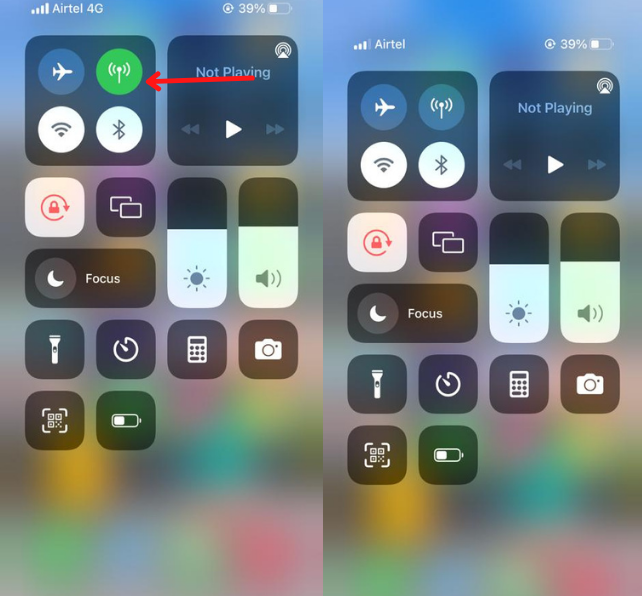
Risinājums 4: Atiestatīt tīkla iestatījumus
iPhone tīkla atiestatīšana arī ir apturējusi šo problēmu. Tīkla atiestatīšana var novērst daudzas problēmas, labojot tīkla konfigurāciju.
- Atveriet savu iestatījumi un dodieties uz ģenerāldirektors opciju.
- Noklikšķiniet uz Atiestatīt opciju
- Tad Atiestatīt tīklu Iestatījumi.
Risinājums 5: Pierakstieties vēlreiz, izmantojot Apple ID
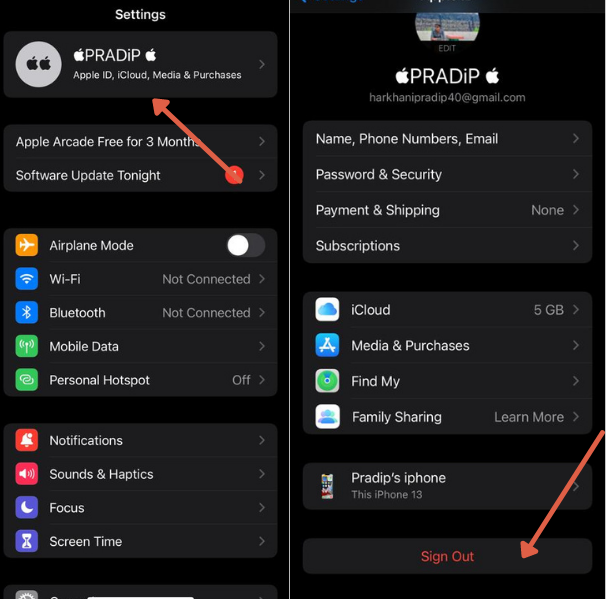
Ja joprojām, jūs neesat atklājams, varat atiestatīt savu Apple ID. Apple ID varētu būt arī iemesls problēmas novēršanai. Vienkārši dodieties uz iestatījumiem un pieskarieties savam vārdam. Tad, dodieties uz iCloud un izrakstieties no konta.
Nākamais, vēlreiz pierakstieties ar savu iCloud kontu. Daudzi lietotāji novērš problēmas, izmēģinot šo problēmu.
Risinājums 6: Atjauniniet iOS versiju
Dažreiz problēmas tiek automātiski atrisinātas, izmantojot sistēmas atjauninājumu. Piemēram, vecākā versijā, ir kļūda, kas neļauj jums veiksmīgi turpināt. Ja ir jālabo atjauninājums, varat doties uz jauno versiju. Jūs varat pārbaudīt cauri iestatījumi>Ģenerālis>Programmatūras atjaunināšana.
Ja kaut kas ir jāatjaunina, ekrānā redzēsit uznirstošo logu.
Lai atjauninātu Mac datorā. jūs varat iet šo ceļu Apple ikona> Sistēmas preferences > Programmatūras atjaunināšana
Risinājums 7: Sazinieties ar Apple atbalsta dienestu
Ja izmēģināsi visu, bet tev nekas nelīdz. Jūsu ierīcei var rasties aparatūras problēma. Jums ir jāsazinās ābolu atbalsts lai atrisinātu šo jautājumu. Viņi noteiks jums tikšanos un palīdzēs pēc iespējas ātrāk novērst problēmu.
Risinājums 8: Atļaut ugunsmūri
Ugunsmūris var bloķēt atļauju izveidot savienojumu ar citu ierīci. Ja savā iPhone tālrunī izmantojat pretvīrusu programmas, atspējojiet tos, koplietojot multividi ierobežotu laiku.
Uz Mac, jūs varat doties uz Ābols > Sistēmas preferences > Drošība & Privātums > Ugunsmūris
Atspējot Bloķēt visus ienākošos savienojumus un nospiediet labi.
Tātad šie visi ir darba risinājumi Airdrop nedarbojas jautājums. Ceru, ka saņēmāt atbildi uz šo problēmu. Lūdzu, kopīgojiet šo rokasgrāmatu ar iPhone lietotājiem, lai viņiem palīdzētu.
FAQ
Kā manā iPhone ierīcē labot AirDrop?
Airdrop labošana daudzos veidos. Ir dažas nepareizas konfigurācijas, kas neļauj koplietot failus. Varat atiestatīt Bluetooth, wifi un tīkla iestatījumi.
Kāpēc mans AirDrop nepārtraukti izslēdzas?
Ja iespējojat akumulatora taupīšanas režīmu vai instalējat trešās puses lietotni, kas neļauj izmantot enerģiju, tad Airdrop var apstāties.
Cik fotoattēlu varat AirDrop vienlaikus?
Jūs varat bez problēmām nosūtīt neierobežotu skaitu failu uz citu ierīci. Uztvērēja ierīcē jābūt pietiekami daudz vietas.
Kāpēc mans Mac AirDrop neparādās manā iPhone tālrunī?
Turiet Mac ierīci tuvu savam iPhone. Airdrop uztver ierīci 30 Pēdu diapazons.
Kopsavilkums
Airdrop nedarbojas daudzos apstākļos. IPhone vai Mac neatbalsta Airdrop, Attālums starp ierīci, Tīkla problēma, wifi, Bluetooth, aparatūras problēma, utt., visi jautājumi, kurus mēs detalizēti apspriedām. Vislabāk būtu novērst visas ar failu koplietošanu saistītās problēmas. Ja nevarat atrisināt šo problēmu, varat sazināties ar Apple atbalsta dienestu.
![Lasiet vairāk par raksta balss pastu, kas nedarbojas iPhone? [Viegli atrisināt]](https://toolpub.com/wp-content/uploads/2021/11/jason-goodman-BAanEbxe9No-unsplash-200x300.jpg)


