If you’re looking to connect Sesh Evo earbuds nrog koj lub cuab yeej, there are a few things you’ll need to do. Hauv tsab xov xwm no, we give you a complete detailed, and step-by-step guide to connecting with different devices.
How to put Sesh Evo earbuds in pairing mode?
Before pairing the earbuds to your device, you must get them in pairing mode. The steps to do this are easy to follow.
- Place the earbuds in the charging case and make sure their LEDs flash red. If the LEDs do not flash red, close the case, tom qab ntawd qhib nws, and the LEDs on both earbuds should now light red.
- Tshem ob lub pob ntseg ntawm lub thawv them, and they will flash blue, showing they are syncing.
- Once only the left earbud is flashing red and blue, they are in pairing mode, and you can continue with the pairing process on the source device.
- You can manually force them into pairing mode by pressing and holding the touch area on either earbud for six seconds.
- If that does not work, turn off Bluetooth on the connected device, and your Sesh Evo will go into pairing mode.
Connect Sesh Evo earbuds with Android device
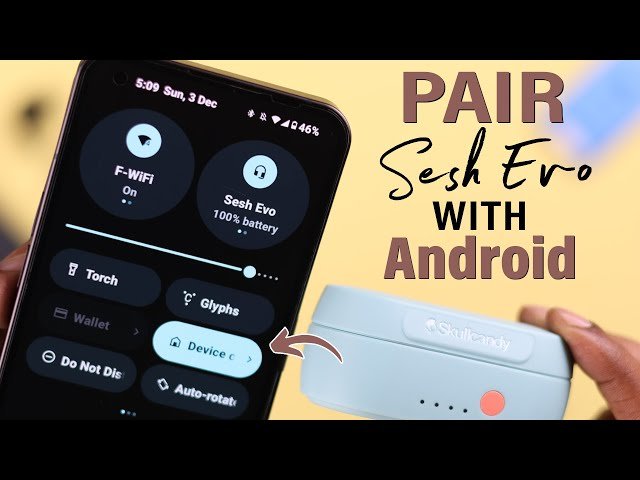
- Open the Settings on your Android device and turn on the Bluetooth.
- Wait a few seconds the phone scans available Bluetooth devices and lists them.
- Select the Sesh Evo earbuds and click on them to connect.
- Once pairing is successful earbuds will prompt an audio Connected.
Nco ntsoov: These steps will differ depending on the manufacturer of your Android device. Li ntawd, yog li, check on the manufacturer’s website or the device’s user manual if you encounter any hurdles.
Connect Sesh Evo earbuds with a Windows device
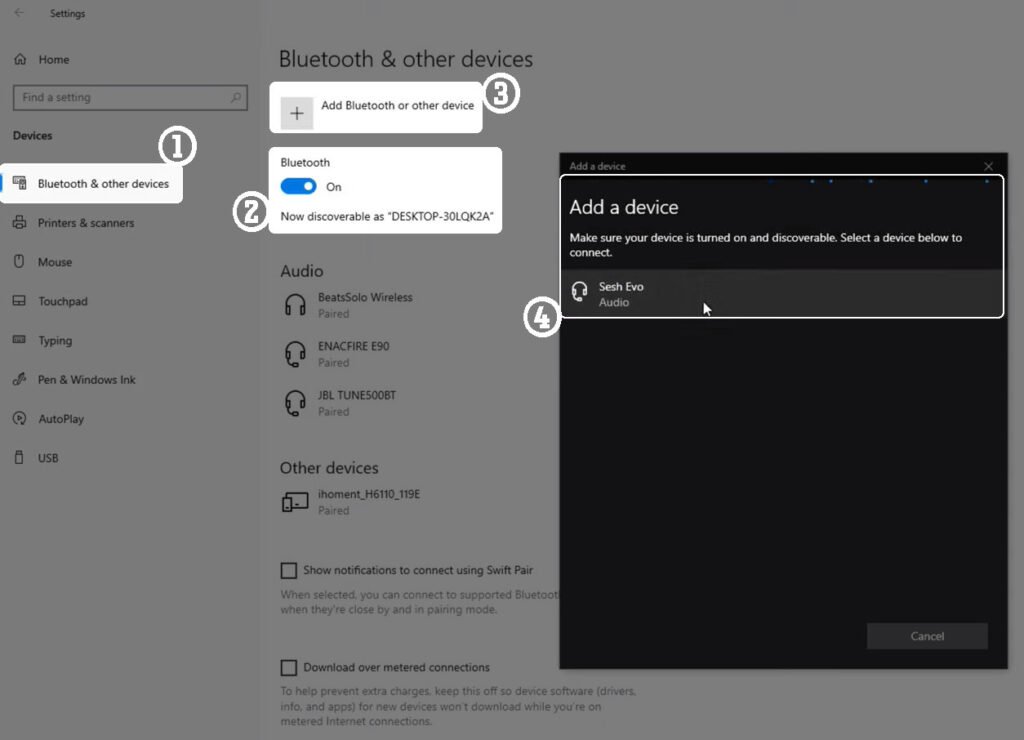
- Click on Start on the taskbar and select Settings.
- Now go to Bluetooth & devices and ensure Bluetooth is enabled.
- Select Add Device, then Bluetooth on the new window.
- Wait for the earbuds to appear among the available Bluetooth devices with the name Sesh Evo.
- Select the earbuds and select OK or pair on any further prompts that will come up.
Nco ntsoov: The above steps work for Windows 11, but you can find the instructions for other operating systems on Microsoft support.
Connect Sesh Evo earbuds with a MacBook
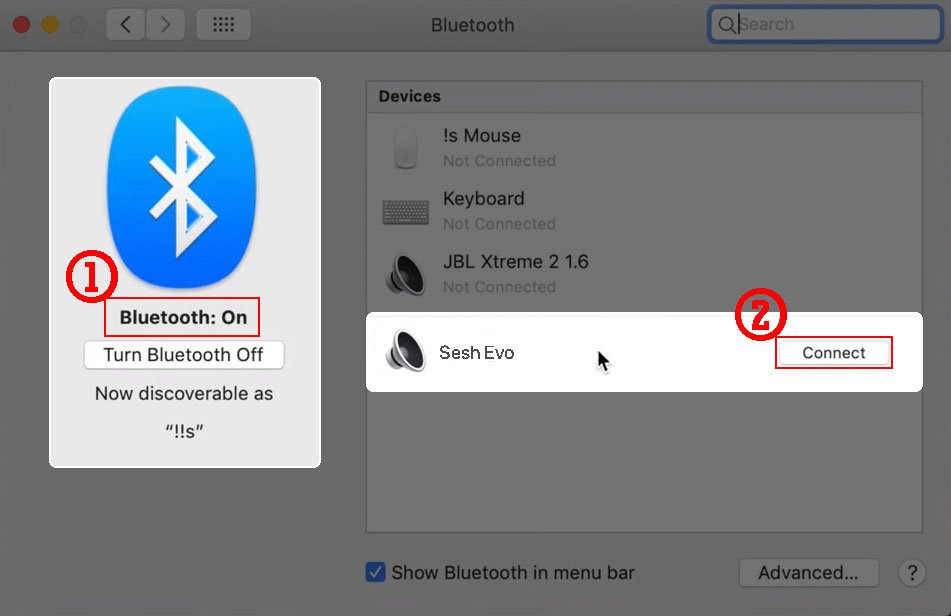
- Click on the Apple menu and go to System Settings > Bluetooth.
- Now select the Sesh Evo earbuds on the list of available devices.
- Finally, select Connect, and you are done.
Connect Sesh Evo earbuds with iPhone
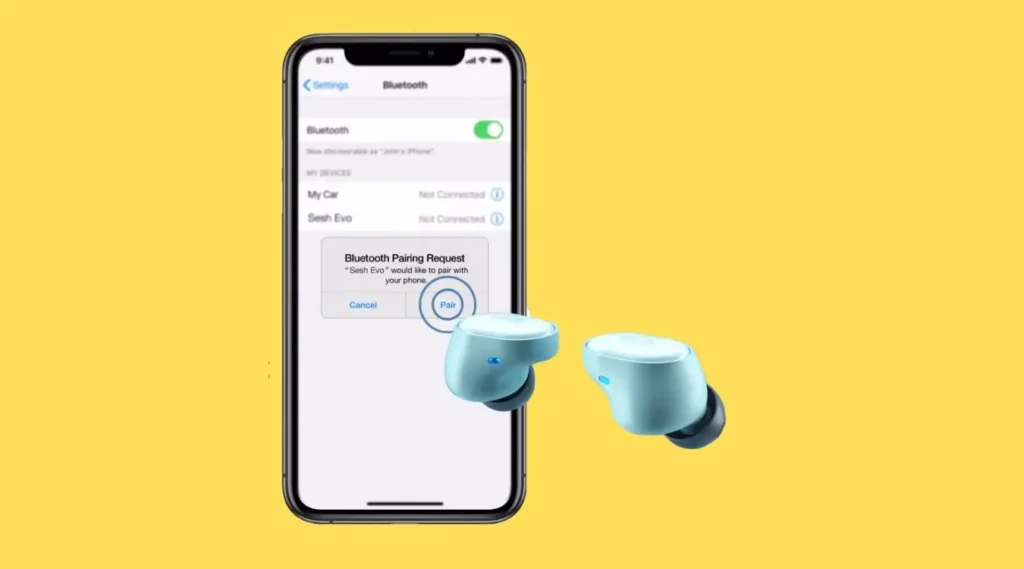
- Open Settings on your iPhone go to Bluetooth and ensure it is turned on.
- Xaiv lub pob ntseg Sesh Evo los ntawm cov npe ntawm lwm cov khoom siv.
- Xaiv lub Sesh Evo buds, raws li lawv nyob ntawm cov khoom siv npaj txhij.
How to Reset Sesh Evo earbuds
Yog tias koj lub pob ntseg tsis ua haujlwm ib txwm lossis koj xav rov pib dua lawv thiab muab lawv pib tshiab, cov lus qhia hauv qab no yuav pab koj.
- Thawj, tsis nco qab lub pob ntseg los ntawm lub cuab yeej los ntawm nws cov teeb tsa Bluetooth.
- Tom qab ntawd nqa tawm lub pob ntseg los ntawm rooj plaub thiab tua lawv los ntawm kev tuav qhov chaw kov rau plaub vib nas this.
- Thaum lub mloog pob ntseg tseem tua, kov thiab tuav qhov chaw kov rau kaum vib nas this.
- Lub pob ntseg flashed xiav, tom qab ntawd liab, thiab thaum kawg fais fab.
- Muab ob lub buds tso rau hauv lub thawv them thiab xyuas kom meej tias cov LEDs ntawm lub pob ntseg yog lub teeb liab los qhia tias lawv tab tom them thaum nyob hauv rooj plaub.
- Nqa tawm lub pob ntseg los ntawm rooj plaub, and the LEDs on both earbuds will flash blue to show they are pairing with each other.
- The left bud will flash red and blue once both buds have synched and are in pairing mode.
Xaus
Sesh Evo earbuds share similar controlling procedures as most earbuds from Skullcandy. tiam sis, due to the slight differences, it can be challenging to set them up and use them. Fortunately, this article helps you adequately utilize them and gives you a step-by-step guide on how to connect Sesh Evo earbuds to different devices.