

Awe nos lo papia tokante ‘Kon pa drecha e servidor No por a haña adrès di DNS. E wèpsait aki no por wòrdu alkansá!’ Si bo ta haña e tipo di eror aki, e ora ei por tin un problema ku e DNS Server di ISP. Un kòmpiuter ta skohe pa default ISP DNS Server. Bo por konfigurá DNS Server manualmente for di e setting.
Si bo ta usando e browser di internèt, semper bo ta haña un eror, e adrès di DNS no por a wòrdu hañá. Esaki ta e eror standart — mayoria di e hendenan ku ta enfrentá e problema aki. Bo no mester preokupá ku e problema aki.
Ora bo ta buskando un página di wèp, e internèt ta haña e DNS di e wèpsait si e internèt no por konektá ku e servidor e ora ei e popup di eror aki.
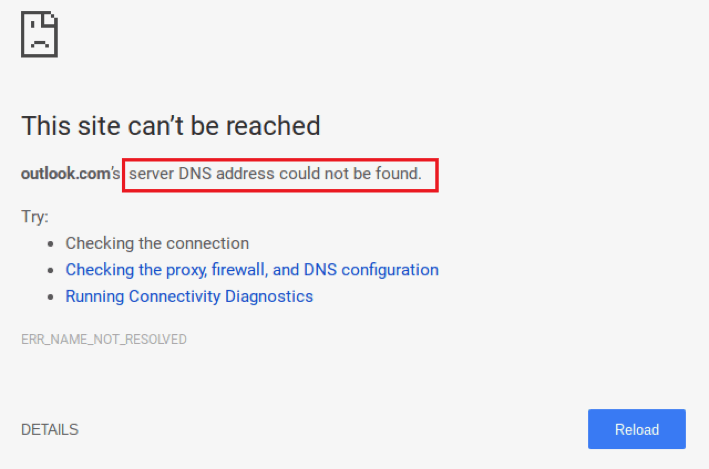
tin e siguiente motibu ku mester wòrdu interpretá pa e eror aki
- Dominio ku no ta reakshoná
- DNS Server Down
- IP adrès a kambia pa e servidor ei
Adrès di IP ku ta wòrdu usá pa manda informashon via pakete pa pakete. Aunke chrome no a logra konektá ku un adrès IP, despues e eror aki ta bini. Bo por solushoná e eror aki dor di e métodonan aki bou. laga wak awor
Purba tur e métodonan te ora bo haña e kontesta. Mi ta hasi mi bèst pa solushoná bo problemanan.
Método 1: Elimina tur e archivonan for di e map ‘etc’
- Habri e siguiente kaminda C:\Windows\System32\drivers\etc
- Elimina tur e archivonan for di e map ei.
- despues di purba di aksesá páginanan di wèp

Método 2: Limpia e cache di host di Chrome pa kita adrès di dns no por a wòrdu hañá
- Habri Chrome Browser
- Habri Menu for di e sekshon Ariba na man drechi
- Habri bentananan Inkognito Nobo i pega chrome://net-internals/#dns den e bar di url i primi Enter
- Klik riba e Limpia e cache di anfitrion boton.
- despues di hasié habri e prompt di komando
- primi e boton winows+R pa habri e kuadro di Diálogo Run
- despues skirbi cmd
- kopia e kódigo abou i pega den e prompt di komando
netsh int ip reset
netsh winsock reset
ipconfig /release
ipconfig /renew
ipconfig /flushdns
netsh winsock reset catalog
netsh int ipv4 reset reset.log
netsh int ipv6 reset reset.log
Salida
9. Sera Command Prompt i restart Google Chrome.
Método 3: Konfigurá e servidor di DNS manualmente
- Habri Panel di Kontrol riba bo kòmpiuter
- klik riba riba Sentro di Red i Kompartimentu
- Selekshoná Kambia e settingnan di e adaptador i klik drechi riba e símbolo di konekshon (Konekshon di Área Lokal òf Konekshon di Red Inalámbriko).
- habri propiedatnan i marka e Vershon di Protokòl di Internèt 4 (TCP /IPv4)
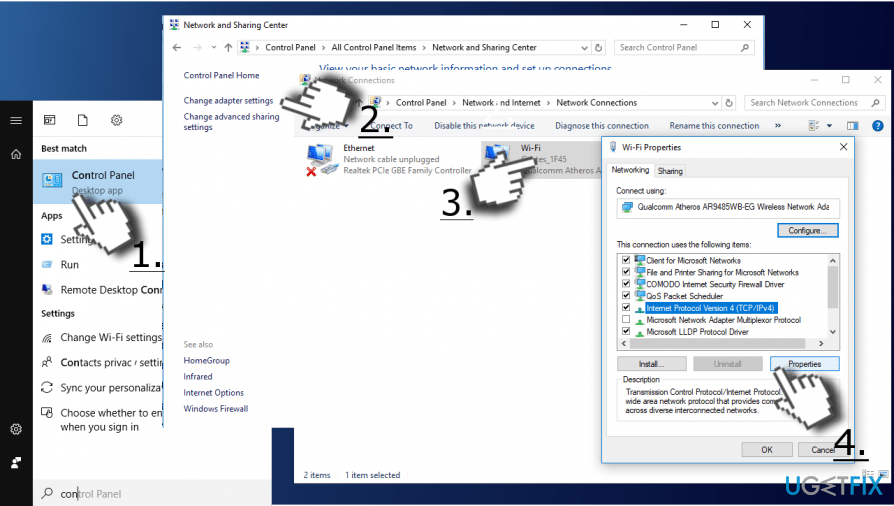
- habrí Kualidatnan un biaha mas i habri General tab
- Selekshoná Obtené adrès di e servidor DNS outomatikamente e klik OK.
- si Obtené adrès di e servidor DNS outomatikamente ta selektá kaba anto selektá e Usa e siguiente adrès di e servidor di DNS na lugá di esei opshon.
- Awor introdusí e siguiente adrèsnan di servidor i klik OK:
Servidor di DNS preferí: 8.8.8.8
Servidor di DNS alterno: 8.8.4.4
ÒF
Servidor di DNS preferí: 208.67.222.222
Servidor di DNS alterno: 208.67.220.220 - finalmente, bo a hasi tur e proseso. awor habri chrome i purba di aksesá páginanan di wèp.
Método 4: Usa un VPN
si bo ta enfrentá kualke problema ainda, despues bo por usa un VPN si e adrès IP ta blòkiá pa e servisio di internèt.
bo por usa e método aki tambe pa telefon selular android pa kita e eror DNS adrès no por a wòrdu hañá
Mi ta spera ku un di e métodonan lo solushoná e adrès di DNS ku no por a wòrdu hañá. Si bo tabata enfrentá un problema, por fabor laga mi sa e pregunta. Lo mi purba di duna bo un kontesta. No lubidá di kompartí ku otro hende.

![Lesa mas tokante e artíkulo Voicemail pa traha riba iPhone? [Soluciona Facilmente]](https://toolpub.com/wp-content/uploads/2021/11/jason-goodman-BAanEbxe9No-unsplash-200x300.jpg)
