Airdrop เป็นเทคโนโลยีถ่ายโอนข้อมูลที่เร็วขึ้นสำหรับผู้ใช้ Mac. ช่วยให้คุณถ่ายโอนสื่อ เช่น ภาพถ่าย, วิดีโอ, and other files between iOS devices without an internet connection. Airdrop works with Bluetooth. It creates a virtual network using a Wifi connection. The file-sharing process runs smoothly, but sometimes Airdrop can’t pair the device with each other for some reason. In today’s lesson, we will provide the solution for Airdrop not working.
Airdrop is not supported for the Older iOS versions. It is inbuilt with iOS 7 later version and also inbuilt Mac OS X Yosemite or later versions. ดังนั้นควรตรวจสอบเสมอว่าอุปกรณ์ของคุณรองรับ Airdrop หรือไม่?
Airdrop ใช้บลูทูธเพื่อค้นหาอุปกรณ์ใกล้เคียง 30 ช่วงฟุต. หากอุปกรณ์ของคุณไม่ใกล้กับเนื้อหามากนัก, คุณจะไม่สามารถเข้าร่วมกับอุปกรณ์อื่นได้. อีกด้วย, Airdrop ใช้ wifi สำหรับการเชื่อมต่อแบบเพียร์ทูเพียร์. สร้างเครือข่ายเสมือนสำหรับการแบ่งปันสื่อ. นี่คือสิ่งพื้นฐานที่คุณต้องรู้. ตอนนี้เรามาเรียนรู้เกี่ยวกับปัญหาบางอย่างที่ต้องแก้ไขเพื่อให้การเชื่อมต่อสำเร็จ.
[lwptoc]
Solutions list for Airdrop not Working
สารละลาย 1: Restart your Device
คุณสามารถแก้ไขได้อย่างรวดเร็วด้วยการรีสตาร์ทอุปกรณ์ของคุณ. เมื่อคุณรีสตาร์ทโทรศัพท์, แอพทั้งหมดเริ่มต้นจากจุดเริ่มต้น. ดังนั้นปัญหาส่วนใหญ่ควรได้รับการแก้ไข. มันไม่ใช่เรื่องตลก. คุณต้องลองสิ่งนี้อย่างน้อยหนึ่งครั้ง. การรีสตาร์ทสามารถแก้ไขข้อบกพร่องของซอฟต์แวร์ทั้งหมดได้โดยการรีสตาร์ทอุปกรณ์ของคุณ. You can also hard reset your device if you don’t know to do this thing. You can follow this guide. วิธีฮาร์ดรีเซ็ต iPhone 11
สารละลาย 2: Reset Bluetooth and wifi Connection
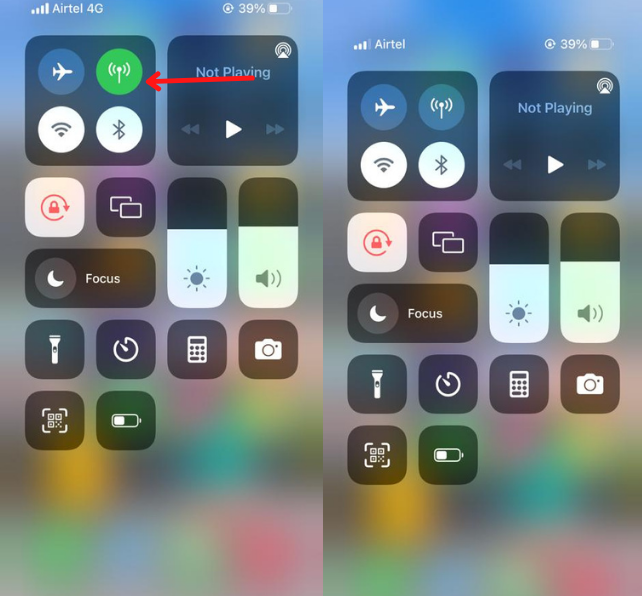
Toggle Bluetooth and wifi connection are also helpful for the Airdrop issue. Once you reset them, the Network will refresh again after you can pair them with another device.
- To disable Bluetooth and wifi drag your finger from up to down.
- You will see wifi and Bluetooth icons on the top left side.
- Tap to disable them. Now wait for 30 seconds and Re-enable both. That’s it you done the process for Airdrop is not working.

สารละลาย 3: Disable Hotspot
Would you please keep a note You can’t connect with another device until you disable the hotspot connection? You can disable the hotspot from the setting or Widgets bar. Drag your finger from up to down. Once you find the hotspot icon from the icon list, please disable it.
สารละลาย 4: รีเซ็ตการตั้งค่าเครือข่าย
Reset your iPhone Network has also stopped this issue. Reset Network could fix many problems through correct your network configuration.
- Open your settings and go to the general ตัวเลือก.
- Click on the รีเซ็ต ตัวเลือก
- แล้ว Reset Network การตั้งค่า.
สารละลาย 5: Sign in again with Apple ID
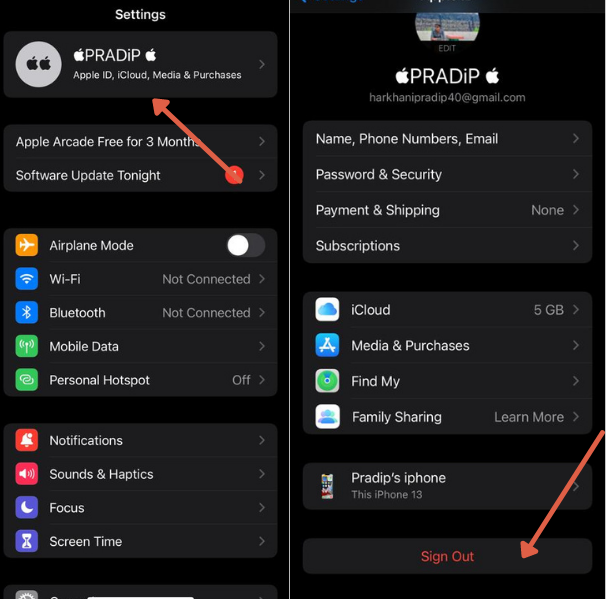
ถ้ายัง, you are not discoverable, you can reset your apple id. Apple Id could also be a reason to correct your problem. Just go to settings and tap on your name. แล้ว, go to iCloud and sign out from the account.
ต่อไป, sign in again with your iCloud account. Many users fix issues by trying this issue.
สารละลาย 6: Update the iOS Version
Sometimes issues are automatically solved through a system update. ตัวอย่างเช่น, in the older version, there is a bug that prevents you from successfully proceeding. If there is an update need to fix you can go for the new version. You can check through settings>ทั่วไป>อัพเดตซอฟต์แวร์.
หากมีสิ่งใดจำเป็นต้องปรับปรุง, คุณจะเห็นป๊อปอัปบนหน้าจอ.
หากต้องการอัพเดตบนคอมพิวเตอร์ Mac. คุณสามารถไปตามเส้นทางนี้ ไอคอนแอปเปิ้ล> การตั้งค่าระบบ > อัพเดตซอฟต์แวร์
สารละลาย 7: ติดต่อฝ่ายสนับสนุนของ Apple
ถ้าลองทุกอย่าง, แต่ไม่มีอะไรเหมาะกับคุณ. อุปกรณ์ของคุณอาจประสบปัญหาด้านฮาร์ดแวร์. คุณต้องติดต่อ การสนับสนุนแอปเปิ้ล เพื่อแก้ไขปัญหานี้. พวกเขาจะนัดหมายให้คุณและช่วยคุณแก้ไขปัญหาโดยเร็วที่สุด.
สารละลาย 8: Allow Firewall
ไฟร์วอลล์อาจบล็อกสิทธิ์ในการเชื่อมต่อกับอุปกรณ์อื่น. หากคุณใช้แอพป้องกันไวรัสบน iPhone ของคุณ, ปิดการใช้งานในขณะที่แชร์สื่อในระยะเวลาที่จำกัด.
บนแมค, คุณสามารถไปได้ แอปเปิล > การตั้งค่าระบบ > ความปลอดภัย & ความเป็นส่วนตัว > ไฟร์วอลล์
ปิดการใช้งาน บล็อกการเชื่อมต่อขาเข้าทั้งหมด และกด ตกลง.
ดังนั้นสิ่งเหล่านี้จึงเป็นวิธีแก้ปัญหาที่ใช้งานได้ Airdrop not working ปัญหา. ฉันหวังว่าคุณจะได้รับคำตอบสำหรับปัญหานี้. โปรดแบ่งปันคู่มือนี้กับผู้ใช้ iPhone เพื่อช่วยเหลือพวกเขา.
คำถามที่พบบ่อย
How do I fix AirDrop on my iPhone?
Airdrop fix in many ways. There is some misconfiguration that prevents file sharing. You can reset Bluetooth, wifi and Network settings.
Why does my AirDrop keep turning off?
If you enable battery saver mode or install a third-party app that prevents the use of power, then Airdrop May stop.
How many photos can you AirDrop at once?
You can send unlimited files to another device without any problem. The receiver device should have enough space.
Why is my Mac AirDrop not showing up on my iPhone?
Keep close your Mac device to your iPhone. The Airdrop captures the device within 30 Feet Range.
สรุป
Airdrop is not working in many conditions. The iPhone or Mac does not support Airdrop, Distance between the device, Network issue, อินเตอร์เน็ตไร้สาย, บลูทู ธ, hardware problem, เป็นต้น, all issues we discussed in detail. It would be best if you fixed all of the issues for File sharing. If you are unable to solve this problem, you can contact apple support.
วีดีโอ
![อ่านเพิ่มเติมเกี่ยวกับบทความข้อความเสียงไม่ทำงานบน iPhone? [แก้ปัญหาได้อย่างง่ายดาย]](https://toolpub.com/wp-content/uploads/2021/11/jason-goodman-BAanEbxe9No-unsplash-200x300.jpg)