
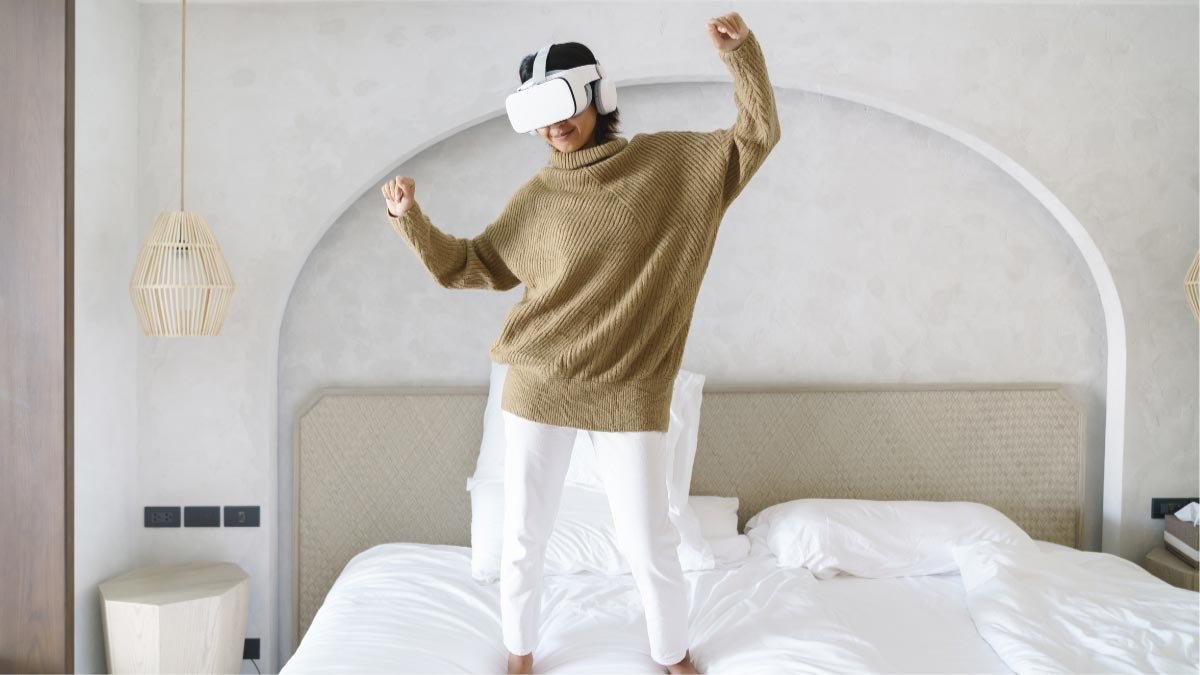
คุณต้องการเชื่อมต่อ Meta Quest หรือไม่ 2 ตัวควบคุมไปยังชุดหูฟัง? ภารกิจ 2 คอนโทรลเลอร์เป็นการอัปเดตที่ดีที่สุดสำหรับคอนโทรลเลอร์ Quest ดั้งเดิม, ซึ่งมีคุณสมบัติแยกกันเช่น, ปุ่มจับและทริกเกอร์, ปุ่มหน้าสามปุ่ม, และจอยสติ๊ก.
ตัวควบคุมเหล่านี้ใช้พลังงานจากแบตเตอรี่ AA หนึ่งก้อน. คอนโทรลเลอร์เหล่านี้มีอายุการใช้งานแบตเตอรี่ยาวนานกว่าคอนโทรลเลอร์รุ่นแรก.
แต่คนส่วนใหญ่ไม่ทราบวิธีการเชื่อมต่อ เมต้าเควส 2 ผู้ควบคุม ไปยังชุดหูฟัง. ไม่ต้องกังวลในบทความนี้ เราได้ให้คำแนะนำแบบทีละขั้นตอนเกี่ยวกับ Mete Quest แก่คุณแล้ว 2 คอนโทรลเลอร์และวิธีเชื่อมต่อ Meta Quest 2 ตัวควบคุมไปยังชุดหูฟัง. มาเริ่มต้นและใช้ชีวิตไปพร้อมกับเรา!
เมทเควส 2 ผู้ควบคุม
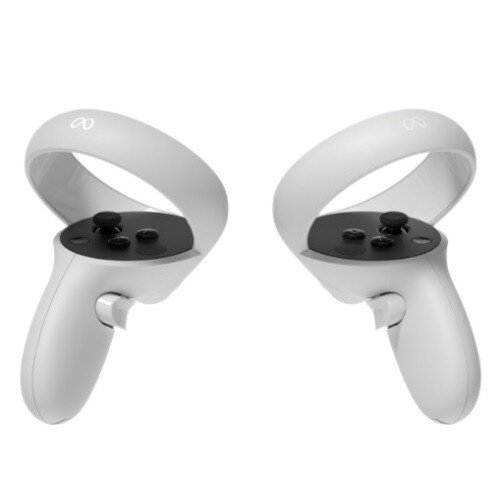
ตัวควบคุมเป็นวิธีพื้นฐานในการโต้ตอบด้วย เกม และแอพภายใน VR. บางครั้งคุณสามารถใช้งานแบบแฮนด์ฟรีจากคอนโทรลเลอร์ได้, แต่การติดตามมือฟรีนี้ใช้ไม่ได้กับทุกเกม.
ในทางกลับกัน, Quest มีการติดตามมือที่ค่อนข้างพิเศษและเชื่อถือได้, ซึ่งช่วยให้คุณใช้มือเพื่อแสดงท่าทางต่างๆ เช่น การบีบและการจับ.
วิธีการเชื่อมต่อ Meta Quest 2 ตัวควบคุมไปยังชุดหูฟัง?
คอนโทรลเลอร์มาพร้อมกับ Meta Quest 2 ชุดหูฟังที่จับคู่โดยอัตโนมัติ. แต่บางครั้งคุณจำเป็นต้องเปลี่ยนใหม่. โดยทำตามคำแนะนำทีละขั้นตอนอย่างระมัดระวัง.
- อันดับแรก, ตรวจสอบให้แน่ใจว่าคอนโทรลเลอร์มีแบตเตอรี่, และชุดหูฟังของคุณเปิดอยู่.
- ตอนนี้, เริ่ม Meta Quest 2 บนอุปกรณ์ของคุณและลงชื่อเข้าใช้บัญชีของคุณ.
- แล้ว, แตะที่ไอคอนเมนูและเลือกอุปกรณ์.
- แตะที่การตั้งค่าชุดหูฟังและเลือกตัวควบคุมในรายการการตั้งค่าชุดหูฟัง.
- หลังจากทั้งหมด, ขั้นตอนเหล่านี้แตะจับคู่คอนโทรลเลอร์ใหม่แล้วแตะชื่อทางซ้ายหรือขวา.
- ตอนนี้, คุณต้องกดปุ่ม Oculus หรือปุ่มเมนูพร้อมกับปุ่ม Y บนตัวควบคุมเป็นเวลาสองสามวินาทีหรือจนกว่าโลโก้ Oculus จะกะพริบและตัวควบคุมสั่น.
เหตุใดผู้ควบคุมจึงไม่เชื่อมต่อกับ Meta Quest 2 ชุดหูฟัง?
หากคอนโทรลเลอร์ไม่ได้เชื่อมต่อกับ Meta Quest 2 ชุดหูฟังทำตามขั้นตอนง่ายๆ เหล่านี้เพื่อแก้ไขปัญหานี้.
- อันดับแรก, ตรวจสอบแบตเตอรี่ของคอนโทรลเลอร์ซึ่งเป็นปัญหาที่พบบ่อยที่สุด. หากแบตเตอรี่หมด ให้เปลี่ยนแบตเตอรี่ AA ใหม่แล้วลองเชื่อมต่ออีกครั้ง.
- หลังจากเปลี่ยนแบตเตอรี่แล้วปัญหาก็ดูราวกับว่าเป็นเช่นนั้น. ดังนั้น, ชุดหูฟังของคุณจำเป็นต้องรีสตาร์ท. รีสตาร์ทชุดหูฟังโดยกดปุ่มเปิด/ปิดค้างไว้, จนกว่าชุดหูฟังจะรีสตาร์ท.
- หากคุณไม่สามารถแก้ไขปัญหาได้หลังจากขั้นตอนเหล่านี้ คุณจะต้องทำขั้นตอนการจับคู่ซ้ำ. เพื่อทำเช่นนั้น, ทำตามขั้นตอนที่กล่าวมาข้างต้น.
วิธีรีเซ็ต Oculus 2 คอนโทรลเลอร์?
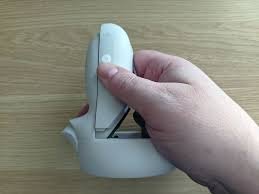
หากผู้ควบคุมไม่ทำงานและคุณอารมณ์เสียและสิ้นหวังอย่างยิ่ง. คุณต้องรีเซ็ตคอนโทรลเลอร์ของคุณ.
- เริ่ม Meta Quest 2 บนอุปกรณ์ของคุณและลงชื่อเข้าใช้บัญชีของคุณ.
- แตะที่ไอคอนเมนูและเลือกอุปกรณ์.
- แตะที่การตั้งค่าชุดหูฟังและเลือกตัวควบคุมในรายการการตั้งค่าชุดหูฟัง.
- ตอนนี้, แตะที่คอนโทรลเลอร์ที่ไม่ทำงาน, จากนั้นแตะเลิกจับคู่, ตัวควบคุมในการลบออกจากอุปกรณ์ของคุณ.
- ซ่อมแซมชุดหูฟังของคุณอีกครั้งโดยทำตามขั้นตอนการจับคู่ที่กล่าวข้างต้น.
วิธีการตั้งค่าคอนโทรลเลอร์สำหรับชุดหูฟังของฉันบน Oculus for Business?
หากต้องการเชื่อมต่อตัวควบคุมระบบสัมผัสเข้ากับชุดหูฟัง Oculus for Business ของคุณ ให้ทำตามขั้นตอนต่างๆ.
- ก่อนอื่นเลย, เลือกโลโก้ของบริษัทของคุณจากเมนูสากล.
- แล้ว, ป้อนรหัส PIN ผู้ดูแลระบบของคุณ.
- เลือกการตั้งค่า, เลือกอุปกรณ์, จากนั้นเลือกตัวควบคุม.
- ตอนนี้, เลือกจับคู่และปฏิบัติตามคำแนะนำบนหน้าจอเพื่อดำเนินการตั้งค่าให้เสร็จสิ้น.
วิธีจับคู่และเลิกจับคู่ Touch Controllers กับ Meta Quest ของคุณ?
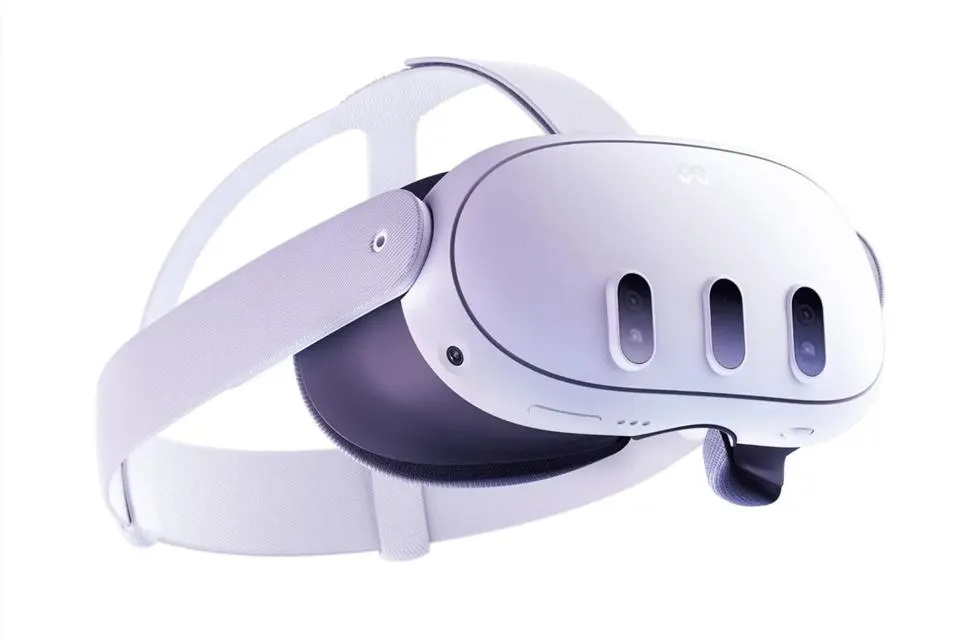
วิธีจับคู่ Touch Controllers กับ Meta Quest ของคุณ?
- อันดับแรก, ตรวจสอบให้แน่ใจว่าชุดหูฟังของคุณเปิดอยู่.
- ตอนนี้, เปิดแอป Meta Quest บนโทรศัพท์ของคุณ.
- แตะที่การตั้งค่าชุดหูฟัง, แตะที่ตัวควบคุม, จากนั้นแตะที่จับคู่คอนโทรลเลอร์ใหม่.
- เลือกตัวควบคุมด้านซ้ายหรือขวาที่คุณต้องการจับคู่.
- หลังจากขั้นตอนเหล่านี้, กดเมนูและปุ่ม Y บนคอนโทรลเลอร์ด้านซ้ายค้างไว้จนกระทั่งไฟคอนโทรลเลอร์กะพริบ.
วิธียกเลิกการจับคู่ Touch Controller กับ Meta Quest ของคุณ?
- เปิดชุดหูฟังของคุณและเปิดแอป Meta Quest บนโทรศัพท์ของคุณ.
- แตะเมนูที่มุมขวาล่างของแอป.
- แตะที่การตั้งค่าชุดหูฟัง, แตะที่ตัวควบคุม, จากนั้นแตะที่จับคู่คอนโทรลเลอร์ใหม่.
- ตอนนี้, แตะที่คอนโทรลเลอร์ที่คุณต้องการเลิกจับคู่.
- แล้ว, เลิกจับคู่คอนโทรลเลอร์.
บทสรุป
อย่างไรก็ตาม, หากคุณไม่มีความรู้เกี่ยวกับวิธีการเชื่อมต่อ Meta Quest 2 ตัวควบคุมไปยังชุดหูฟัง, คุณสามารถปฏิบัติตามคำแนะนำทีละขั้นตอนที่กล่าวข้างต้น.
แต่ต้องทำอย่างระมัดระวังโดยไม่ข้ามขั้นตอนใดๆ, มิฉะนั้น, คุณจะไม่ประสบความสำเร็จใน Connect Meta Quest 2 ตัวควบคุมไปยังชุดหูฟัง. นั่นคือทั้งหมดที่คุณต้องรู้เกี่ยวกับวิธีเชื่อมต่อ Meta Quest 2 ตัวควบคุมไปยังชุดหูฟัง. เราหวังว่าบทความนี้จะช่วยคุณได้มาก!


