Te faataa ra teie tumu parau e nafea ia farii i te faatere ohipa no te mac. te mau haamaramaramaraa taatoa no ni'a i te faatere ohipa o ta outou e hinaaro e ite.
I te tahi mau taime, e topa oioi te mau faaohiparaa e e nehenehe ta outou roro uira e tapeahia. E mea mǎrû to outou ohipa pc. Na roto i teie mau hape aita i itehia mai, e nehenehe te hoê kōnae e erehia. Ua riro te TaskManager ei faanahoraa faufaa no te hi'opo'a i te mau ohipa o te mau rave'a haaparareraa e no te opani oioi i te mau ohipa e te mau rave'a ino atoa. E roaa te faatere ohipa no Mac e te faatere ohipa no te mau matapihi.
E faaohipa tamau te feia e faaohipa ra i te Windows i te mau faatere ohipa no te tapea oioi i te mau faaohiparaa. ia haere ana'e outou mai te mau matapihi e tae atu i te mac, aita te rahiraa o te mau taviri poto e ohipa ra i nia i te mau faanahoraa Mac. Te mana'o nei oe e, e mea apî oe e te hoê tahua apî e te mau hoho'a.
No te faaite i te Pu faatere ohipa i roto i te mau matapihi, Papa noa Ta'o+Tohu+Fa'a'ore E itehia te popup i ni'a i te mata i roto i te hoê sekona. Teie râ, eita ta te feia e faaohipa ra i te Mac e nehenehe e faaohipa i teie faaueraa. E vai ra atoa te faatere ohipa no te mac, tera râ, e i'oa taa ê to'na. E horo'a te reira i te mau haamaramaramaraa no ni'a i te roro uira e te mau haamaramaramaraa no ni'a i te roro uira. te horoa atoa ra te reira i te hoê maitiraa no te tapea i te mau ohipa atoa i roto i te hoê sekona.
E Pu faatere ohipa ta Mac e te tahi atu i'oa ‘Hi'opo'a i te ohipa’. E matara te reira na roto i te hoê ravea taa ê. E au te hi'opo'araa i te ohipa i te faatere ohipa o te mau matapihi. e ere i te mea fifi ia faaohipa i te reira.
Te faataa ra teie tumu parau i te faatere ohipa no te mac, eaha ta'na e nehenehe e rave, nahea ia farii i te faatere ohipa i roto i te Mac.
Te rave'a no ni'a i te faatere ohipa matara no Mac
Ture 1:
- a tatara i te Finder
- A hi'o i te mau rave'a i raro a'e i te api Faaohiparaa
- Hi'opo'a i te mau ohipa.
Ture 2:
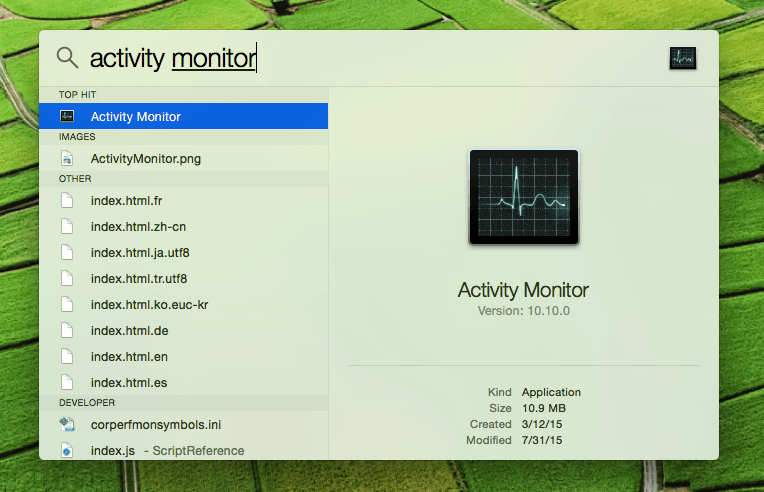
- Pato i te Ānana + Pauroa taviri no te haamata Spotlight. E nehenehe atoa e itehia te reira i roto i te afata tahua i nia ' ' e i te pae atau.
- Tino ‘Hi'opo'a i te ohipa‘ i roto i te vahi imiraa.
- Hi'o Enter
E rave rahi mau api i roto i te Pu faatere ohipa Windows: CPU, māhara, Mana, Disk, Rino, e te vahi tape'araa. E faaite te mau hoho'a atoa i te mau haamaramaramaraa taa ê no te faaohipa i te mau rave'a roro uira e te mau rave'a.
Hi'opo'a noa i te faaohiparaa/ohipa ta outou e hinaaro e faaea, e i muri iho a hi'o i ni'a i te taviri rahi Quit i ni'a i te matapihi Activity Monitor. te faaite ra te reira i te Quit Windows i ni'a i te mata. mai te mea e, aita te hoê faanahoraa e pahono mai, a tairi noa i te “Faaora” no te opani oioi i te faanahoraa.
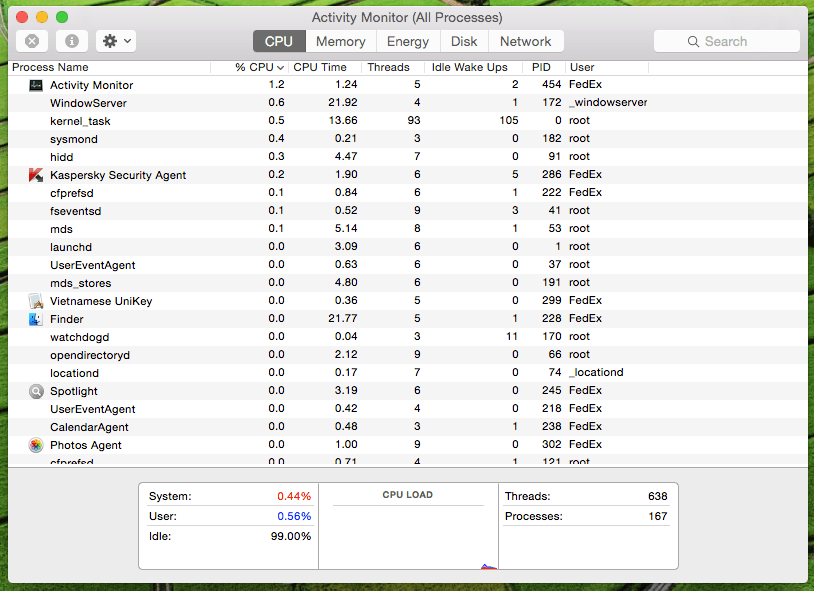
E mea faufaa roa te Activity Monitor no te mea e ere noa te reira i te mau faaohiparaa e faaterehia ra e te taata faaohipa, te faaite atoa ra râ te reira i te mau haamaramaramaraa no ni'a i te hoê ohipa i ni'a i te faito o te faanahoraa, Ngā ohipa kernel, mau demoni, te mau rave'a e tupu ra i muri mai i te tahi atu taata faaohipa.
Ia ore ana'e te mau faaohiparaa ia pahono mai, e nehenehe ta outou e faaohipa i te Activity Monitor no te faahepo i te mau faaohiparaa Mac. E nehenehe atoa outou e faaohipa i te hoê taviri poto no te faaru'e i te mau faanahoraa atoa ma te puai. pato'i noa, Ānana + Ture + Esc no te faatupu Faaore i te faaohiparaa. i muri a'e i to outou maitiraa i te faaohiparaa ta outou e hinaaro e faahepo.