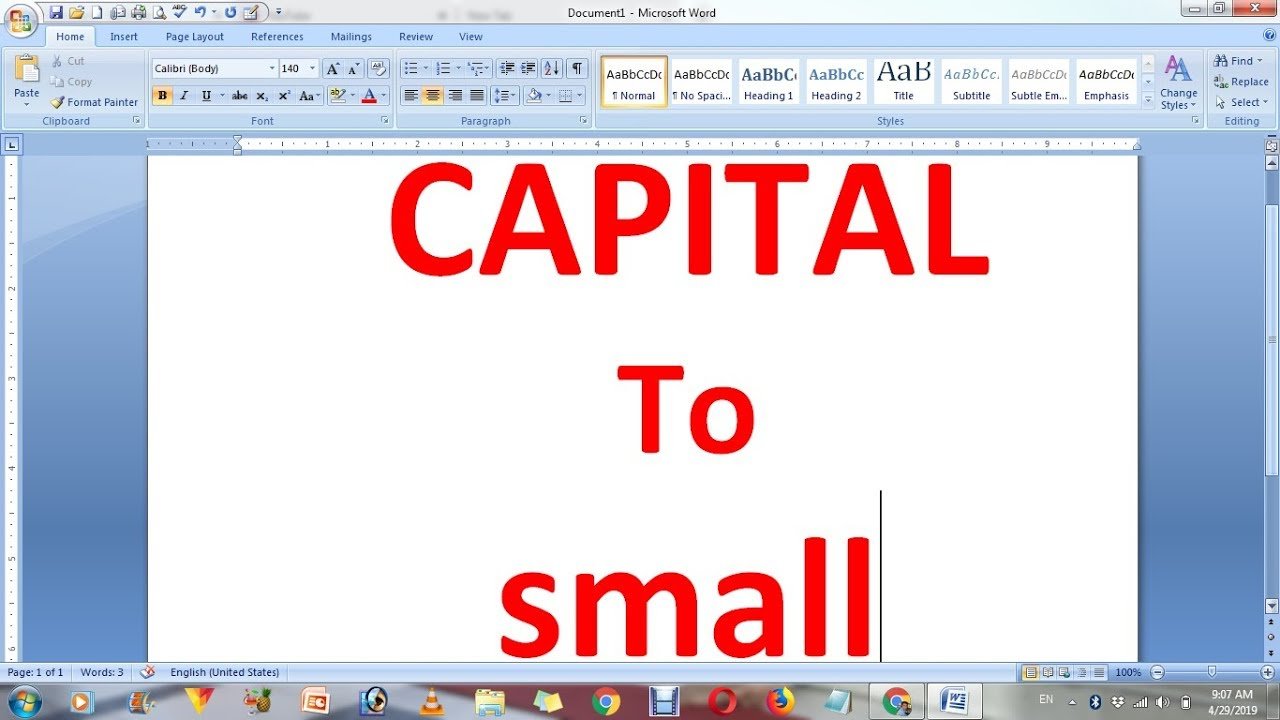
Ni awọn oni-ori awọn ti o tọ kika ti rẹ ọrọ jẹ pataki. Nigbati o ba kọ awọn imeeli, ṣiṣẹda awọn iwe aṣẹ tabi ṣiṣẹda ohun elo fun kikọ oju opo wẹẹbu rẹ ni gbogbo awọn fila le han ni inira ati alamọdaju tabi jẹ nija lati ni oye. Ti o ba ti ro nipa Bii o ṣe le yi ọrọ rẹ pada si gbogbo awọn fila sinu awọn lẹta kekere ati idakeji, Itọsọna yii yoo fihan ọ bi.
A yoo lọ lori ọpọlọpọ awọn ọna irọrun ati awọn ẹtan lati jẹ ki akoonu rẹ wuni ati alamọdaju.
Kini idi ti Gbogbo Ọrọ Awọn fila le jẹ Iṣoro
Lilo gbogbo awọn fila le han bi ọna ti o rọrun lati fa akiyesi, ṣugbọn o wa pẹlu awọn odi:
- soro siwaju sii lati ka: Ọrọ ni gbogbo awọn lẹta nla jẹ lile fun oju lati ka. Awọn lẹta kekere ṣe alekun oye ati kika.
- Irisi ti ko ni imọran: Nigbati o ba nkọwe ni aṣa deede gbogbo awọn fila le han bi igbe.
- Iriri olumulo Lori awọn oju opo wẹẹbu ati akoonu oni-nọmba, gbogbo awọn fila le dinku ipele adehun ati jẹ ki akoonu nira sii lati tẹle.
Awọn ọna lati yi ọrọ pada lati yi ọrọ pada lati gbogbo Awọn fila sinu Awọn lẹta Kekere
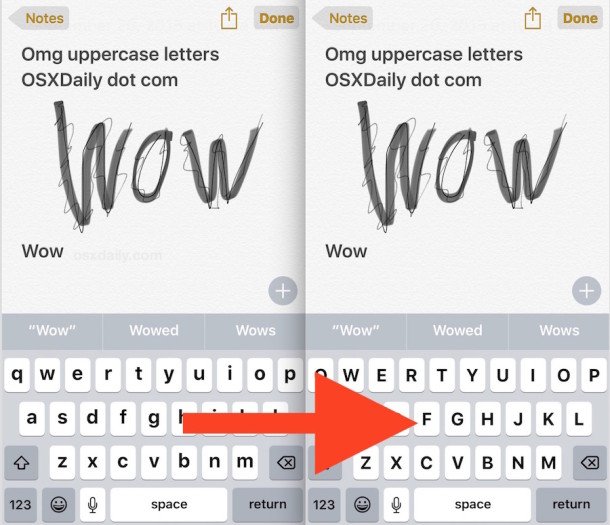
Awọn ọna oriṣiriṣi wa lati yi gbogbo wọn pada fila ọrọ sinu awọn lẹta kekere. Da lori awọn iwulo tirẹ o le lo awọn ẹya ti a ṣe sinu sọfitiwia bii awọn irinṣẹ ori ayelujara ati awọn ọna abuja keyboard..
1. Lilo Microsoft Ọrọ
Ọrọ Microsoft n pese ọna ti o yara ati irọrun lati paarọ ọrọ irú:
- Rii daju pe o ṣe afihan ọrọ ti o fẹ yipada.
- Tẹ lori ile lori awọn “Ile” taabu.
- Yan awọn Yi Ọran bọtini (ohun ńlá “A” ati kekere “a”).
- Yan kekere.
Ọrọ ti o yan yoo yipada lesekese lati awọn lẹta nla si awọn lẹta kekere.
2. Lilo Google Docs
Awọn Docs Google tun ni aṣayan ti a ṣe sinu fun iyipada ọran ti ọrọ:
- Samisi ọrọ ti o fẹ ṣatunkọ.
- Tẹ bọtini kika lati awọn jabọ-silẹ akojọ.
- Rababa lori Ọrọ – Tẹ Ifowopamọ – Yan kekere.
Ọrọ rẹ yoo yipada lẹsẹkẹsẹ ni awọn lẹta kekere.
3. Lilo Awọn irinṣẹ Ayelujara
Ti o ko ba lo Ọrọ ati awọn irinṣẹ ori ayelujara Google Docs nfunni ni aṣayan irọrun kan:
- Daakọ gbogbo ọrọ ni awọn fila.
- Daakọ eyi sinu oluyipada ori ayelujara fun ọrọ.
- Yan kekere.
- Lẹhinna daakọ ọrọ ti o yipada si iwe-ipamọ rẹ.
Ọna yii jẹ ibamu pẹlu eyikeyi ẹrọ, ati ki o jẹ lalailopinpin dekun.
Italolobo lati Yẹra fun Gbogbo Awọn Aṣiṣe Awọn fila
- Lo kekere ni akọkọ: Lo lẹta nla nikan fun awọn akọle ati awọn ifojusi pataki.
- Kẹkẹ kika: Rii daju pe ọrọ rẹ rọrun fun awọn oluka ati pe o ti kọ iṣẹ-ṣiṣe.
- Jeki aitasera ti akoonu rẹ: Jeki iru ọran kanna jakejado akoonu rẹ.
- Maṣe pariwo: Yago fun lilo gbogbo awọn fila ninu awọn ifiranṣẹ imeeli tabi awọn miiran lodo akoonu. O le wo arínifín.
Awọn anfani ti Lilo Awọn lẹta Kekere
- Ṣe ilọsiwaju iraye si: Rọrun lori awọn oju ati yiyara lati ka.
- Ohun orin ọjọgbọn: Mu ki akoonu rẹ le sunmọ.
- Ṣe ilọsiwaju iriri olumulo O ṣe iranlọwọ fun awọn oluwo rẹ ni irọrun ni irọrun pẹlu ifiranṣẹ rẹ.
Ipari
Ṣiṣe iyipada ọrọ ni gbogbo awọn bọtini tabi awọn lẹta kekere jẹ rọrun ati pataki ni kikọ ọjọgbọn. Ko ṣe pataki ti kọnputa rẹ ba jẹ Ọrọ, Google Docs, Tayo tabi ohun elo ori ayelujara miiran Ojutu wa fun ẹnikẹni.
Ṣiṣe rẹ ọrọ smallcase posi readability, yoo fun ni irisi ọjọgbọn ati ilọsiwaju iriri olumulo. Ti o ba ṣẹlẹ lati wa ọrọ ti a kọ sinu gbogbo awọn fila, maṣe wahala–kan yan aṣayan ti o ṣiṣẹ fun ọ ati ni irọrun yipada.