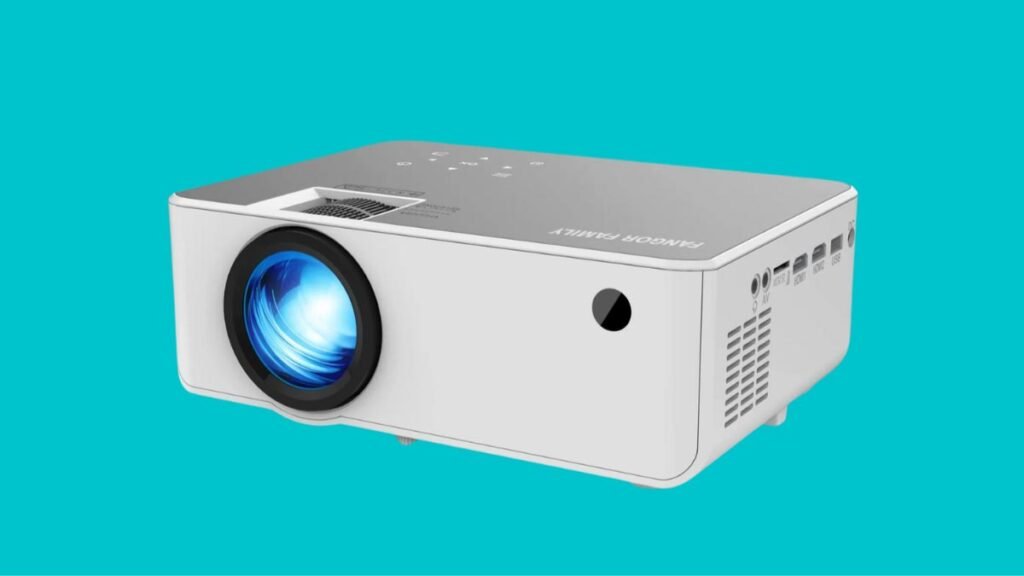
Ingabe unolwazi mayelana nendlela yokuxhuma i-Fangor Projector ku-laptop? Uma ufuna ukuthola ukuthi ungabonisa kanjani isikrini sakho se-laptop ekamelweni labantu? Hhayi-ke, kuyinhlanhla yakho uma une-Fangor projector. Ungenza kalula ukuxhumana phakathi kwe-Fangor Projector yakho ne-laptop yakho. Ungakwenza ngokusebenzisa i-DVI, I-HDMI, Ikhebula le-VGA, noma i-Bluetooth (uma isekelwa yizo zombili izisetshenziswa zakho). Ngakho, Ake siqale……
Xhuma i-Bangor Projector ku-laptop
Ukuze uxhume I-Bangor Projector ku-Laptop noma ukwenza uxhumano phakathi kwe-laptop yakho ne-Projector yakho, kufanele ulandele lezi zindlela noma inqubo:
Isu # 1 Ukusebenzisa Ikhebula elineWindows 10
Kule ndlela kufanele ulandele izinyathelo ezintathu
1. Okokuqala, kufanele uxhume ikhebula echwebeni elitholakala kuzo zombili izintambo zakho umshini wokudlala kanye ne-laptop yakho. Ngemva kokuhlonza noma ukuqinisekisa ikhebula (I-HDMI, I-DVI, noma VGA), ungakwazi ukuxhuma izimbobo ezimbili. Inombolo yezimbobo zokuxhumanisa ividiyo ingase ifakwe ilebula; kodwa uma izimbobo zingabhaliwe, kufanele ubone ukuma kwekhebula bese uzolixhuma echwebeni elibukeka lifana ncamashi. Khumbula ukuthi umthombo ophumayo ojwayelekile kakhulu kukhompuyutha yakho ephathekayo izimbobo ze-VGA. Izimbobo ezinjalo zibukeka njengezimbobo ezihlanganisa noma ezinemigqa emithathu yezimbobo ezinhlanu lilinye. Ngakho, uma i-laptop ingagcini imbobo ye-VGA, kusho ukuthi kufanele igcine imbobo ye-HDMI. Uma i-laptop ingenayo, khona-ke kulesi simo umsebenzisi angase adinge ukuthenga i-adaptha ye-VGA noma ye-HDMI. I-Miracast isekelwa amanye amakhompyutha e-Windows, uma i-Fangor projector isekela leso sici futhi, kusho ukuthi ngeke udinge noma yiluphi uhlobo lwezintambo. Ukuze wazi ukuthi i-laptop yakho ye-Windows iyayisekela yini i-Miracast noma cha, kufanele useshe futhi uvule uhlelo lokusebenza lwe-Connect.
2. Ngemuva kwalokho kufanele uvule i-projektha yakho (kanye ne-laptop, uma kudingeka). Kokubili iprojektha yakho nekhompuyutha ephathekayo yakho ephathekayo kudinga ukuthi kuvuliwe ukuze uqhubeke.
3. Manje, kufanele ucindezele u-⊞ Win+P bese ukhetha inketho yokwabelana. Uma kufanele ukwenze, kumonitha yakho, uhlu lwezinketho zokwabelana ngesikrini luzokwenzeka kumonitha yakho:
Isikrini se-PC Nje: Le nketho ye-PC Screen kuphela izovala isikrini sakho sokuqagela ngakho-ke isikrini sakho sekhompuyutha ephathekayo asabelwana ngaso.
Impinda: Ungakwazi ukwabelana ngayo yonke into kusukela esikrinini kuya kuprojektha yakho, kodwa uzokwazi ukubona isithombe esiqondile kuprojektha yakho esikrinini sakho sekhompuyutha ephathekayo.
Nweba: Inketho ye-Extent izophatha iprojektha yakho njengesandiso sesikrini sekhompyutha yakho ephathekayo futhi izokunikeza isikhala esengeziwe; nganoma yini odinga ukwabelana ngayo, uzovele uhudule ukusuka kusikrini sekhompuyutha yakho ephathekayo uye endaweni yokuqagela.
Isikrini sesibili kuphela: Ungakwazi ukwabelana ngayo yonke into kusukela esikrinini kuya kuprojektha, kodwa ngeke ukwazi ukubona lutho esikrinini sokubonisa se-laptop yakho.
Isu # 2 Ukusebenzisa i-Bluetooth ngeWindows 10
Ukuze le ndlela, kufanele ulandele izinyathelo ezine ezibalwe ngezansi:
1. Okokuqala nje, kufanele uvule eyakho
umshini wokudlala (kanye ne-laptop yakho, uma kudingeka). Lapha, uzodinga futhi ukufaka amandla kusikrini se-Projector yakho kanye ne-laptop yakho ukuze uqhubeke.
2. Khona-ke, kufanele usethe iprojektha yakho kumodi yokumatanisa. Ngokujwayelekile, inkinobho ibekwe kuprojektha (noma isilawuli kude siyatholakala eze ne-projy) leyo nkinobho izovula i-Bluetooth futhi idale ukuthi itholakale futhi ibhangqwe, kodwa sizobhekisela kumanuwali weziqondiso zeProjector yakho ukuze uthole imininingwane eyengeziwe.
3. Ngemva kwalokho, kufanele uxhume kuphrojekthi kukhompuyutha ephathekayo yakho. Ngokuvamile, uzothola ukufinyelela esikhungweni sokuxhumanisa i-Bluetooth kubha yomsebenzi bese kufanele ukhethe ukuxhuma kuprojektha yakho.
Lapho uqala ukubhanqa neprojektha yakho, ungase ucelwe ukuze uqinisekise noma uqinisekise izinombolo’ uchungechunge noma ukhiye wokudlula.
4. Kufanele ucindezele u-⊞ Win+P. Kukuqapha kwakho kuzovela uhlu lwezinketho zokwabelana ngesikrini:
Inketho kuyoba “Isikrini se-PC Kuphela”, izovala isikrini sakho sokubonisa ukuze isikrini sakho sekhompuyutha ephathekayo singabiwa.
Enye inketho “Impinda”, kusho ukuthi ungaba yonke into kusuka esikrinini sakho kuya kuprojektha yakho, kodwa khumbula ukuthi uzokwazi ukubona isithombe esifanayo kuprojektha yakho nasesikrinini sekhompyutha yakho ephathekayo.
Okwesithathu ngu “Nweba” inketho. Le nketho izophatha iprojektha yakho njengesandiso sesikrini sekhompuyutha ephathekayo yakho futhi izokunikeza isikhala esengeziwe; nganoma yini odinga ukwabelana ngayo, uzodinga ukuhudula isikrini sekhompuyutha ephathekayo yakho indawo yokuqagela.
Enye futhi “Isikrini sesibili kuphela”, ungabelana ngakho konke kusuka esikrinini kuya kuphrojetha yakho, kodwa ngeke ukwazi ukubona lutho esikrinini sokubonisa se-laptop yakho.
Isu # 3 Ukusebenzisa Amakhebuli ku-Mac
Kule ndlela yesithathu, kufanele ulandele izinyathelo ezibalwe ngezansi:
1. Okokuqala nje, kufanele uxhume ikhebula ethekwini kukho kokubili i-projektha yakho ne-Mac. Uma usuhlonze uhlobo lwekhebula (I-HDMI, I-DVI, noma VGA), ungakwazi ukuxhuma kokubili. Ezinye izimbobo zokuxhumanisa ividiyo zizolebula; kodwa uma lezi zingabhaliwe, bese, kufanele ubheke ukuma kwekhebula bese uzama ukulixhuma echwebeni elibukeka ngendlela efanayo.
Umthombo ojwayelekile wokuphumayo kukhompyutha ephathekayo izimbobo ze-VGA. Lawa machweba abukeka njengamachweba anemigqa emithathu yezimbobo ezinhlanu lilinye. Uma i-laptop yakho igcina imbobo ye-VGA, khona-ke kufanele ibe nembobo ye-HDMI. Uma i-laptop yakho ingenayo imbobo, kusho ukuthi ungadinga ukuthenga i-adaptha ye-VGA noma ye-HDMI.
Uma zingekho izimbobo ku-Mac yakho, lapho-ke ungathola i-adaptha ye-HDMI noma i-VGA exhuma embobeni yakho ye-Thunderbolt.
2. Manje, kufanele uchofoze ku-Apple Logo. Ungathola le logo kwesokunxele semenyu egijima ivundlile ngenhla kwesikrini sakho. Uma i-Mac ithola ngokuzenzakalelayo futhi iphrojekthi isikrini sekhompuyutha ephathekayo kuprojektha, ngakho-ke awudingi ukuqhubeka nale ndlela.
3. Ngemva kwalokho, kufanele uchofoze Izintandokazi Zesistimu. Ngokuvamile kuba ukufakwa kuhlu kwesibili noma kwesithathu kumenyu.
4. Ngemuva kwalokho kufanele uchofoze Izibonisi. Ngokuvamile kuba kumugqa wesibili wezithonjana eduze kwesithonjana sesikrini sakho sokubonisa.
5. Manje, kufanele uchofoze ithebhu ethi Ukuhlelwa. Uzokubona lokhu phezulu kwefasitela lakho eduze kwe-General, kanye Nombala.
Ungakwazi ukuhudula bese uphonsa izikrini zakho zokubonisa ezichazwe noma ungachofoza ukuze uhlole ibhokisi eliseduze “Imibukiso yesibuko” ukuze ubonise into okuyiyona yona kukho kokubili iprojektha yakho nekhompyutha yakho ephathekayo.
FAQS
Kungani I-Laptop Yakho Ingaxhumi Ku-Projector Yakho?
Uma kwenzeka, kufanele uhlole ikhebula lokuxhuma elisuka kuprojektha liya kuNotebook liphephe kakhudlwana noma livikelekile. Ungazama futhi ukushintsha ikhebula elixhuma imonitha yangaphandle. Uma ikhebuli entsha oyishintshile isebenza kahle, kusho ukuthi iphutha belikwikhebuli yakho yangaphambilini. Kufanele ucindezele kuprojektha bese, kufanele ukhethe imbobo yokuxhumana ozoyisebenzisa.
Uyixhuma kanjani iLaptop kuProjector ngaphandle kwe-HDMI?
Inketho ye-Bluetooth ingenye inketho engcono kakhulu yokuxhuma ikhompyutha yakho ephathekayo ku-projektha yakho ngaphandle kokusebenzisa ikhebula. Iprojektha yakho kanye nekhompyutha yakho ephathekayo kufanele kokubili kufakwe noma kuhlanganiswe nenketho ye-Bluetooth, bese zombili izisetshenziswa zakho zingamataniswa futhi zixhunywe kumasekhondi ambalwa nje.
Isiphetho
Uma ukhathazekile ngokuxhuma i-Fangor Projector kuLaptop ungakhathazeki, lesi sihloko senzelwe wena nje. Lapha izixazululo ezilula ziyatholakala kuwe. Ngethemba, lesi sihloko sizokusiza kakhulu ukulungisa inkinga yakho.