ફોરફ્લાઇટને MSFS થી કનેક્ટ કરો 2020 તમે તેના વિશે વિચારો છો તેટલું મુશ્કેલ કાર્ય નથી. વેલ, તેના વિશે ચિંતા કરવાની જરૂર નથી કારણ કે આ લેખ તમને MSFS થી કનેક્ટ ફોરફ્લાઇટ વિશેની તમારી સમસ્યાને ઠીક કરવા માટે સંપૂર્ણ માહિતી અને શ્રેષ્ઠ ઉકેલ પ્રદાન કરશે. 2020.
તેથી, અહીં તમારા માટે કેટલાક સરળ ઉકેલો છે જે નીચે સૂચિબદ્ધ છે. તમે ફોરફ્લાઇટને MSFS સાથે કનેક્ટ કરવા માટે તેમાંથી એકને નોકરી આપી શકો છો 2020. પરંતુ ખાતરી કરો કે તમારા વાઇફાઇ રાઉટર અને કોમ્પ્યુટર ફાયરવોલ પોર્ટ પર UDP ટ્રાફિકને અવરોધિત કરતું નથી 49002.
ફોરફ્લાઇટને MSFS સાથે કનેક્ટ કરવાની રીતો 2020
You can use any of the following mentioned methods to Connect Foreflight To MSFS 2020:
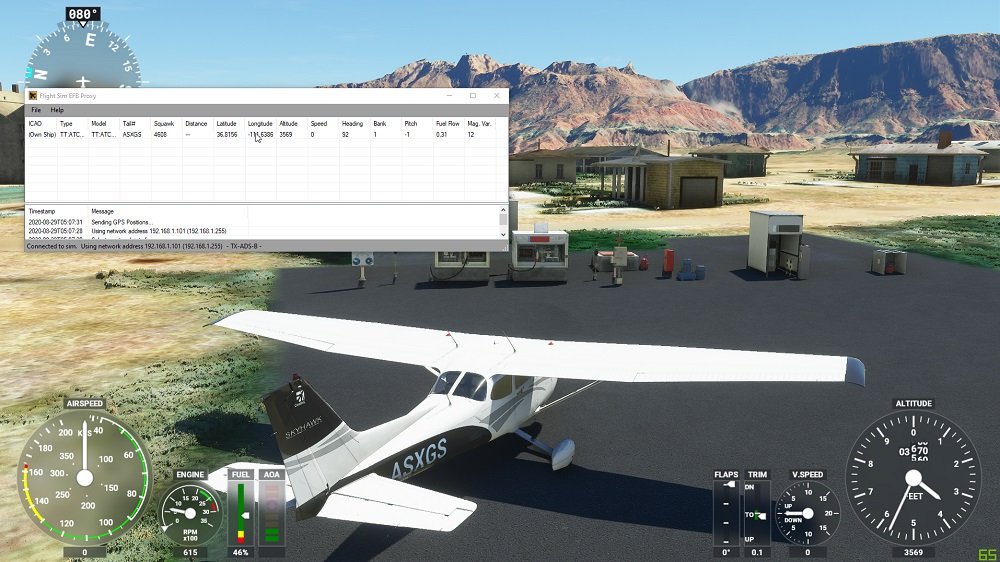
1. FS2FF (ફોરફ્લાઇટ માટે ફ્લાઇટ સિમ્યુલેટર)
FS2FF is a device or tool that is used to send data from MSFS2020 to ForeFlight Mobile. FS2FF is hosted at FS2FF Github Page. વેલ, to get started you have to follow below instructions:
- સૌ પ્રથમ, you have to Open the latest FS2FF release.
- એના પછી, you have to Download FS2FF.exe to a reasonable location like My Documents or Desktop.
- Then you have to Open FS2FF.exe.
- અહીં, if Windows Defender indicates, “Windows protected your PC,” you will click “More Info” and then click on “Run anyway.”
- હવે, you have to connect to the exact wireless network as your mobile appliance or device.
- આગળ, you have to Open Microsoft Flight Simulator.
- પછી, you have to click Connect as you get to the MSFS home screen in FS2FF.
- એના પછી, you have to Open ForeFlight Mobile and then go to MORE > DEVICES and confirm that MSFS displays as connected. If not connected, you need to tap the tile and then slide the “Enabled” switch to ON.
નોંધ: There may be a firewall/network issue if no connection is revealed in ForeFlight Mobile under MORE > DEVICES while FS2FF says “Connected”, or there is also the possibility that iPad is not connected to the exact Wi-Fi network as your computer.
2. ફ્લાઇટ ઇવેન્ટ્સ
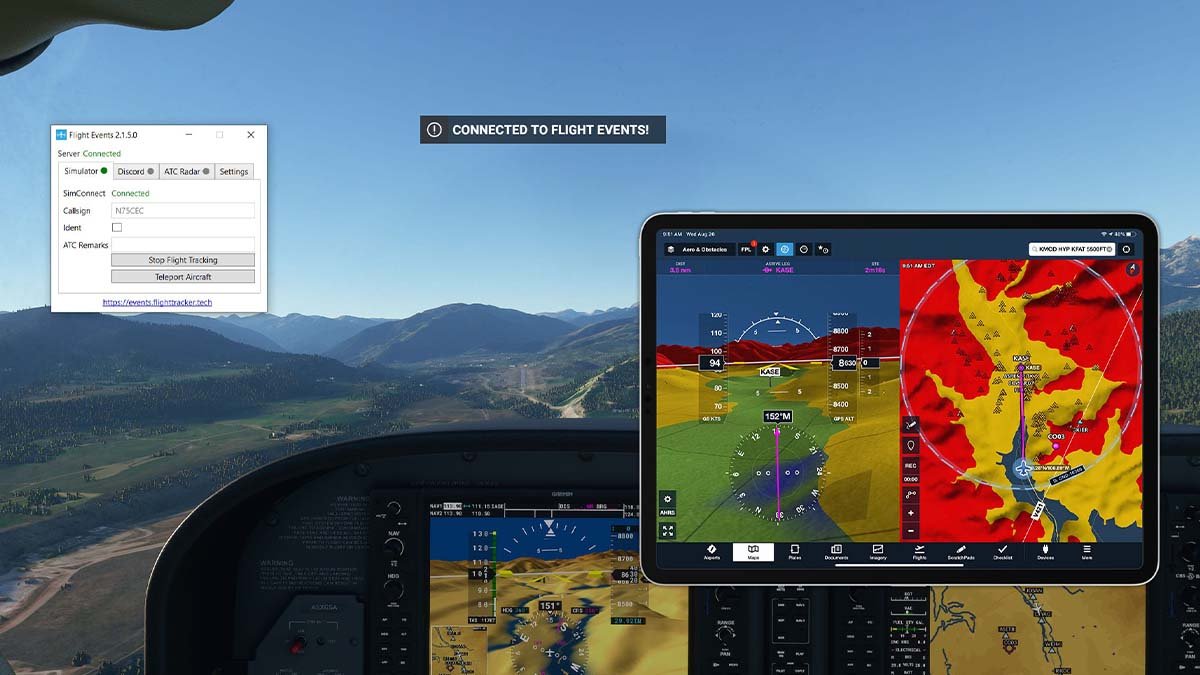
This way is used to support sending emulated position data from MSFS2020 to ForeFlight Mobile. તેથી, આ માટે, you have to apply the following steps.
- પ્રથમ, you have to Install version 2.2.0 અથવા પછી (Required).
- હવે, you have to download Flight Events from the Flight Events site. આ માટે, તમારે પર ક્લિક કરવું પડશે “Join” button which is placed at the top right, and follow the instructions.
- આગળ, in the Setting menu of Flight Events, you have to facilitate broadcasting to the local network (એટલે કે, 'સ્થાનિક નેટવર્ક પર ડેટા બ્રોડકાસ્ટ કરો' પસંદ કરો).
- એના પછી, સિમ્યુલેટર પર, MFSF2020 ખુલ્લું અને હવામાં હોય ત્યારે, તમે રેન્ડમ કોલસાઇન દાખલ કરશો, અને પછી તમારે દબાવવું પડશે “ફ્લાઇટ ટ્રેકિંગ શરૂ કરો.” તમે રમતમાં એક સંદેશની મુલાકાત લેશો અને આ સંદેશ કહેશે, “ફ્લાઇટ ઇવેન્ટ્સ કનેક્ટેડ.”
- હવે, તમારે વધુ ટેપ કરવું પડશે > ઉપકરણો, ફોરફ્લાઇટ મોબાઇલમાં. એના પછી, તમારે ટેપ કરવું પડશે “ફ્લાઇટ ઇવેન્ટ્સ” ટાઇલ, અને પછી સ્લાઇડ કરો “Enabled” ચાલુ કરો.
3. MSFS બ્રિજ
MSFS બ્રિજ ઝડપ મોકલવામાં મદદ કરે છે, સ્થિતિ, અને MSFS2020 થી ફોરફ્લાઇટ મોબાઇલ સુધીની ઊંચાઈનો ડેટા. MSFS બ્રિજ સિમમાર્કેટથી કાર્યરત છે.
જ્યારે તમારે MSFS બ્રિજ ખરીદવા અને ડાઉનલોડ કરવાનો હોય, તમારે શરૂઆત કરવા માટે નીચે આપેલા ઉપદેશોનો ઉપયોગ કરવો પડશે:
- પ્રથમ, તમારે MSFSBridge ને અનઝિપ કરવું પડશે અને પછી MSFSBridge.exe પર ડબલ-ક્લિક કરવું પડશે.
- એના પછી, તમારે MSFS2020 ખોલવું પડશે.
- પછી તમારે ફોરફ્લાઇટ મોબાઇલ ખોલવું પડશે અને વધુ પર ટેપ કરવું પડશે > ઉપકરણો. એના પછી, તમારે MSFSBridge ટાઇલ પર ટેપ કરવું પડશે અને સ્લાઇડ કરવું પડશે “Enabled” ચાલુ કરવા માટેનું બટન.
- હવે, MSFS2020 ઓપન સાથે, તમારે નકશાને ટેપ કરવું પડશે અને પછી પુષ્ટિ કરવી પડશે કે તમારી સિમ્યુલેટેડ સ્થિતિ સૂચવે છે.
4. એક્સમેપ્સી
XMapsy MSFS2020 થી ફોરફ્લાઇટ મોબાઇલ પર ડેટા મોકલવાનું સક્ષમ કરે છે. તમારે નીચે જણાવેલ સાઇટ્સની મુલાકાત લેવાની રહેશે:
- XMapsy વેબસાઇટ
- XMapsy સૂચનાઓ પૃષ્ઠ
- XMapsy સપોર્ટ પેજ
તમારે XMapsy ઇન્સ્ટોલ કરવું પડશે. XMapsy શરૂ કર્યા પછી, તમારે ફોરફ્લાઇટ મોબાઇલ ખોલવો પડશે, પછી તમારે વધુ ટેપ કરવું પડશે > ઉપકરણો અને પુષ્ટિ કરો “XMAPSY” ટાઇલ સૂચવે છે “કનેક્ટેડ.” જો તે નથી, પછી તમે ટાઇલને ટેપ કરશો અને સ્લાઇડ કરશો “Enabled” ચાલુ કરવા માટેનું બટન.
MSFS થી કનેક્ટ ફોરફ્લાઇટના FAQs 2020
તમે તમારા આઈપેડને MSFS સાથે કેવી રીતે કનેક્ટ કરશો?
fs2ff માં બદલો, અને પછી સ્ક્રીનના કેન્દ્રમાં "કનેક્ટ" સ્વીચ અથવા બટનને ક્લિક કરવું પડશે. તમે લીલા બિંદુ જોશો, આ બિંદુ "કનેક્ટેડ" કહે છે. પછી, તમારે ફોરફ્લાઇટ પર જવું પડશે, વધુ ઉપકરણો અને "MSFS" ટાઇલ પર ટેપ કરવું પડશે. અને તે પછી, તમે "સક્ષમ" બટનને સ્લાઇડ કરશો."
માત્ર આઈપેડના ઉપયોગ માટે ફોરફ્લાઈટ છે?
ForeFlight works with all iPhone and iPad latest models. You can be able to sign into a subscription on up to 2 iPads and 1 iPhone, ન આદ્ય 2 iPhones and 1 iPad at once. If you are purchasing a new iPad, then it will be suggested to you the Wi-Fi + Cellular version of either the 11-inch iPad Pro or the iPad mini to benefit from the built-in GPS scrap or chip.
શું તમે તમારા PC પર ફોરફ્લાઇટનો ઉપયોગ કરી શકો છો?
Aeronautical Maps of ForeFlight look incredible on a desktop computer and characteristic dynamic decluttering of map components and customizable aeronautical data, bringing you extensively relevant data at any zoom level.
ફોરફ્લાઇટ એપ્લિકેશન ડાઉનલોડ કરવા માટે મફત છે?
હા, the ForeFlight Mobile application is free to download, you can download it from the app store. જોકે, a subscription is needed to use the ForeFlight Mobile app. તમે સબ્સ્ક્રિપ્શન ખરીદી પૃષ્ઠ પર કિંમતો અને યોજનાઓ વિશે વધુ સમજવા માટે સમર્થ હશો.
નિષ્કર્ષ
અમે ફોરફ્લાઇટને MSFS સાથે કનેક્ટ કરવાની સૌથી સરળ અને સુસંગત રીતોનું વર્ણન કર્યું છે 2020 આ લેખમાં. આશા છે, તમે આ લેખ વાંચ્યા પછી તે બંનેને કનેક્ટ કરવા વિશે સંપૂર્ણપણે સમજી ગયા છો. આમાંથી એક રીત પસંદ કરો અને કનેક્શનની સમસ્યામાંથી છુટકારો મેળવો.