
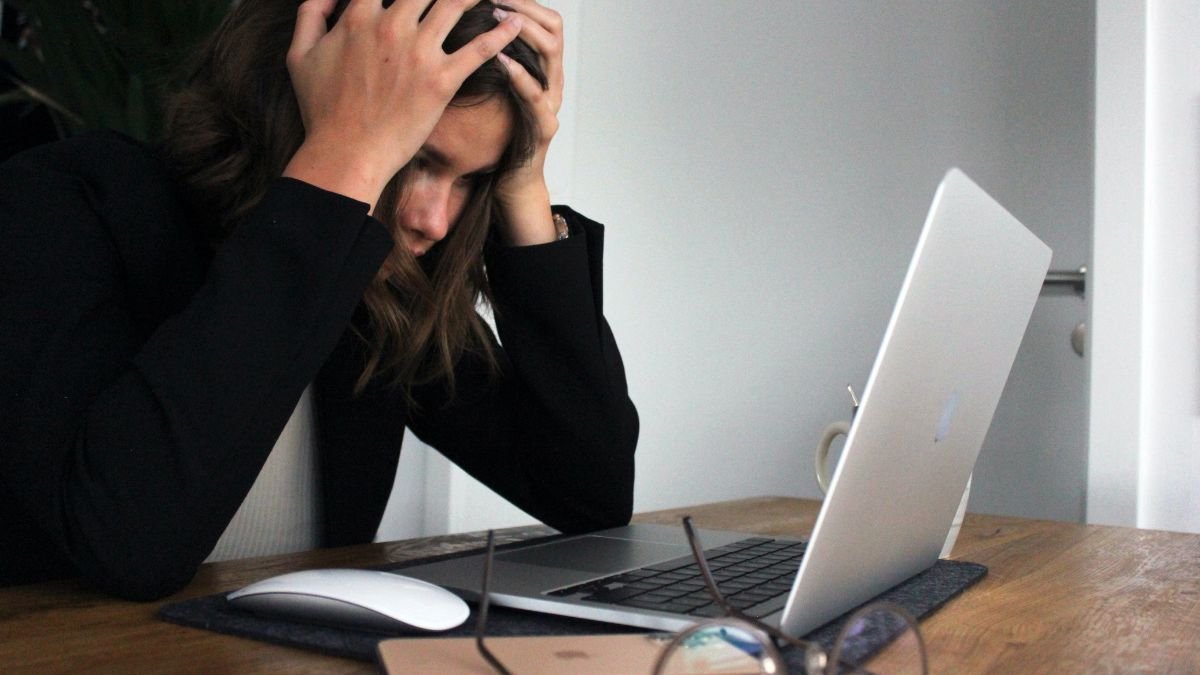
Kāpēc mana pele pārstāj darboties?? Tā kā pele ir būtiska jūsu ikdienas darba un spēļu sastāvdaļa, ja tas nedarbojas pareizi vai sasalst lietošanas laikā, tai var būt dažas problēmas, kas var būt saistītas ar programmatūru vai aparatūru. Ja peles kursors kustas, bet peles rādītājs nekustas, iespējams, ir draivera vai aparatūras problēma, piemēram, slikta pele.. Abos šajos gadījumos, jūsu pele var darboties, bet tā nedarbojas pareizi.
Ja pele pārstāj darboties, tā ir liela problēma lietotājam. Tomēr, ir daži vienkārši risinājumi, kurus var izmantot novērst problēmu. Plašāku informāciju skatiet šajā rakstā. Ja datora pele pārstāj darboties, tas var būt sāpes. Šajā rokasgrāmatā ir sniegtas problēmu novēršanas darbības, lai atrisinātu peles problēmas un atsāktu peli darboties.
Kāpēc mana pele pārstāj darboties?

Pele var būt vissvarīgākā jebkura datora perifērijas ierīce. To izmanto regulāram biroja darbam, spēļu, un grafiskiem darbiem un jebkurai citai darbībai, kas saistīta ar datoru. Pele ir viena no visbiežāk izmantotajām ierīcēm, un tā vienmēr ir pakļauta lielam spiedienam. Dažreiz pele var radīt dažas problēmas, kas var būt saistītas ar programmatūras vai aparatūras problēmu. Šis emuārs sniegs ieskatu par izplatītākajām problēmām, kas var rasties, lietojot peli, un par to, kā tās atrisināt.
Kā diagnosticēt un novērst peles problēmu?
Kā labojiet peles sasalšanas problēmas precīzi dažos soļos. Ja pele nekustas, tā var būt sastingusi, un to var novērst, veicot tālāk norādītās darbības.
- Jums jāpārliecinās, vai pele nav netīra vai putekļaina. Jo putekļi vai citas daļiņas var būt iemesls, kāpēc pele nedarbojas pareizi.
- Jums jāmēģina ar peles kreiso taustiņu noklikšķināt. Jo, ja peles indikators ir ieslēgts, jūs zināt, ka pele darbojas pareizi.
- Jums jāpārliecinās, vai peles draiveri ir atjaunināti. Jo, ja peles draiveri nav atjaunināti, tā darbojas neparasti. Lai izvairītos no šādām problēmām, varat atjaunināt peles draiverus tiešsaistē vai oficiālajā vietnē.
Kā salabot savu atpalikušo peli:
Dažkārt, pele kļūst nedaudz lēna un nereaģē, kamēr strādājat vai spēlējat spēles. Tas ir tāpēc, ka iekšējā programma, kas kontrolē peli, nav pietiekami stabila vai peles aparatūras dzinējam ir dažas problēmas.. Tagad, jums nav nepieciešams ņemt peli uz servisa centru, jo ir dažas vienkāršas darbības, kuras varat izmēģināt.
Tā kā es izmantoju klēpjdatoru un man ir pievienota pele, Man katru dienu ir jāizmanto sava pele. Man ir Logitech pele, un, kad tā sāka būt problēma un sasalst nejauši un atpaliek, Es meklēju risinājumu, kā salabot savu peli sasalšana un atpalicība. Es to atklāju vairumā gadījumu, pele sasalst un aizkavējas, jo tā nevar pareizi nolasīt virsmu un labākais veids, kā to salabot, ir iegādāties jaunu peli.
Pirmreizējā iestatīšana:
Ir daudz veidu peļu, bet viņi visi dara vienu un to pašu darbu. Galvenā atšķirība ir dizains un papildu funkcijas. Lielāko daļu laika pele ir plug and play, tas nozīmē, ka pievienojiet to un tas darbosies. Ja izmantojat jaunu peli, kuru nekad iepriekš neesat izmantojis, jums var būt nepieciešams to iestatīt nekavējoties. Vairumā gadījumu, Jūs varēsiet izmantot peli uzreiz, neveicot iestatīšanas procesu.
Peles iestatīšana pirmo reizi ir vienkārša, bet jums ir jāpārliecinās, vai USB kabelis ir ievietots pareizajā datora slotā. Ja jums ir Windows dators, USB ports būs viens no taisnstūra formas tiem datora aizmugurē. Ja jums ir Mac dators, USB portam ir arī taisnstūra formas sloti aizmugurē.
Ja jaunu peli izmantojat pirmo reizi, jums ir jāinstalē programmatūra, kas tiek piegādāta kopā ar ierīci. Varat iestatīt pamata parametrus, piemēram, DPI (punkti collā) iestatījumu, rādītāja ātrums, un paātrinājums. Šos parametrus varat pielāgot vēlāk, bet atkal, ieteicams to darīt pēc peles lietošanas.
Lai konfigurētu peli, iespraudiet to, un pēc tam atveriet ierīču pārvaldnieka logu, vienlaikus nospiežot Windows logotipa taustiņu un X. Cilņu sadaļā, atlasiet Ierīču pārvaldnieks. Pelei vajadzētu parādīties ierīču sarakstā. Ar peles labo pogu noklikšķiniet uz peles un atlasiet “Īpašības”. Parādīsies logs Ierīces rekvizīti.
Vairāku bieži sastopamu peles problēmu novēršana:
Neatkarīgi no tā, cik uzmanīgi jūs esat, kādu dienu jūsu pelei radīsies dažas problēmas. Ir daudz iemeslu, kāpēc jūsu pele nedarbojas pareizi, no kuriem visizplatītākais ir slikts kabelis. Iepriekš minētos peles problēmu iemeslus var viegli atrisināt. Var būt problēmas ar peli: Pele nedarbojas, sasalšana, kursors iestrēdzis, neizsekošana, lēna reakcija, un vēl daudz vairāk. Tātad, jums ir jānovērš peles problēmas un jānoskaidro, kāda ir problēma. Ir pieejami vairāki risinājumi, kas var ātri novērst jebkuru peles problēmu.
Kā novērst peles nedarbošanos pēc Windows atjaunināšanas:
Es nesen atjaunināju savus logus 10 uz jaunāko versiju un pēc atjaunināšanas, Pele nedarbojas pēc Windows atjaunināšanas ir izplatīta problēma, ar kuru jūs varētu saskarties, ja izmantojat peli, kas pievienota, izmantojot USB vai Bluetooth. Varat arī redzēt peles sasalšanas problēmu, ja to regulāri izmantojat. Jūs, iespējams, nevarēsit pareizi lietot peli, tas var pārstāt darboties vai pat nereaģēt.
Ar šīm problēmām parasti saskaras lietotāji, kuri izmanto Windows 10. Problēmas ir vairāk Windows 10 nekā citās Windows versijās. Šīs problēmas risinājums ir vienkāršs un vienkāršs. Varat izmantot tālāk norādītās darbības, lai labotu pele nedarbojas pēc Windows atjaunināšanas. Ja kursors sastingst, šķēršļus, vai pazūd, problēmu var novērst, atkārtoti instalējot draiveri. Lai to izdarītu, veiciet šīs darbības:
- Nospiediet Windows taustiņu + X, lai atvērtu izvēlni.
- Izvēlnē atlasiet Ierīču pārvaldnieks.

- Atklājiet savu pele, ar peles labo pogu noklikšķiniet uz tā, un atlasiet Atinstalēt ierīci.

Microsoft Windows operētājsistēma ir lieliska platforma, kurā lietotāji var strādāt un izmantot ikdienas vajadzībām, taču dažreiz tā aizkavējas vai sasalst un rada problēmas lietotājiem strādāt ar to. Viena no izplatītākajām problēmām operētājsistēmā Microsoft Windows ir tā, ka tā nevar noteikt peli vai tā darbojas ļoti lēni vai nedarbojas vispār..
Var būt dažas problēmas ar peli, kas var būt saistītas ar programmatūru vai aparatūru. Programmatūras problēmas var viegli novērst, atspējojot peli un pēc kāda laika to atkārtoti iespējojot, vai arī varat atkārtoti instalēt peles draiveri, lai novērstu šo problēmu.. Arī, pārbaudiet pretvīrusu programmatūru un pārliecinieties, vai tā nebloķē peli. Ja tas joprojām nedarbojas, tad varat pārbaudīt aparatūras problēmas, kas varētu būt iemesls nedarbojas vai sasalst pele.
Secinājums:
Ja nevēlaties mainīt peli, pēc tam mēģiniet pārbaudīt, vai tā darbojas jaunākajā programmatūras versijā. Ja pelei ir opcija “programmatūras atjaunināšana”., izvēlieties to un pēc tam izpildiet norādījumus, lai atjauninātu peli. Piemēram, Logitech peles gadījumā, atjaunināšanu var veikt, izmantojot programmatūru Logitech Options. Ja izmēģinājāt visas iepriekš minētās darbības un joprojām nevarat novērst problēmu. Pēc tam nosūtiet peli tehniķim vai servisa centram. Par jebkādu palīdzību, jūs varat sazināties ar mums jebkurā laikā.


