
Koj puas xav txuas Baseus Encok W01 Earbuds rau koj cov khoom siv? Lub Baseus Encok W01 yog qhov kev xaiv zoo tshaj plaws thiab los nrog lub roj teeb lub neej ntawm 6 teev, HFP, HSP, A2DP, AVRCP, SPP, PBAP compatibility, Bluetooth 5.0, ib rooj plaub them nrog lub roj teeb ntawm 2000mAh, IPX4 hws thiab plua plav-resistant daim ntawv pov thawj, thiab ntau dua.
Tab sis ntawm no peb kawm paub yuav ua li cas txuas Baseus Encok W01 Earbuds rau koj cov khoom siv. Li ntawd, yog li, Cia peb pib!
Yuav Ua Li Cas Txuas Baseus Encok W01 Earbuds?
Txuas Baseus Encok W01 Earbuds rau koj cov cuab yeej yog cov txheej txheem yooj yim. Txhawm rau txuas lawv rau koj cov cuab yeej ua raws li cov kauj ruam hauv qab no ua tib zoo.
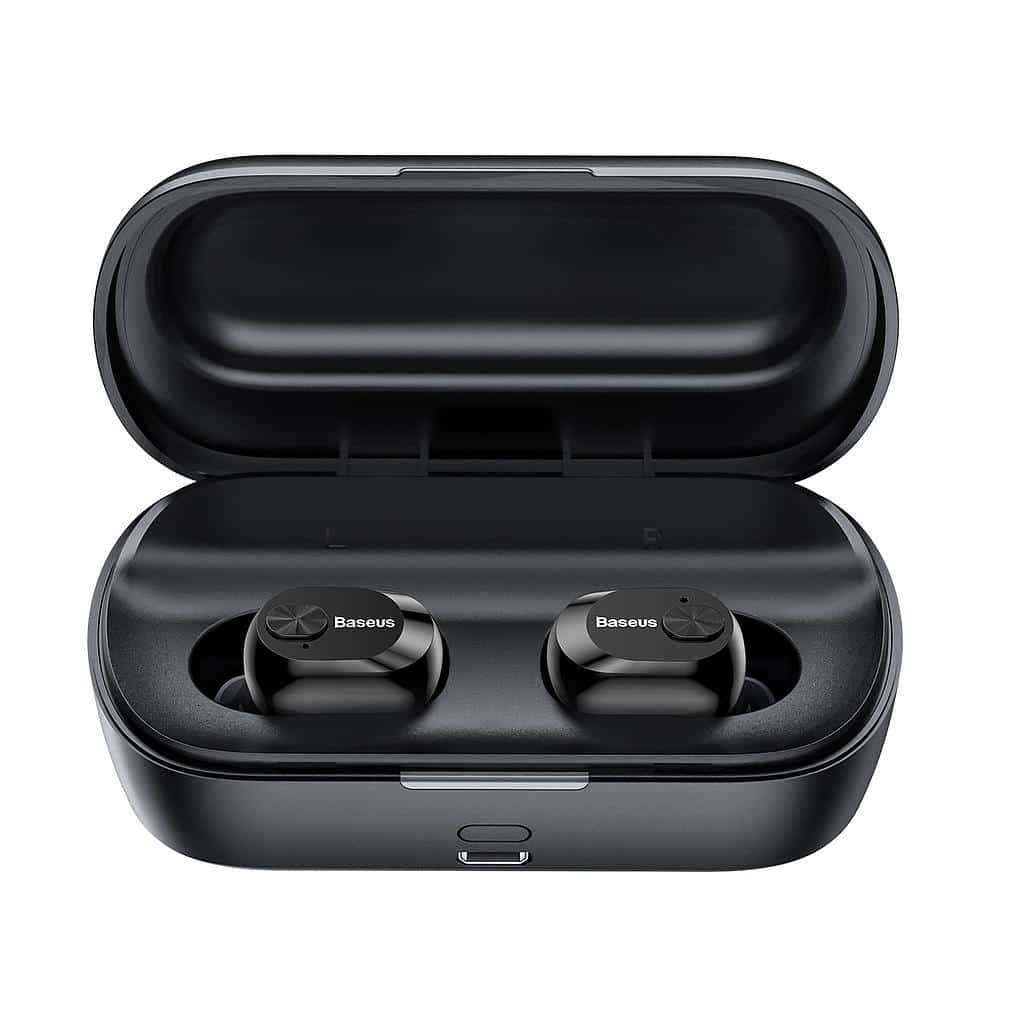
Txuas Baseus Encok W01 Earbuds nrog Android
- Thawj,Qhib lub thawv them nqi thiab nqa lub pob ntseg tawm. tom qab ntawd, Lub teeb xiav yuav qhib rau 1 second, thiab lawv yuav qhib tsis siv neeg.
- Lub teeb xiav yuav pib flashing hauv ob lub pob ntseg thaum lub teeb xiav pib flashing sai sai ntawm lub pob ntseg sab laug thiab ib zaug txhua qhov 5 vib nas this ntawm lub pob ntseg sab xis, nws txhais tau tias lub pob ntseg tam sim no nyob rau hauv hom khub.
- Tam sim no, mus rau Android ntaus ntawv Bluetooth teeb tsa.
- Ces, xaiv Baseus Encok W01. Yog hais tias prompted rau ib lo lus zais, Nkag mus rau nws 0000.
- tom qab ntawd, g.

Txuas Baseus Encok W01 Earbuds nrog PC
- Ua ntej no, qhib lub qhov rais Bluetooth.
- Mus rau Cov Chaw, thiab mus rau Bluetooth thiab lwm yam khoom siv.
- Ces, nyem rau Ntxiv ntaus ntawv thiab nyem rau ntawm Bluetooth.
- Ces, Qhib lub thawv them nqi thiab nqa lub pob ntseg tawm. tom qab ntawd, Lub teeb xiav yuav qhib rau 1 second, thiab lawv yuav qhib tsis siv neeg.
- Thaum lub teeb xiav pib flashing sai sai ntawm lub pob ntseg sab laug thiab ib zaug txhua qhov 5 vib nas this ntawm lub pob ntseg sab xis, nws txhais tau tias lub pob ntseg tam sim no nyob rau hauv hom khub.
- Xaiv Baseus Encok W01. Yog tias nug txog lo lus zais, Nkag mus rau nws 0000.
- tom qab ntawd, g.
Yuav Ua Li Cas Hnav Lub Pob Ntseg Pob Ntseg?
- Nqa tawm ob lub pob ntseg pob ntseg los ntawm lub thawv them nyiaj thiab txheeb xyuas lub pob ntseg sab laug thiab sab xis. Xaiv lub pob ntseg pob ntseg uas haum rau koj lub pob ntseg zoo tshaj plaws.
- Ntxig lub pob ntseg rau hauv koj lub pob ntseg pob ntseg.
- Tig lub pob ntseg rau qhov zoo tshaj plaws kev nplij siab thiab haum zoo tshaj plaws, Xyuas kom lub microphone tig mus rau koj lub qhov ncauj.
Yuav Ua Li Cas Rau thiab Tua Lub Pob Ntseg Pob Ntseg?
Tig Rau
Muaj ob txoj hauv kev los qhib lub pob ntseg pob ntseg.
1: Tsis siv neeg
2: Manually
Tsis siv neeg
- To automatically turn on the earbuds open the charging case and take the earbuds out.
- tom qab ntawd, Lub teeb xiav yuav qhib rau 1 second, thiab lawv yuav qhib tsis siv neeg.
Manually
- To manually turn on the earbuds press and hold the multifunction button on both earbuds for 2 vib nas this.
- tom qab ntawd, Lub teeb xiav yuav qhib rau 1 second, and they will turn on.
Tua
There are two methods to turn off the earbuds.
1: Tsis siv neeg
2: Manually
Tsis siv neeg
- In this method place the earbuds into the charging case.
- tom qab ntawd, a red light will be on for 1 second, and they will turn off automatically.
Manually
- In this method press and hold the multifunction touch button on both earbuds for about 4 vib nas this.
- tom qab ntawd, a red light will be on for 1 second and then will turn off.
Cov Lus Qhia Tswj
- Press the multifunction touch button on any of the earbuds one time to play or pause music.
- Press and hold the multifunction touch button on the right earbud for about 1 second to play the next song.
- Press and hold the multifunction touch button on the left earbud for about 1 second to play the next song.
- Press the multifunction touch button on any of the earbuds one time to answer an incoming call.
- Press the multifunction touch button on any of the earbuds one time to end a current call.
- Press and hold the multifunction touch button on any of the earbuds for 2 seconds to reject an incoming call.
- During a call, press and hold the multifunction touch button on the left earbud for 1 second to switch from the earbuds to the connected device. Do the same to switch back to the earbuds to the redial audio switch.
- When there is an incoming call, press the multifunction touch button on any of the earbuds once to answer the first call. When the second call is coming, press once to answer call 2, and press and hold to switch between them to a multi-party call.
Yuav Ua Li Cas Qhib Hom Mono?
To activate or deactivate the mono mode in the Baseus Encok W01, Nqa tawm ib qho ntawm lub mloog pob ntseg los ntawm lub thawv them nyiaj uas koj xav ua kom qhib. It will start working by itself.

Yuav Ua Li Cas Them Lub Pob Ntseg Pob Ntseg?
Earbuds
Txhawm rau them lub pob ntseg pob ntseg, Tsuas yog muab tso rau hauv lub thawv them nqi thiab kaw nws kom zoo. Lub pob ntseg yuav them cia li.
Charging case
Txhawm rau them lub thawv them, Txhua yam koj yuav tsum tau ua yog txuas lub rooj plaub rau USB charger lossis them chaw nres nkoj. Nws yuav pib them cia li.
Xaus
Txuas Baseus Encok W01 Earbuds rau koj cov cuab yeej yog txheej txheem yooj yim. Koj tuaj yeem txuas Baseus Encok W01 Earbuds rau koj cov cuab yeej los ntawm kev ua raws li cov txheej txheem saum toj no. Li ntawd, yog li, Txhua yam koj yuav tsum paub yog yuav ua li cas txuas Baseus Encok W01 Earbuds. Zaj no yuav pab koj heev!