

Airdrop என்பது Mac பயனர்களுக்கான வேகமான தரவு பரிமாற்ற தொழில்நுட்பமாகும். இது புகைப்படங்கள் போன்ற மீடியாவை மாற்ற உதவுகிறது, வீடியோக்கள், மற்றும் இணைய இணைப்பு இல்லாத iOS சாதனங்களுக்கு இடையே உள்ள பிற கோப்புகள். Airdrop works with Bluetooth. It creates a virtual network using a Wifi connection. The file-sharing process runs smoothly, but sometimes Airdrop can’t pair the device with each other for some reason. In today’s lesson, we will provide the solution for Airdrop not working.
Airdrop is not supported for the Older iOS versions. It is inbuilt with iOS 7 later version and also inbuilt Mac OS X Yosemite or later versions. So always check whether your device supports Airdrop or not?
அருகிலுள்ள சாதனங்களைக் கண்டறிய Airdrop புளூடூத்தைப் பயன்படுத்துகிறது 30 அடி வரம்பு. உங்கள் சாதனம் உள்ளடக்கத்திற்கு நெருக்கமாக இல்லாவிட்டால், பின்னர் நீங்கள் மற்றொரு சாதனத்துடன் இணைய முடியாது. மேலும், ஏர் டிராப் பியர் டு பியர் இணைப்புகளுக்கு வைஃபையைப் பயன்படுத்துகிறது. இது மீடியா பகிர்வுக்கான மெய்நிகர் நெட்வொர்க்கை உருவாக்குகிறது. எனவே நீங்கள் தெரிந்து கொள்ள வேண்டிய அடிப்படை விஷயங்கள் இவை. வெற்றிகரமான இணைப்பிற்குச் சரிசெய்ய வேண்டிய சில சிக்கல்களைப் பற்றி இப்போது அறிந்து கொள்வோம்.
[lwptoc]
Solutions list for Airdrop not Working
தீர்வு 1: Restart your Device
உங்கள் சாதனத்தை மறுதொடக்கம் செய்வதன் மூலம் அதை விரைவாக சரிசெய்யலாம். உங்கள் தொலைபேசியை மறுதொடக்கம் செய்யும்போது, எல்லா பயன்பாடுகளும் ஆரம்பத்தில் இருந்து தொடங்குகின்றன. எனவே பெரும்பாலான பிரச்சனைகளை சரி செய்ய வேண்டும். இது ஒரு நகைச்சுவை அல்ல. இதை நீங்கள் ஒரு முறையாவது முயற்சிக்க வேண்டும். மறுதொடக்கம் உங்கள் சாதனத்தை மறுதொடக்கம் செய்வதன் மூலம் அனைத்து மென்பொருள் பிழைகளையும் சரிசெய்ய முடியும். இதைச் செய்ய உங்களுக்குத் தெரியாவிட்டால், உங்கள் சாதனத்தை கடினமாக மீட்டமைக்கலாம். இந்த வழிகாட்டியை நீங்கள் பின்பற்றலாம். ஐபோனை கடின மீட்டமைப்பது எப்படி 11
தீர்வு 2: Reset Bluetooth and wifi Connection
Toggle Bluetooth and wifi connection are also helpful for the Airdrop issue. Once you reset them, the Network will refresh again after you can pair them with another device.
- To disable Bluetooth and wifi drag your finger from up to down.
- You will see wifi and Bluetooth icons on the top left side.
- Tap to disable them. Now wait for 30 seconds and Re-enable both. That’s it you done the process for Airdrop is not working.

தீர்வு 3: Disable Hotspot
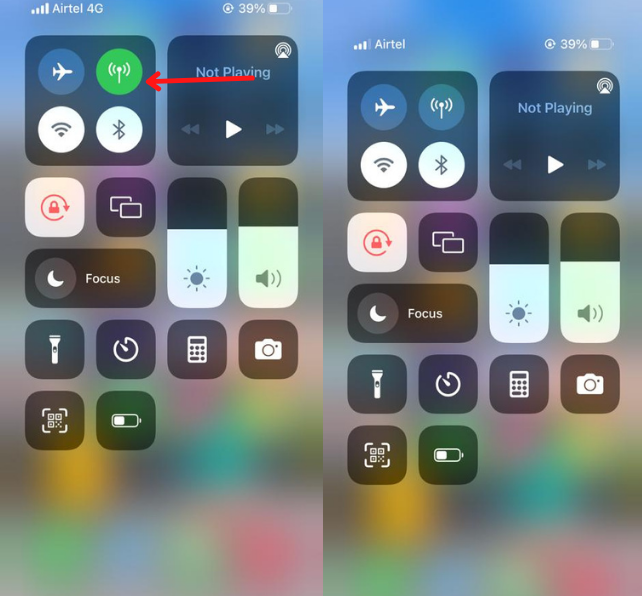
Would you please keep a note You can’t connect with another device until you disable the hotspot connection? You can disable the hotspot from the setting or Widgets bar. Drag your finger from up to down. Once you find the hotspot icon from the icon list, please disable it.
தீர்வு 4: பிணைய அமைப்புகளை மீட்டமைக்கவும்
Reset your iPhone Network has also stopped this issue. Reset Network could fix many problems through correct your network configuration.
- Open your settings and go to the general விருப்பம்.
- Click on the மீட்டமை விருப்பம்
- பிறகு Reset Network அமைப்புகள்.
தீர்வு 5: Sign in again with Apple ID
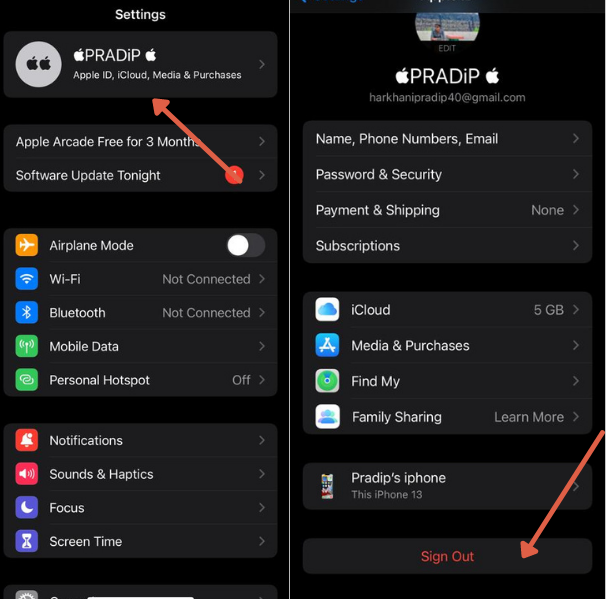
இன்னும் இருந்தால், you are not discoverable, you can reset your apple id. Apple Id could also be a reason to correct your problem. Just go to settings and tap on your name. பிறகு, go to iCloud and sign out from the account.
அடுத்தது, sign in again with your iCloud account. Many users fix issues by trying this issue.
தீர்வு 6: Update the iOS Version
Sometimes issues are automatically solved through a system update. உதாரணமாக, in the older version, there is a bug that prevents you from successfully proceeding. If there is an update need to fix you can go for the new version. You can check through settings>பொது>மென்பொருள் புதுப்பிப்பு.
If anything needs to update, you will see a popup on the screen.
To update on Mac computer. you can follow this path Apple Icon> System Preferences > Software update
தீர்வு 7: Apple ஆதரவைத் தொடர்பு கொள்ளவும்
If you try everything, but nothing works for you. Your device may face a hardware issue. You have to contact ஆப்பிள் ஆதரவு to solve this issue. They will set an appointment for you and help you to fix the problem as early as possible.
தீர்வு 8: Allow Firewall
The firewall may block the permission to connect with another device. If you are using antivirus apps on your iPhone, disable them while sharing media for a limited time.
On Mac, நீங்கள் செல்ல முடியும் ஆப்பிள் > System Preferences > பாதுகாப்பு & Privacy > Firewall
Disable the Block All Incoming Connections and press ok.
So these are all working solutions for Airdrop not working issue. I hope you got your answer to this problem. Please share this guide with iPhone users to help them.
அடிக்கடி கேட்கப்படும் கேள்விகள்
How do I fix AirDrop on my iPhone?
Airdrop fix in many ways. There is some misconfiguration that prevents file sharing. நீங்கள் புளூடூத்தை மீட்டமைக்கலாம், வைஃபை மற்றும் நெட்வொர்க் அமைப்புகள்.
எனது ஏர் டிராப் ஏன் தொடர்ந்து அணைக்கப்படுகிறது?
நீங்கள் பேட்டரி சேவர் பயன்முறையை இயக்கினால் அல்லது மூன்றாம் தரப்பு பயன்பாட்டை நிறுவினால், அது மின்சாரத்தைப் பயன்படுத்துவதைத் தடுக்கிறது, பிறகு Airdrop நிறுத்தப்படலாம்.
ஒரே நேரத்தில் எத்தனை புகைப்படங்களை நீங்கள் AirDrop செய்யலாம்?
நீங்கள் எந்த பிரச்சனையும் இல்லாமல் மற்றொரு சாதனத்திற்கு வரம்பற்ற கோப்புகளை அனுப்பலாம். ரிசீவர் சாதனத்தில் போதுமான இடம் இருக்க வேண்டும்.
எனது மேக் ஏர் டிராப் ஏன் எனது ஐபோனில் காட்டப்படவில்லை?
உங்கள் மேக் சாதனத்தை உங்கள் ஐபோனுடன் நெருக்கமாக வைத்திருங்கள். Airdrop சாதனத்தை உள்ளே பிடிக்கிறது 30 அடி வீச்சு.
சுருக்கம்
Airdrop பல நிலைகளில் வேலை செய்யாது. iPhone அல்லது Mac Airdrop ஐ ஆதரிக்காது, சாதனம் இடையே உள்ள தூரம், நெட்வொர்க் சிக்கல், வைஃபை, புளூடூத், வன்பொருள் பிரச்சனை, முதலியன, நாங்கள் விரிவாக விவாதித்த அனைத்து பிரச்சினைகளும். கோப்பு பகிர்வுக்கான அனைத்து சிக்கல்களையும் நீங்கள் சரிசெய்தால் சிறந்தது. இந்த சிக்கலை நீங்கள் தீர்க்க முடியாவிட்டால், you can contact apple support.
காணொளி


