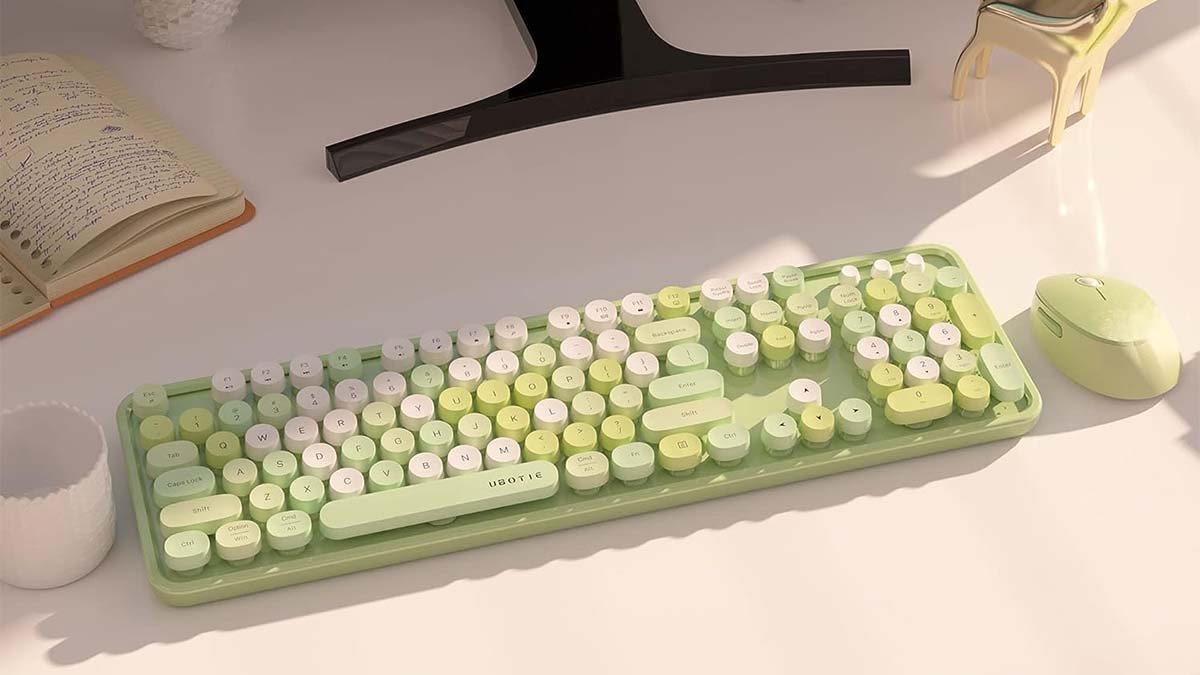
Yaan teech jump'éel teclado Ubotie yéetel k'áato' conectar jump'éel teclado Ubotie ti' u dispositivo, ba'ale' ma' in wóojel bix in nupikubáaj. Bey túuno' ma' a chi'ichnaktal, waye' yaan jump'éel náakake' u yaak'il detallada yóok'ol bix conectar jump'éel teclado Ubotie!
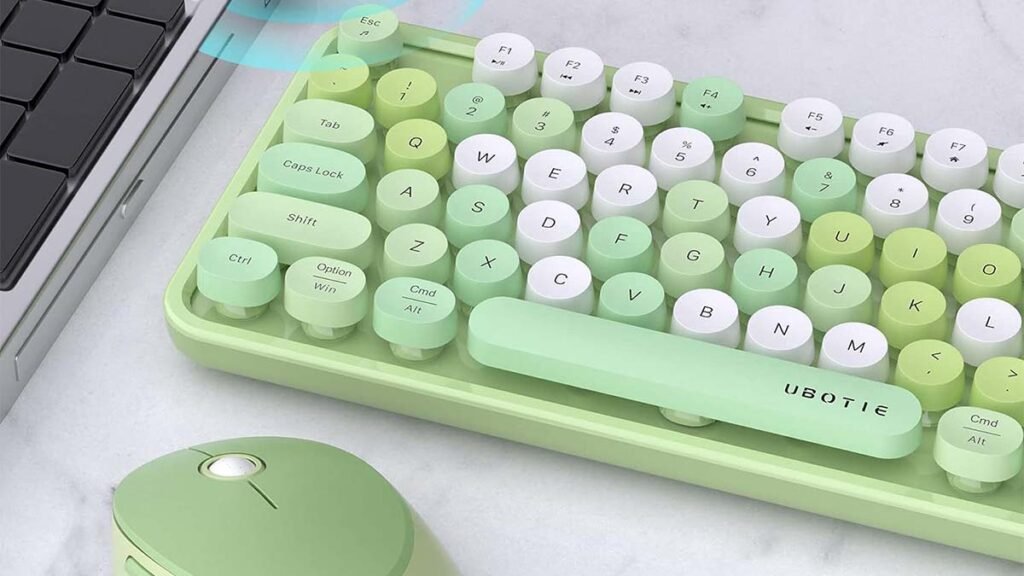
Le teclado Ubotie jach jump'éel chan teclado Bluetooth ku beeta'al tumen máquinas ts'íib retro senior. Le tecladoa' yaan ti' jejeláas boonilo'ob. Le 84 diseño teclas ku beetik u le teclado Ubotie asab embalado yéetel apretado.
Ma'alob xma' k'astal k'iin yaan k máan tumen le procesos utia'al u conectar jump'éel Teclado Ubotie ti' a dispositivo.
Bix u conectar jump'éel teclado Ubotie ti' jump'éel MacBook
Utia'al u conectar jump'éel teclado Ubotie ti' jump'éel MacBook, yaan a t'u'uchpachtik le wook in continuación mencionados:
- Tu yáax kúuchil, k'a'abéet a wilik wa t'aba'an a teclado. Je'el u páajtal a t'abik a teclado wa ka ts'áaik ka'ap'éel baterías triple A tu paach le tecladoo', ti' orden wa mina'an mix jump'éel botón t'aba'an ti' u teclado Ubotie. Bey u, a teclado yaan u wenel ka tu láak' yaan u jóok'ol tu juunal.
- Ka' lelo', k'a'abéet a activar le modo Bluetooth ti' u teclado Ubotie. Je'el u páajtal a beetik le je'ela' chéen yéetel u péets'k'abtik le ‘Fn’ yéetel ‘C’ teclas in wéet k'iin tak ka le LED Bluetooth Káaj u parpadear ti' le teclado. Wa le LED ku káajal u léembal túun u k'áat u ya'al u teclado táan ti' modo emparejamiento yéetel táan preparado utia'al u conectar ti' le MacBook.
- Bejla'e', yaan a bin ti' le MacBook ka tu láak' yaan a Je'e le preferencias Bluetooth. Le método asab séeba'ano' leti' u kaxtik “Bluetooth” ti' le xookilo' Spotlight, túun yaan a beetik clic ti' enter.
- Ti' le tsoolol nu'ukulo'ob, k'a'ana'an a wilik u teclado Ubotie ts'íibta'an. Láayli', wa ma' tu páajtal u yila'al tu séeba'anil túun yaan a pa'atik yaan segundos tumen je'el u bisik biin k'iin uti'al u ch'a'abal le MacBook. Le ken a wilmaj a teclado Ubotie inclinado wa listado, yaan a beetik clic ti' le 'Conectar’ botón yaan tu tséel. Bey u dispositivo táan conectado belal, k'a'abéet a beetik clic ti' FN + E utia'al u iniciar le teclado ba'ax yaan ti' jump'éel dispositivo Mac OS.
- k'a'abéet a beetik clic ti' FN + Q/W/E (Androje, IOS, Windows, tu jujuntúulal), uti'al u k'e'exel sistemas ( ti' le noj je'ela' wa táan a conectar ti' jump'éel aparato jela'an)
- Bejla'e', a teclado Ubotie yéetel a MacBook yaan u ts'a'abal u nupikubáa, ken ts'o'okok a beetik clic ti' 'Conectar'. Le conexión próspera yaan u provocar jump'éel t'aan ye'esik, ku ya'alik ts'o'ok a emparejado yéetel a ordenador portátil belal. Le ‘Bluetooth’ LED yaan u p'atik u tuukul ti' u teclado Ubotie, u k'áat u ya'al jump'éel conexión exitosa.
Bix u conectar jump'éel teclado Ubotie ti' iPad
Utia'al u conectar jump'éel Ubotie Teclado ti' jump'éel iPad, je'el u páajtal a meyajtik ka'ap'éel jejeláas métodos. Le métodos ku utilizar Bluetooth yéetel utilizar receptor Bluetooth.
Método # 1 Meyajtiko'ob Bluetooth
Le yáax método jach u conectar jump'éel teclado Ubotie ti' le iPad yo'osal u búukinta'al Bluetooth. Utia'al le ba'ala', Yaan a t'u'uchpachtik le k'iino'oba' wook::
- Tu yáax kúuchil, k'a'abéet a t'abik le Bluetooth ti' a iPad. Tu láak' yaan a bin le configuración.
- Ka' lelo', k'a'abéet a péets'k'abtik le Bluetooth. yéetel yaan a t'abik le Bluetooth.
- Bejla'e', k'a'abéet a yutskíintik le baterías ti' a teclado Ubotie, túun yaan a machik “Fn” y “C” tak ken u LED le indicador Káaj u parpadear.
- Láak', k'a'abéet a bin ti' u configuración Bluetooth a iPad. Túun, yaan a t'óochpajal ti' le dispositivo xookilo'. yaan u ye'esik “kíinsa'al” te' pantallao'. Bey u, k'a'abéet a pulsar ti' Pair Now ka conectar tu.
Método # 2 Meyajtiko'ob receptor Bluetooth
Utia'al u conectar jump'éel teclado Ubotie ti' jump'éel iPad, bix u meyaj juntúul receptor Bluetooth yaan u beel le utsil método uti'al tech. Ku ts'o'okole', k'a'abéet a yéeyik le método wa yaan talamil yéetel a iPad Bluetooth.
Ma' je'el u páajtal a conectar jump'éel teclado Ubotie ti' je'el ba'ax dispositivo xma' Bluetooth tuméen leti' jump'éel teclado basado ti' Bluetooth. Ch'e'eno', k'a'abéet a t'u'uchpachtik le t'aano'ob ku ya'ala'al te'ela' uti'al a conectar jump'éel teclado Ubotie ti' le iPad usando jump'éel receptor Bluetooth.
- Tu yáax kúuchil, yaan a maan jump'éel receptor Bluetooth yéetel xan jump'éel convertidor USB uti'al a iPad.
- Túun, k'a'abéet a conectar le convertidor USB ti' a iPad ka tu láak' conectar le receptor Bluetooth ti' le convertidor USB.
- Bejla'e', le iPad yaan u k'amik le conexión Bluetooth ti' le receptor Bluetooth. Bey u, yaan a bin táanil ti' le configuración. Waye, k'a'abéet a péets'k'abtik le Bluetooth. ka tu láak' yaan a t'abik le conexión Bluetooth ti' le receptor.
- Ka' lelo', k'a'abéet a arreglar le baterías ti' u teclado Ubotie, túun yaan a p'atik “Fn wa función” y “C” tak ken u LED le indicador Káaj u parpadear.
- Láak', k'a'abéet a bin ti' le configuración Bluetooth ti' le iPad ka tu láak' yaan a pulsar ti' le dispositivo xookilo'. yaan u ye'esik “kíinsa'al” te' pantallao'. Tu láak' yaan a pulsar ti' Pair bejla'e' ka conectar tu.
- Ch'e'eno', bejla'e' le teclado Bluetooth Ubotie táan conectado belal ti' u iPad yo'osal le método u búukinta'al jump'éel receptor Bluetooth.
FAQs of Connect A Ubotie Keyboard
Bix je'el u páajtal a t'abik u sáasil u paach le teclado Ubotie?
Utia'al le ba'ala', k'a'abéet a kaxtik le botón t'aba'an ichil le teclas ti' a teclado ka tu láak' t'abik.
A teclado Ubotie compatible yéetel a dispositivo?
Je'el, le increíble teclado Ubotie jach compatible yéetel consistente yéetel juntúul amplia gama jejeláas dispositivos, je'el bix Macs, laptops, yéetel computadoras Windows.
Je'el wáaj a ajustar le boonilo'ob yéetel lets'bal le retroiluminación?
Je'el, u ka'ap'éel boonilo'ob yéetel u sáasil le configuración retroiluminación u jejeláas boonilo'ob ku ajustables.
Conclusión
Kexi', wa yaan teech jump'éel teclado Ubotie yéetel tech táan ti' jump'éel solución utia'al u conectar yéetel u dispositivo túun le artículo ti' yaan u yáantiko'ob ya'ab. Way yaan óol tuláakal ba'ax k'a'abéet a wojéeltik uti'al a conectar jump'éel teclado Ubotie ti' a dispositivo!